
Check-in & Check-out
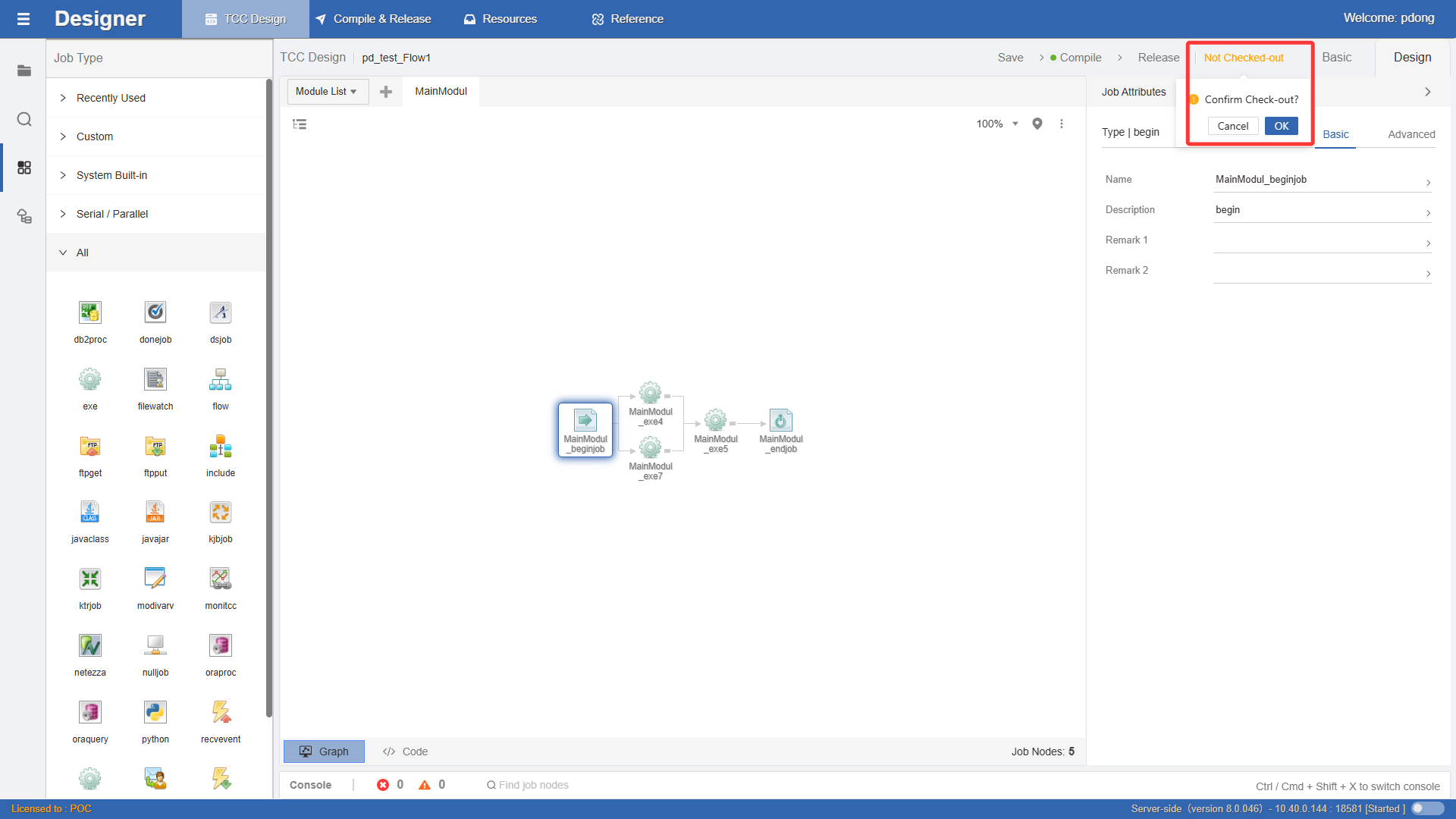
To enable team collaboration, Designer uses a check-in and check-out mechanism to ensure atomicity of scheduling metadata. When you need to perform operations (design and delete), the software will automatically prompt whether you need to check out to obtain editing permissions.
When the resource container is not checked out, it is displayed in yellow highlighted text, indicating that no design editing can be performed on this container, and you need to check it out first.
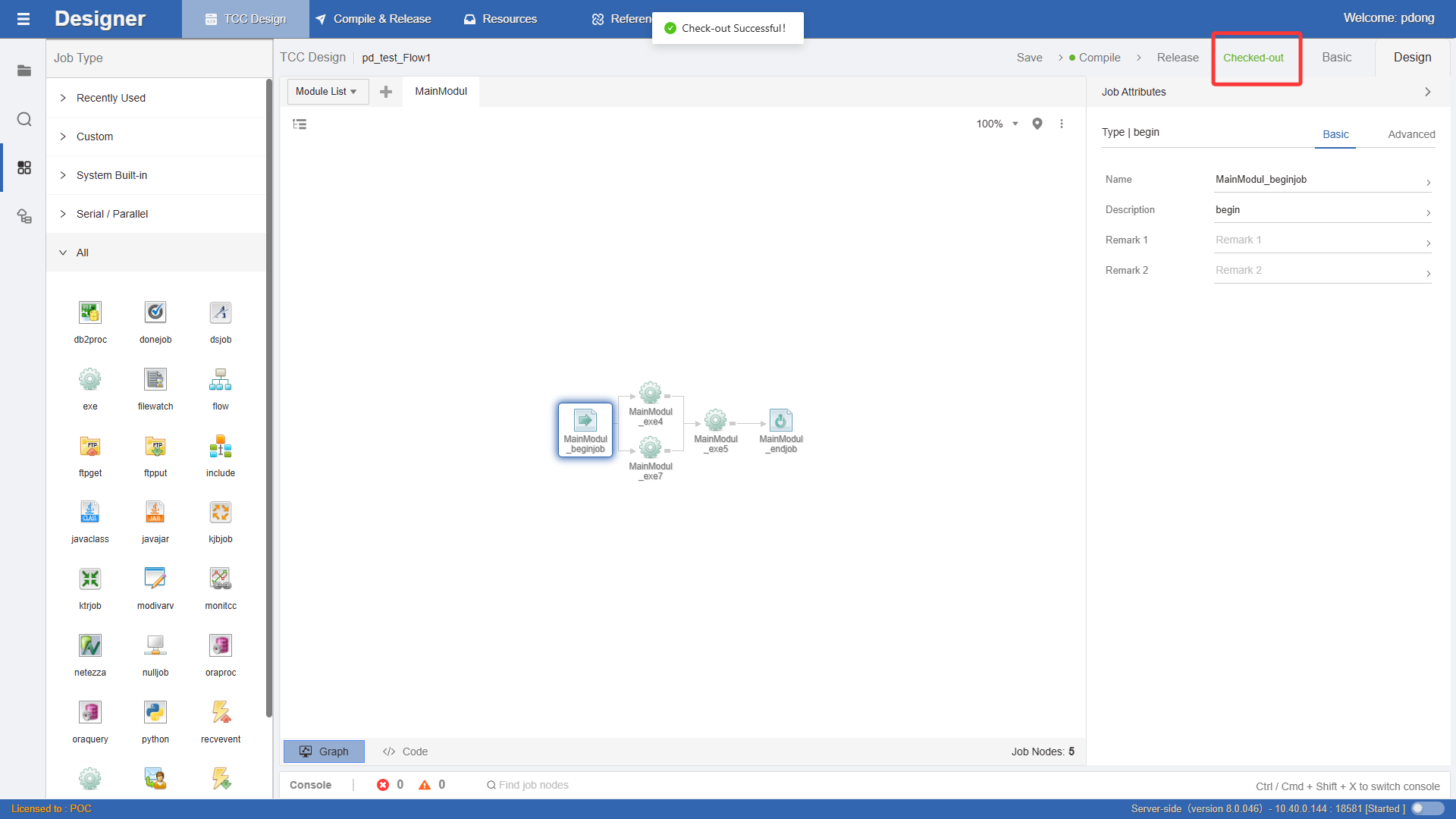
After successful check-out, the resource information is displayed in green text, indicating that editing operations can be performed, as shown in the figure below:
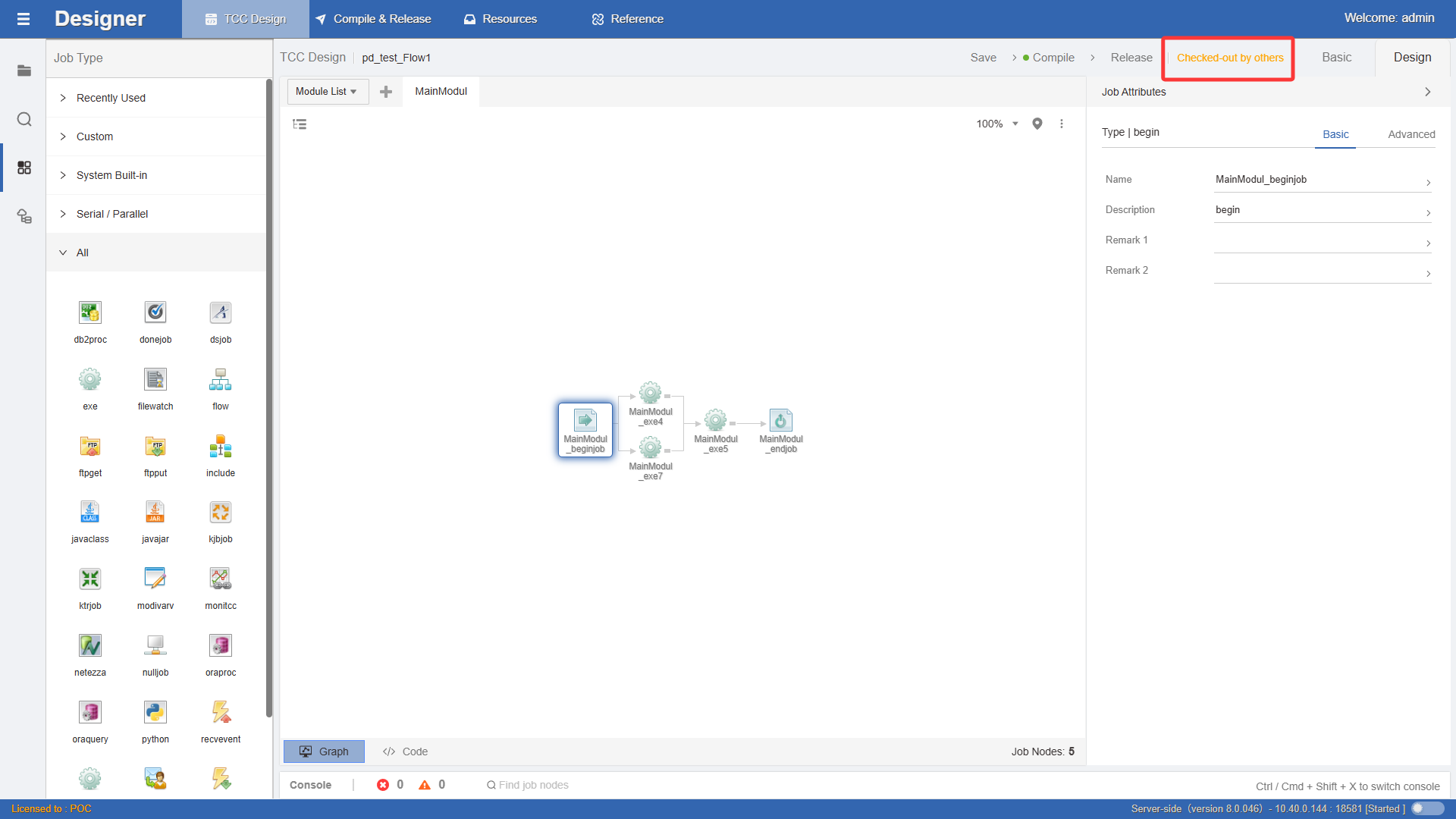
When checked out by another user, the resource information is displayed in yellow text showing Checked out by others, and editing operations cannot be performed, as shown in the figure below:
You need to wait for the other user to check in before you can obtain editing permissions. Note: If the application platform is closed illegally (such as browser crash), the currently checked-out resource will lose editing permissions. The system will automatically check it in after 30 minutes. You can then check it out again. Additionally, the Admin function module provides a forced check-in feature for administrators to batch check in all TCCs that are checked out.