
Designer Overview
Overview
Design is the core module in the scheduling software for container design and management. It is mainly used to complete container creation, design, verification, and publishing. Through the Design module, users can design job execution workflows in graphical or code-based ways, and publish the completed containers to the system runtime environment for use by the monitoring module.
The Design module adopts a layout of top menu bar + bottom function page. The top menu is used to switch between different design-related pages, and the bottom area displays the operation content of the corresponding page.
Control Container
The Control Container is the core page of the Design module, used to complete container design.
There are three types of design containers: MainFlow, JobFlow, and Timer. The application scenarios for these three design containers can be briefly understood as: MainFlow containers can implement system job automated execution, JobFlow containers are for one-time system execution that cannot be repeatedly automated for batch runs, and Timers can batch-run specific or multiple system jobs at custom time periods or dates. Users can select and create based on their actual system job requirements.
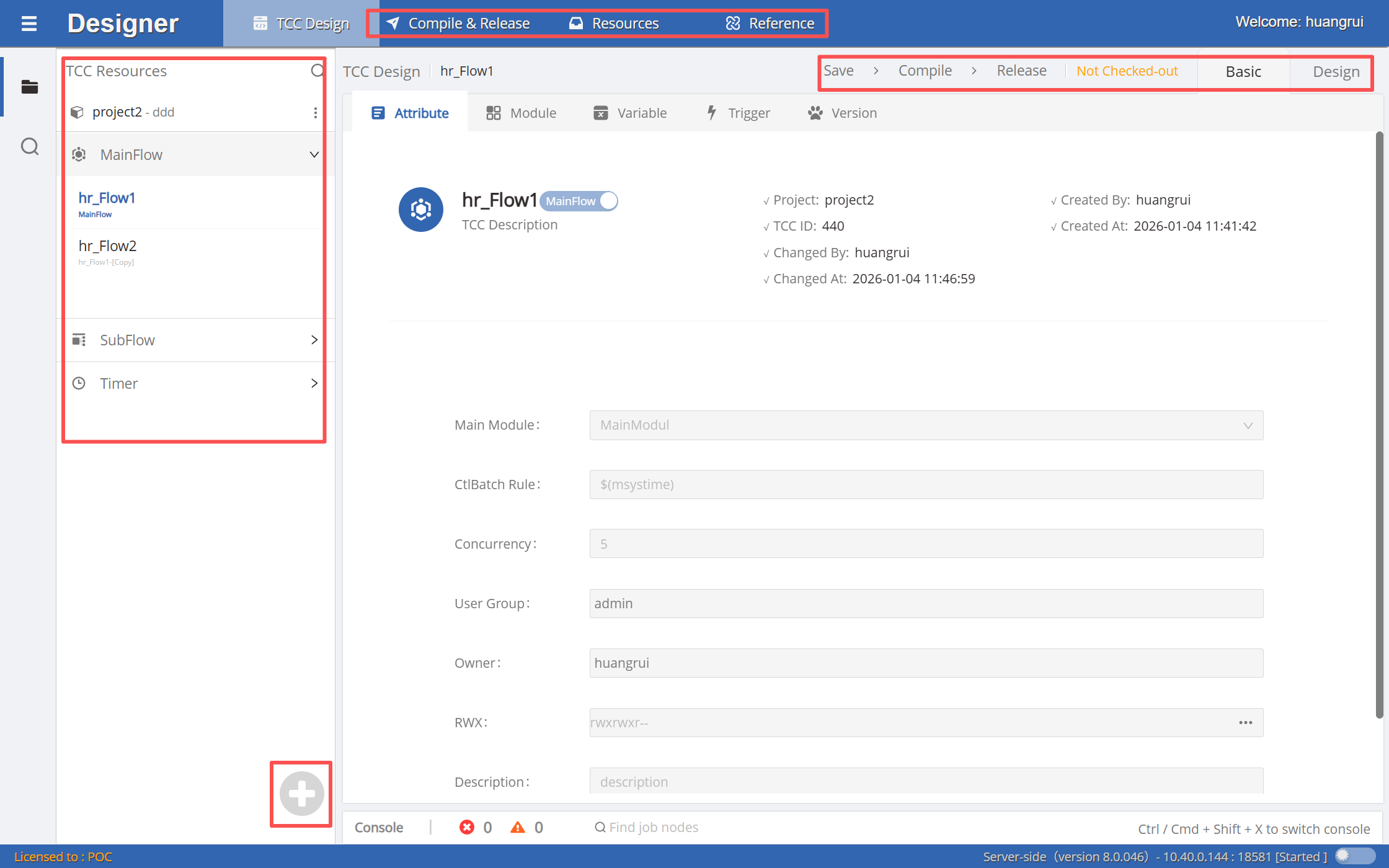
The left side of the page shows the resource tree structure, with the top-level node being the project name. Project switching is supported via a dropdown.
Under the second-level directory, specific container instances are displayed. Click the + button in the bottom-left corner to add a new container.
When users select different containers, the right area will display the corresponding container design page.
The top of the right container design area provides an operation menu, including: Save, Compile, Publish, Check In, Check Out, Basic Info, Container Design.
Containers allow design content modification in checked-out state, and support viewing only in checked-in state.
Design Mode
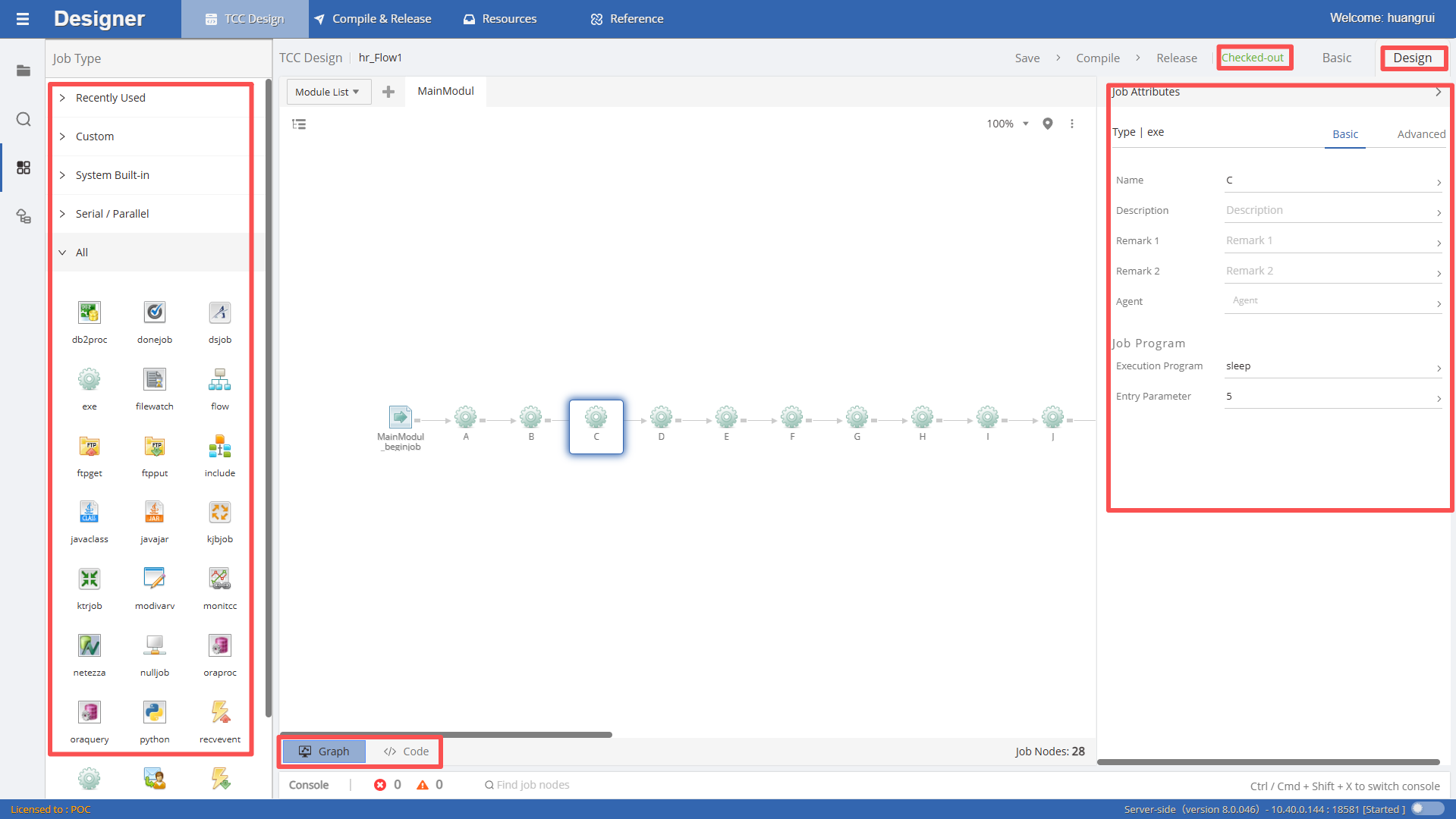
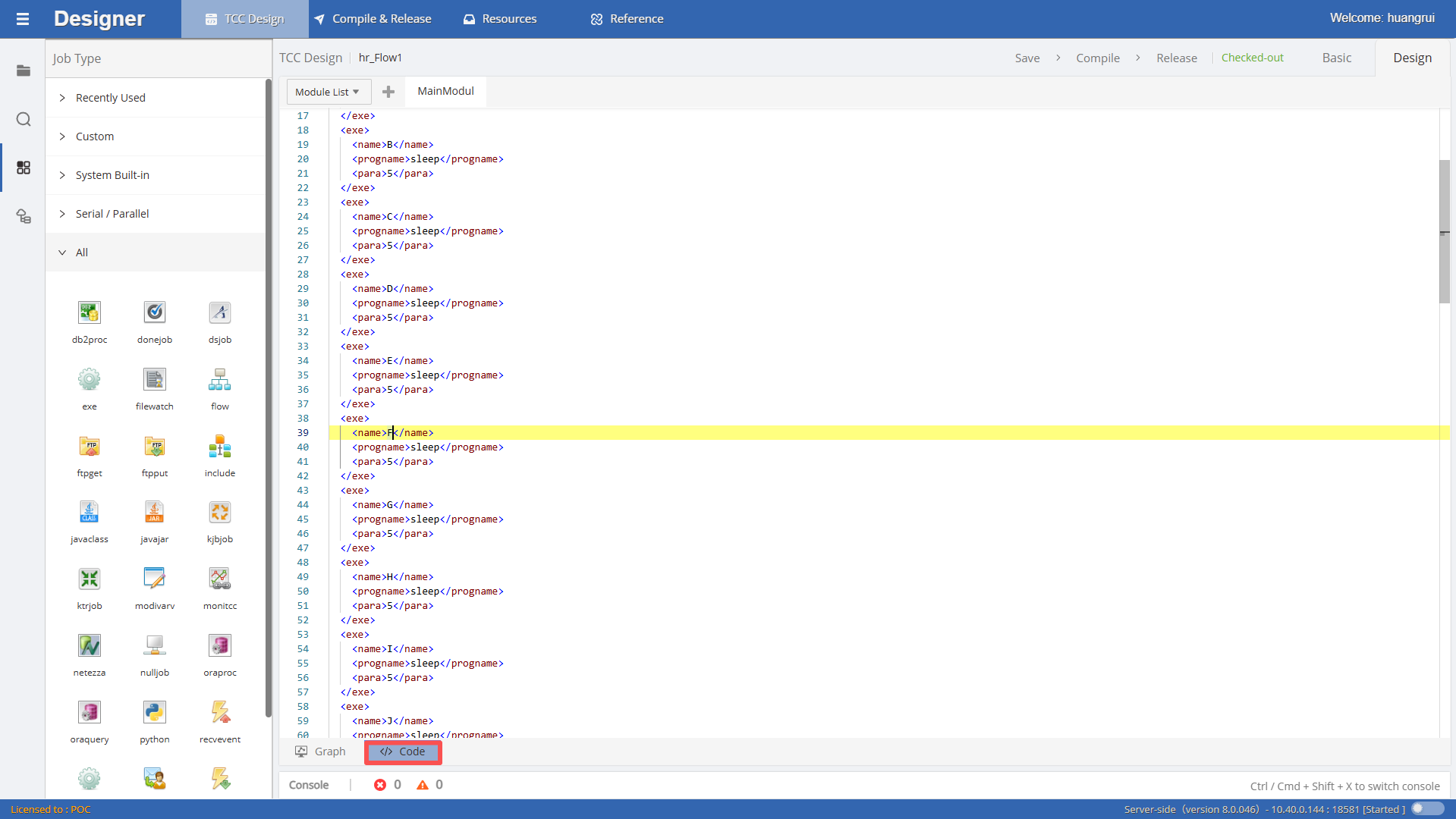
In the container design page, users can switch between different design modes via the View / Code button in the bottom-left corner:
- View Mode: Displays the execution relationships of jobs within the container in DAG diagram form
- Code Mode: Displays and edits the XML description file corresponding to the DAG diagram
In View mode, the resource tree on the left side of the page switches to a job type tree, containing system-built-in job types and user-defined job types.
Users can drag and drop job nodes onto the DAG diagram using the mouse, supporting serial and parallel structure design.
After selecting a job node in the DAG diagram, the right side will display the basic configuration information of that job.
In Code mode, container design can also be completed directly by editing the XML file.
Compilation and Publishing
After container design is complete, you must perform Save, Compile, and Publish operations in sequence.
- Save: Saves current container design content to the server
- Compile: Validates the container XML, including syntax, special characters, and resource references
- Publish: After compilation passes, publishes the container to the system runtime environment Click on compilation information in the console to quickly locate the problem position in the graphical view or code view.