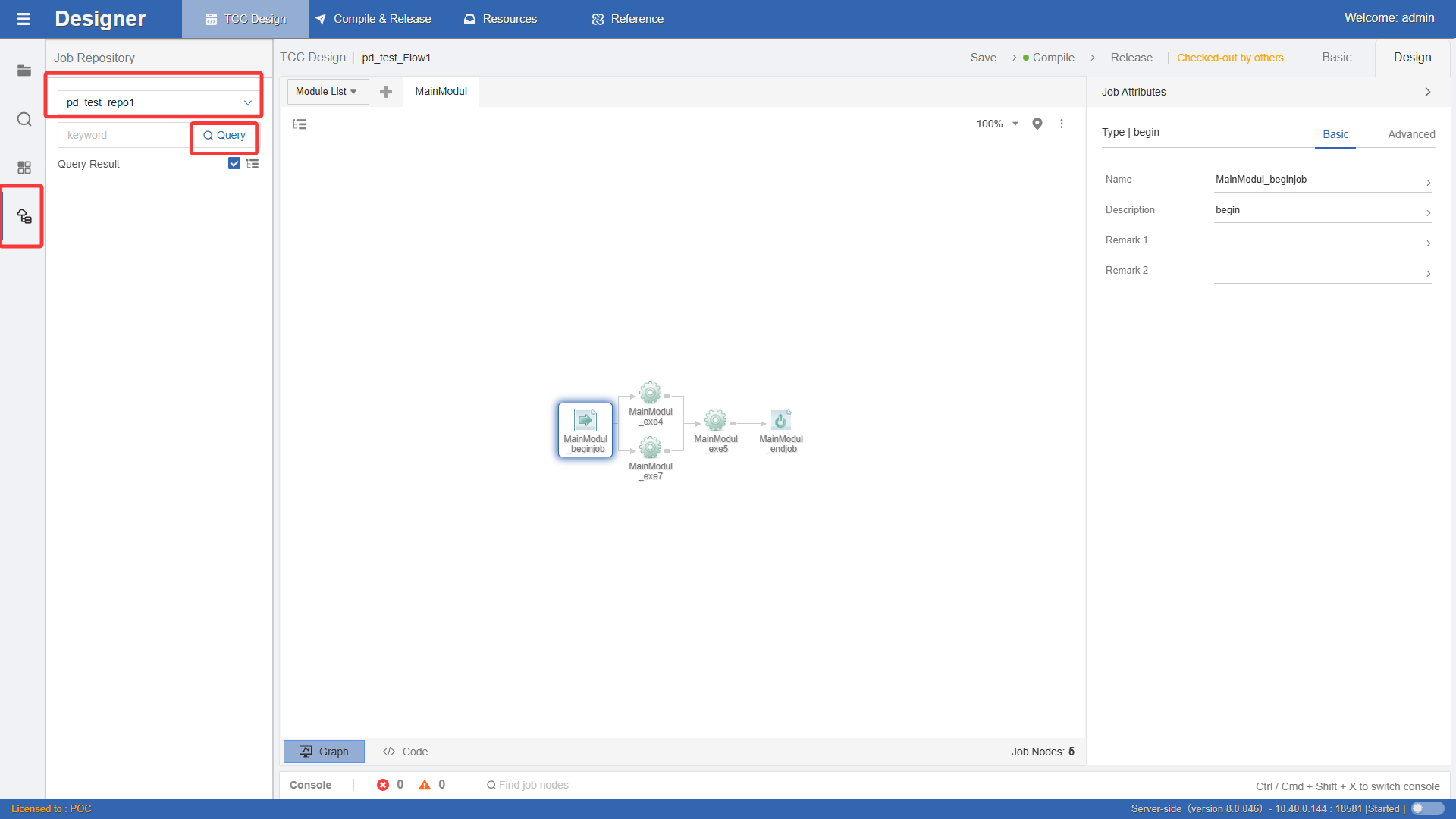
Design Resources
Design resources refer to resources that can be used in control container design. Currently, resources such as project variables, scheduling calendars, and job libraries are provided.
The platform uses project scope to manage design resources. Control containers can only use design resources within their own project. The project options in the navigation area can switch between application projects to filter corresponding design resources.
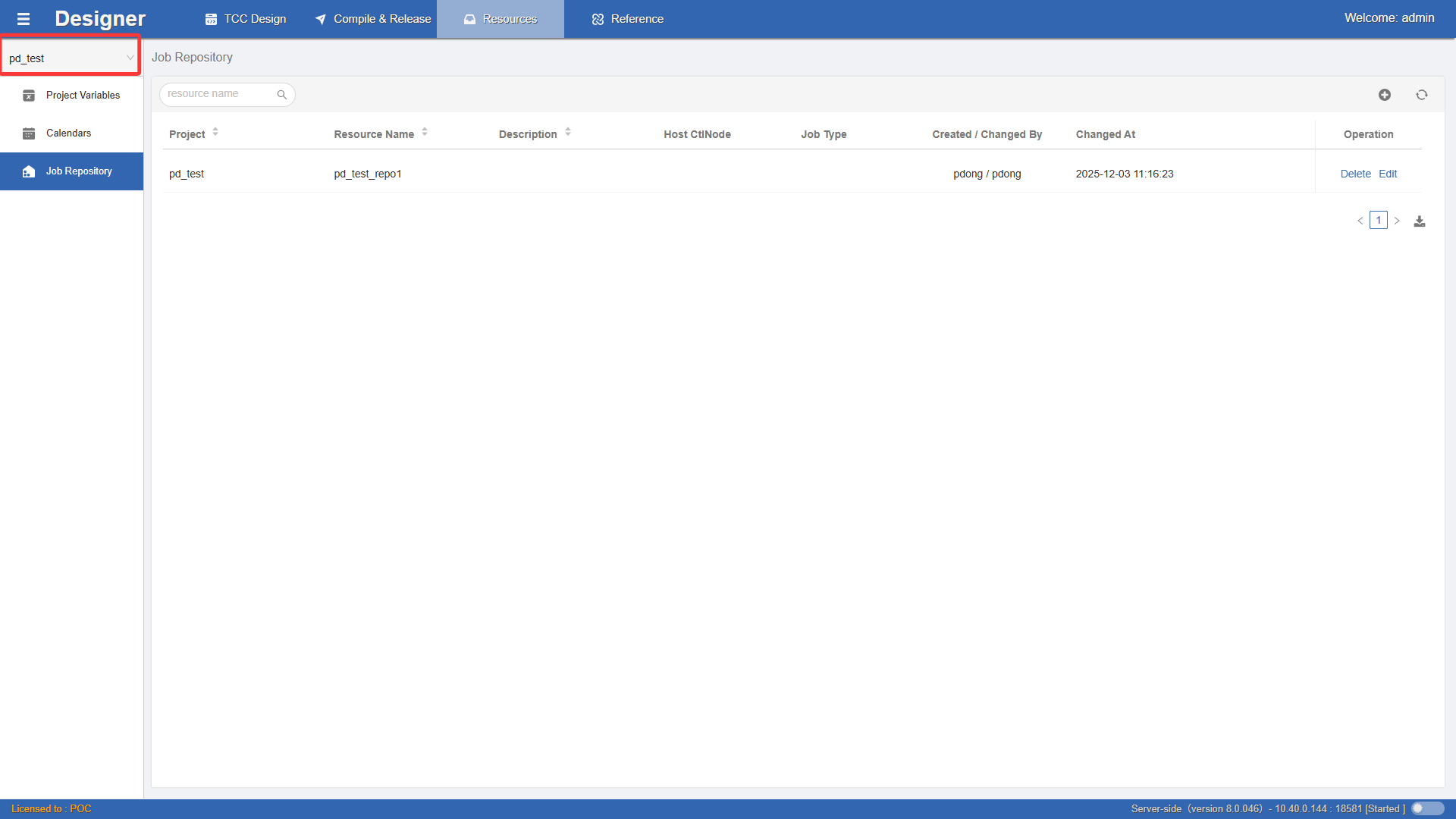
Project Variables
Project variables are valid throughout the project scope. All control containers and all jobs under the project can reference project variables.
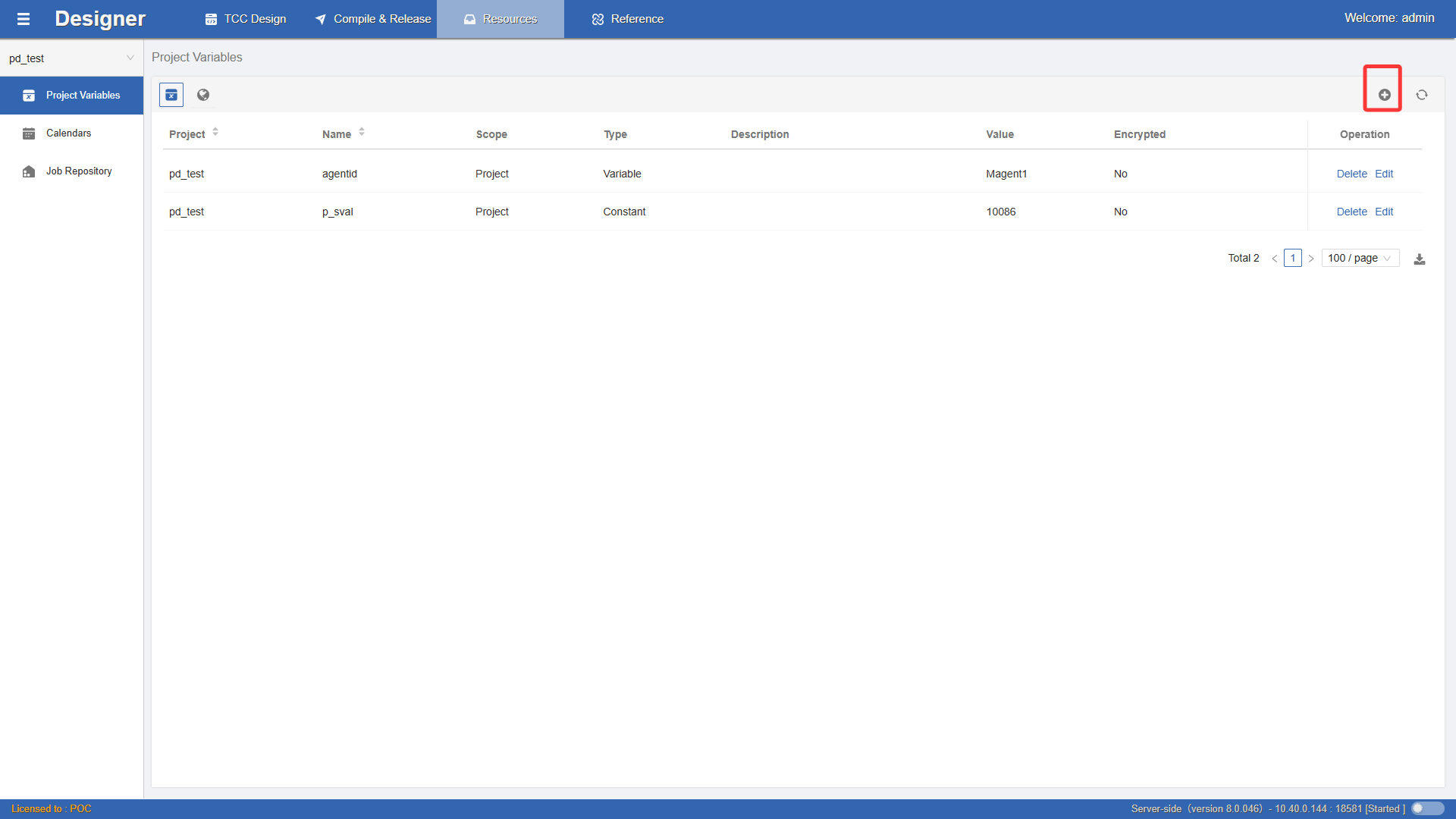
Create Project Variables
Click the Project Variables button on the left to query the project variables of the current project. Click the + button to add a new one.
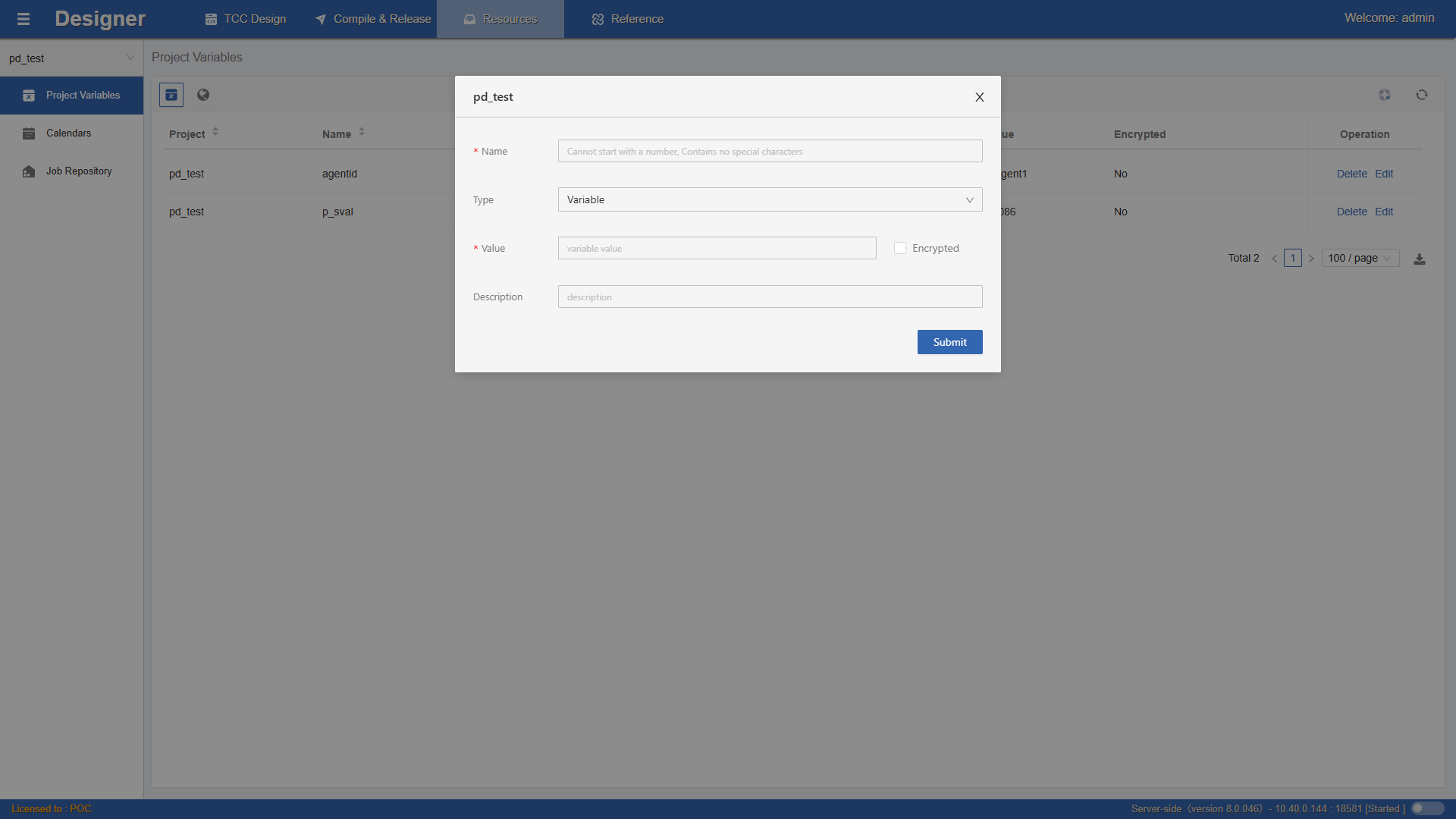
Variable names are unique throughout the platform. Please manage variable naming rules properly. Variable Type
- Ordinary Variable: Can be changed manually or automatically during control container runtime (Monitor monitoring platform).
- Logical Date: A special type of ordinary variable, mainly used for scheduling workflow-type control containers by logical date plan.
- Constant: Cannot be changed during control container runtime.
Variable Value Encryption
Once a variable value is encrypted, it cannot be changed back to an unencrypted state. Encrypted variables are displayed as ****** during runtime.
Edit Project Variables
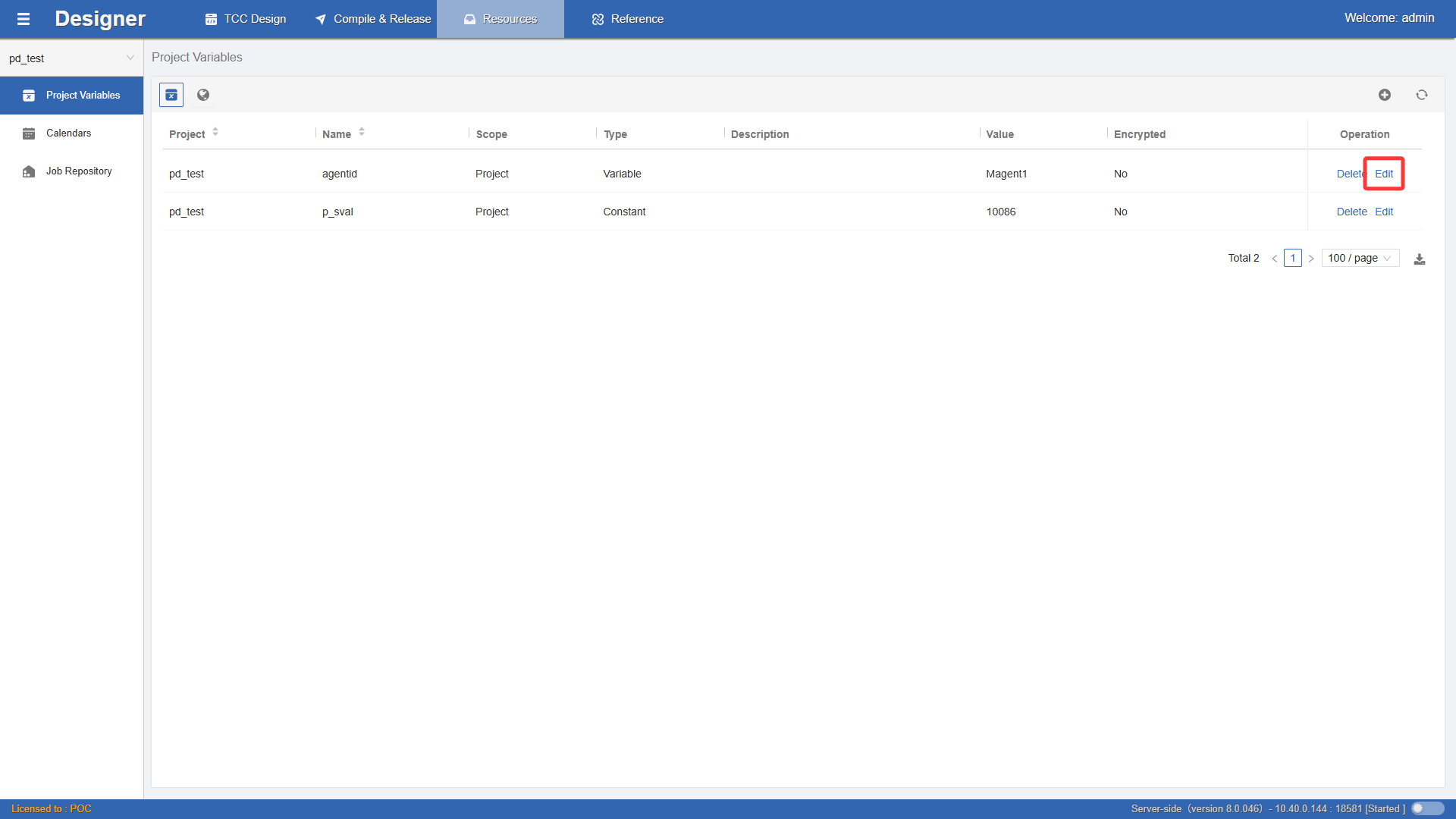
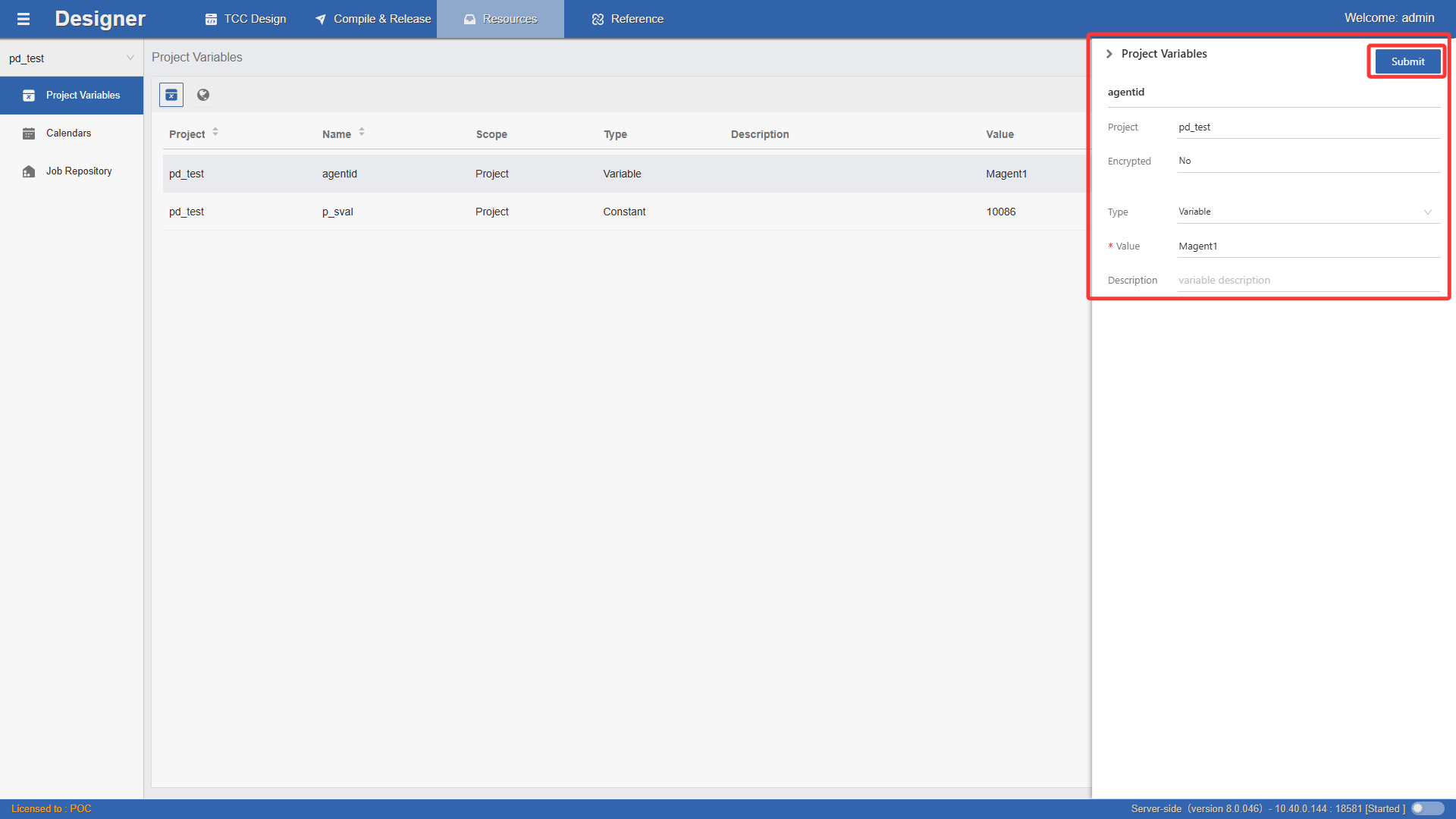
Click the Edit button on the data row, modify the variable information, and click Submit.
Delete Project Variables
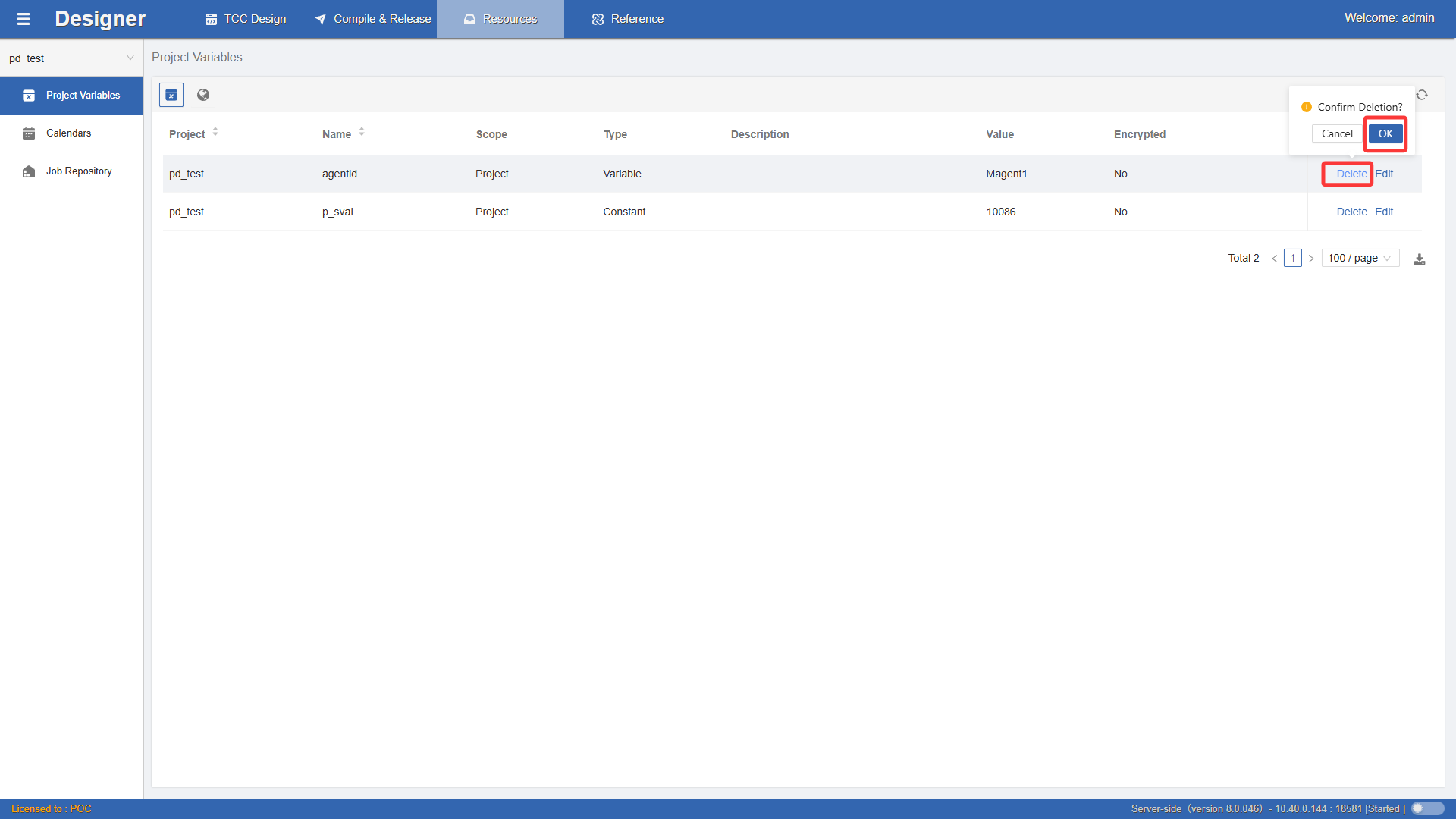
Click the Delete button on the data row to confirm and delete the project variable.
View Platform Variables
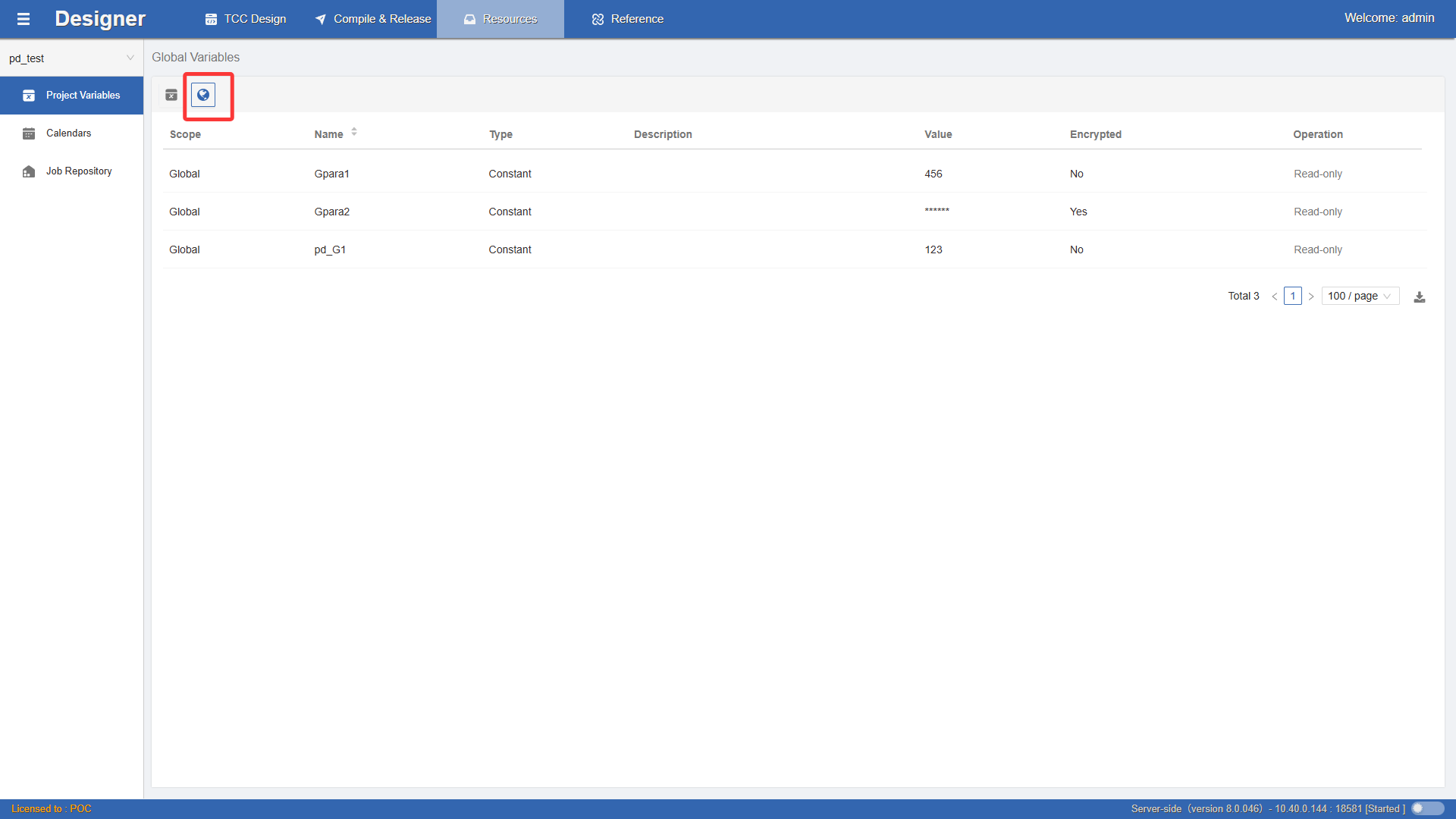
To facilitate querying platform variables during the design process, click the button in the top-left corner to view the current system platform variables.
Calendar Resources
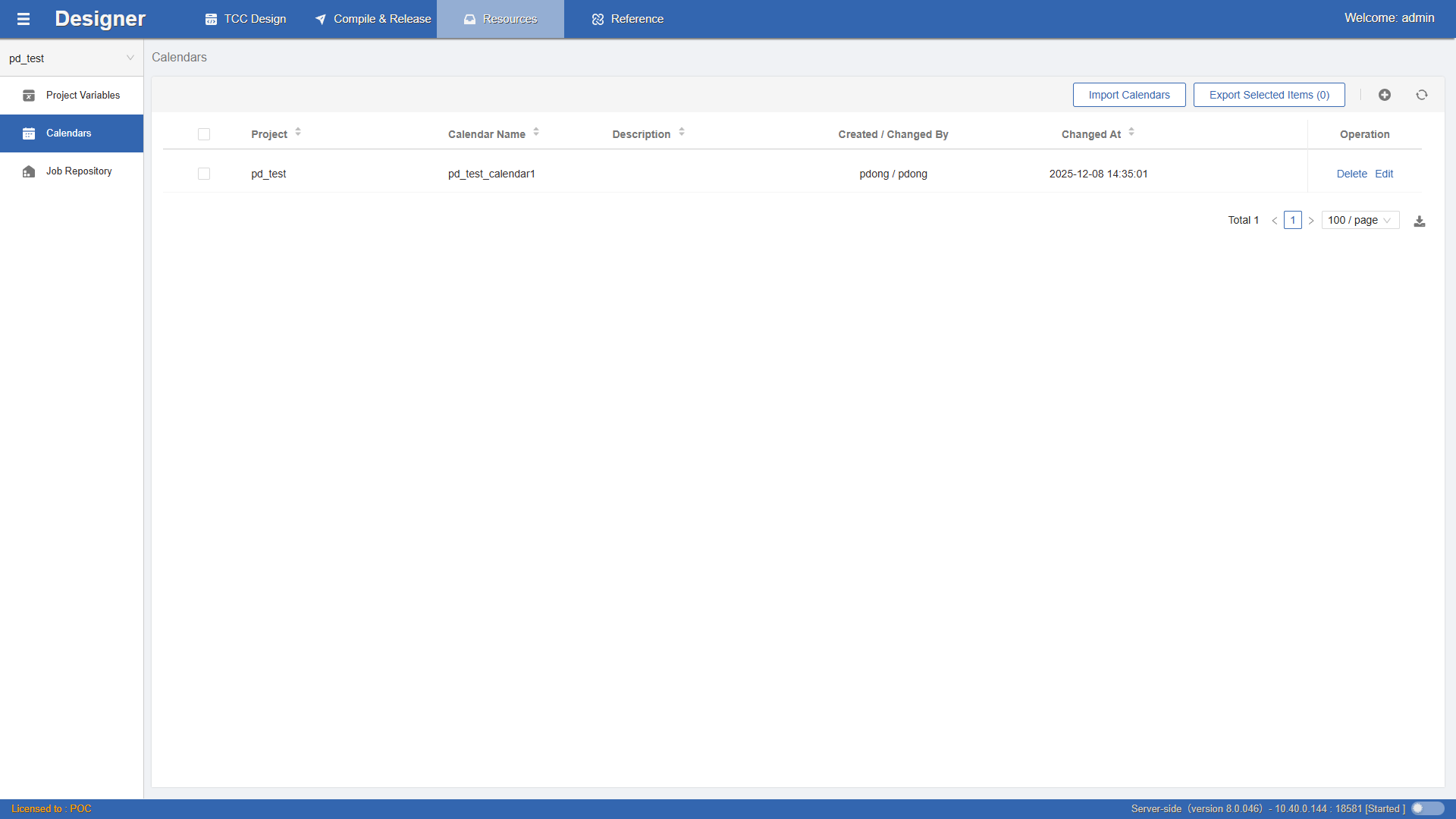 For the
period date plan attribute of workflows, in addition to using expressions to define date plan rules, you can also reference calendar resources to achieve more personalized date plan scheduling needs.
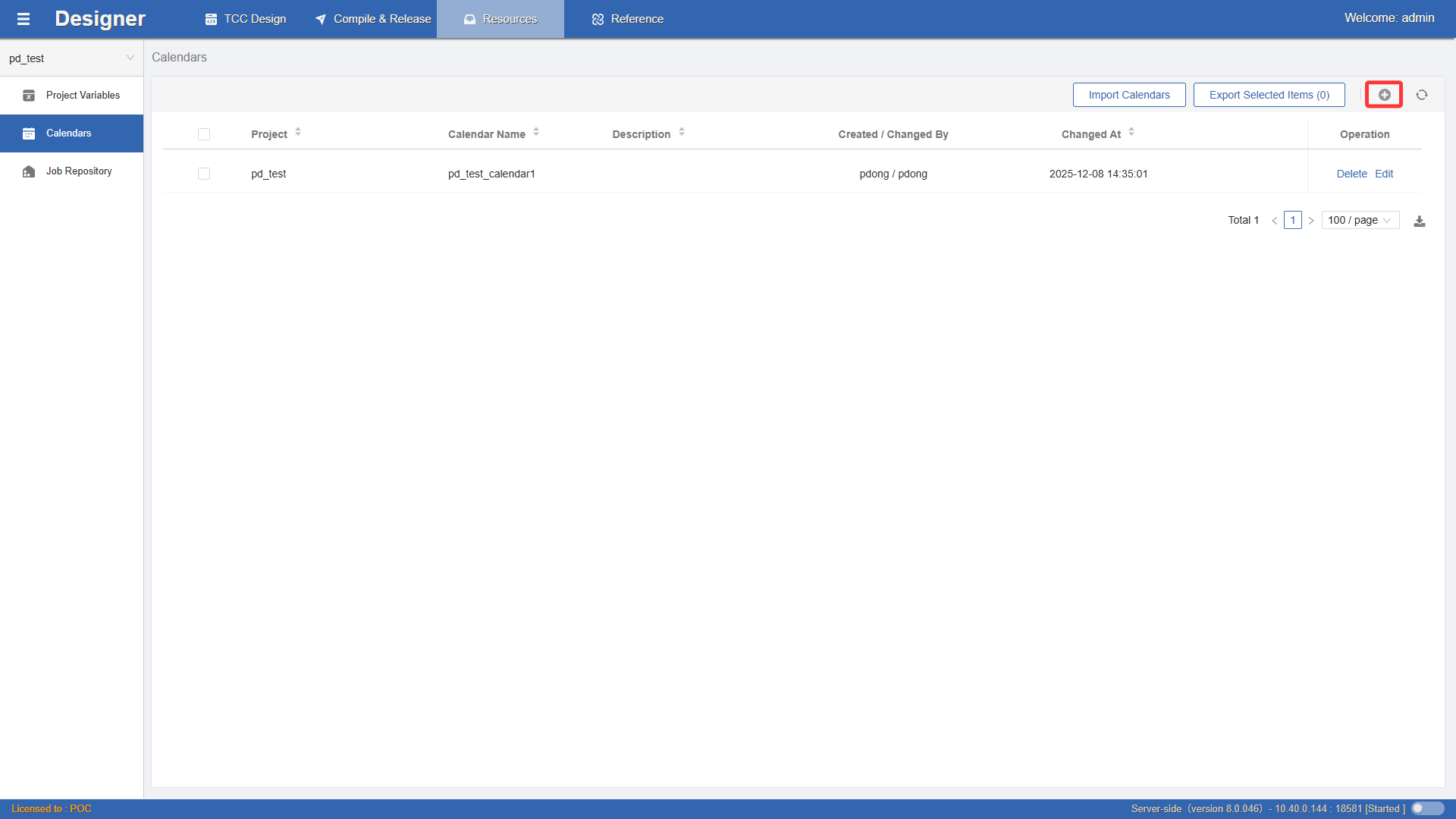
Create Calendar Resources
Click + to open the create calendar resource window, as shown:
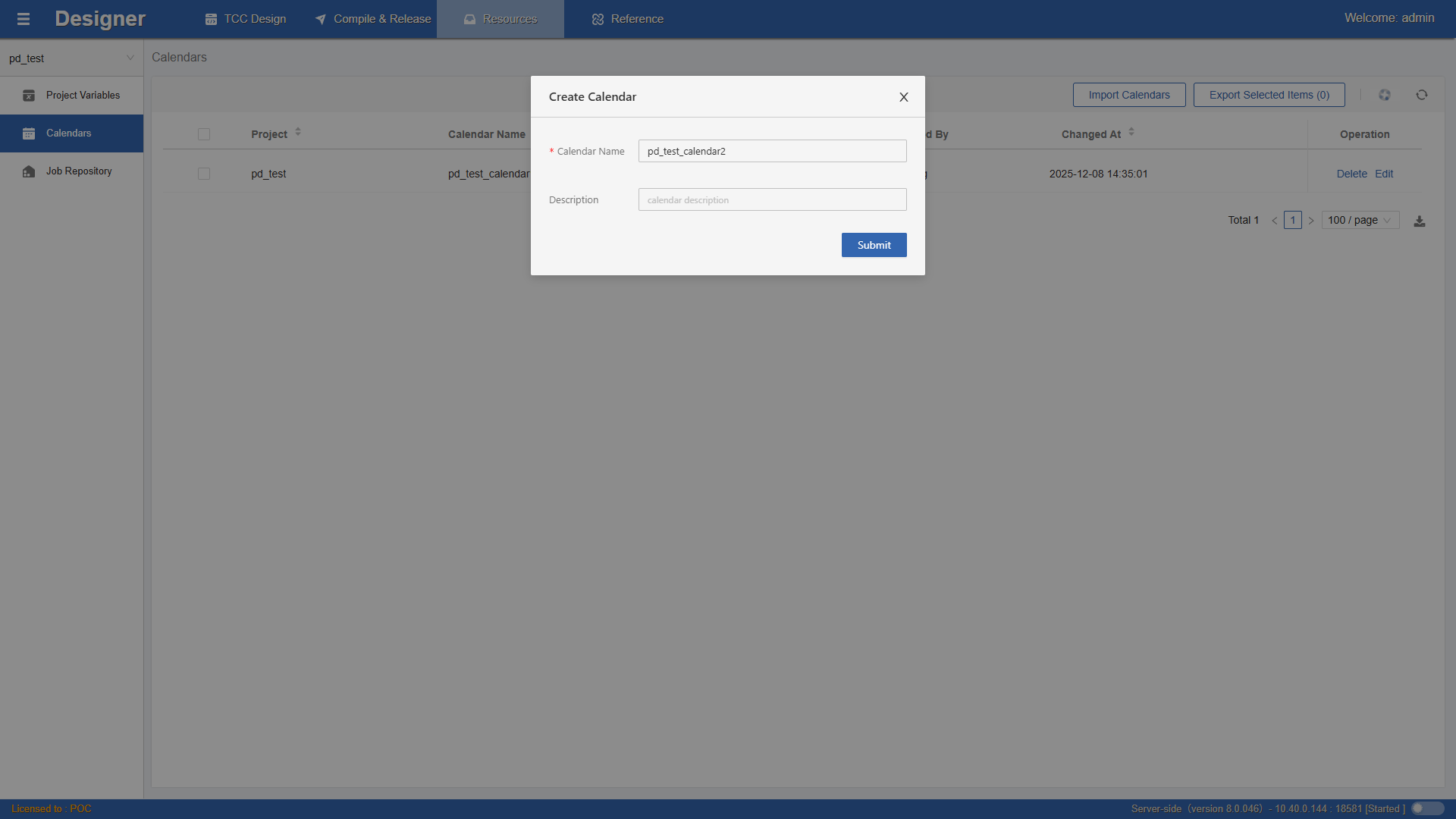 Confirm the calendar resource name and description. The calendar resource name must be unique within the project. Complete the creation. After creation, the calendar resource still needs further date editing.
Edit Calendar Resources
Click the Edit button on the data row to open the edit sidebar and modify the calendar resource information
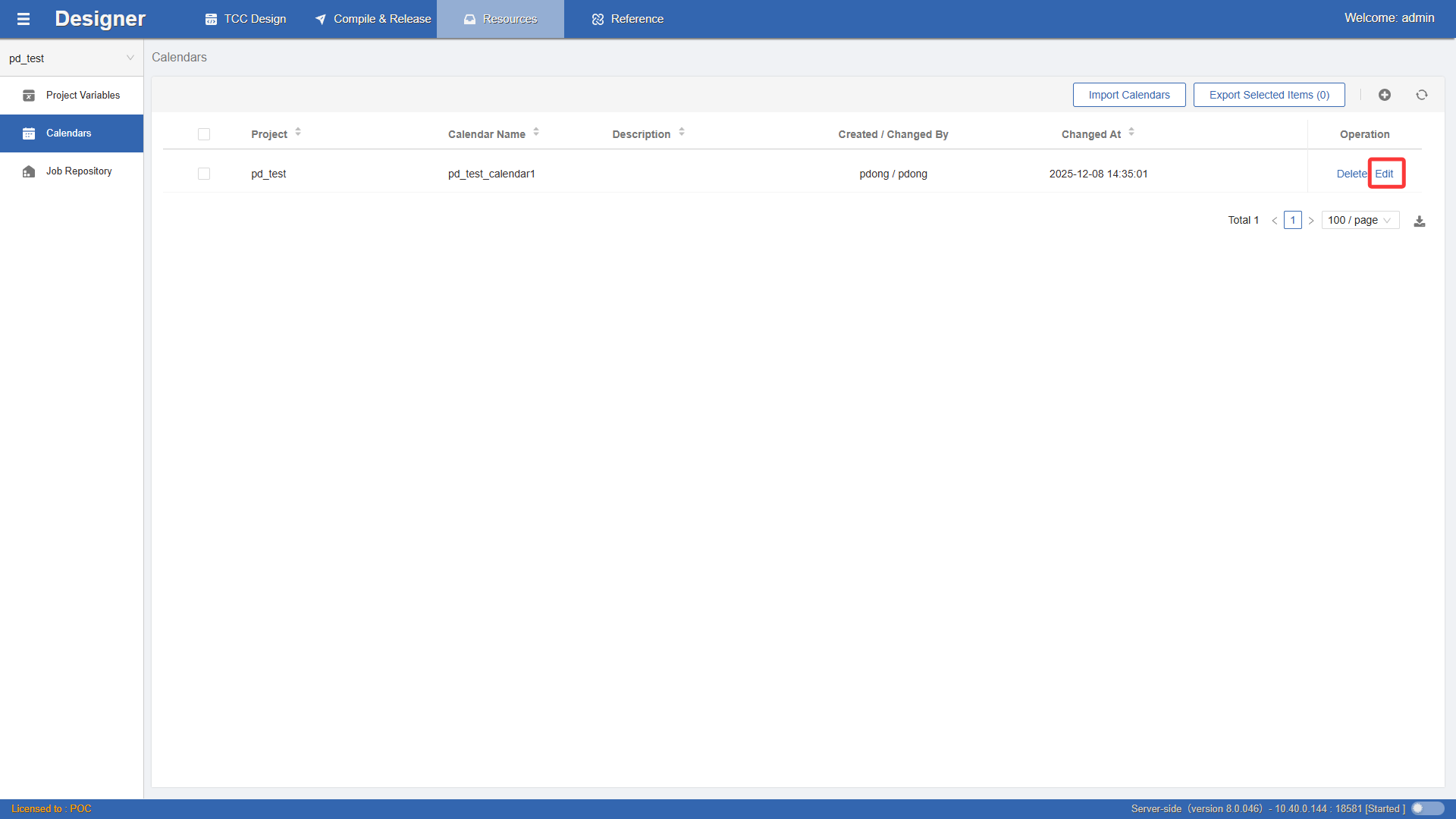
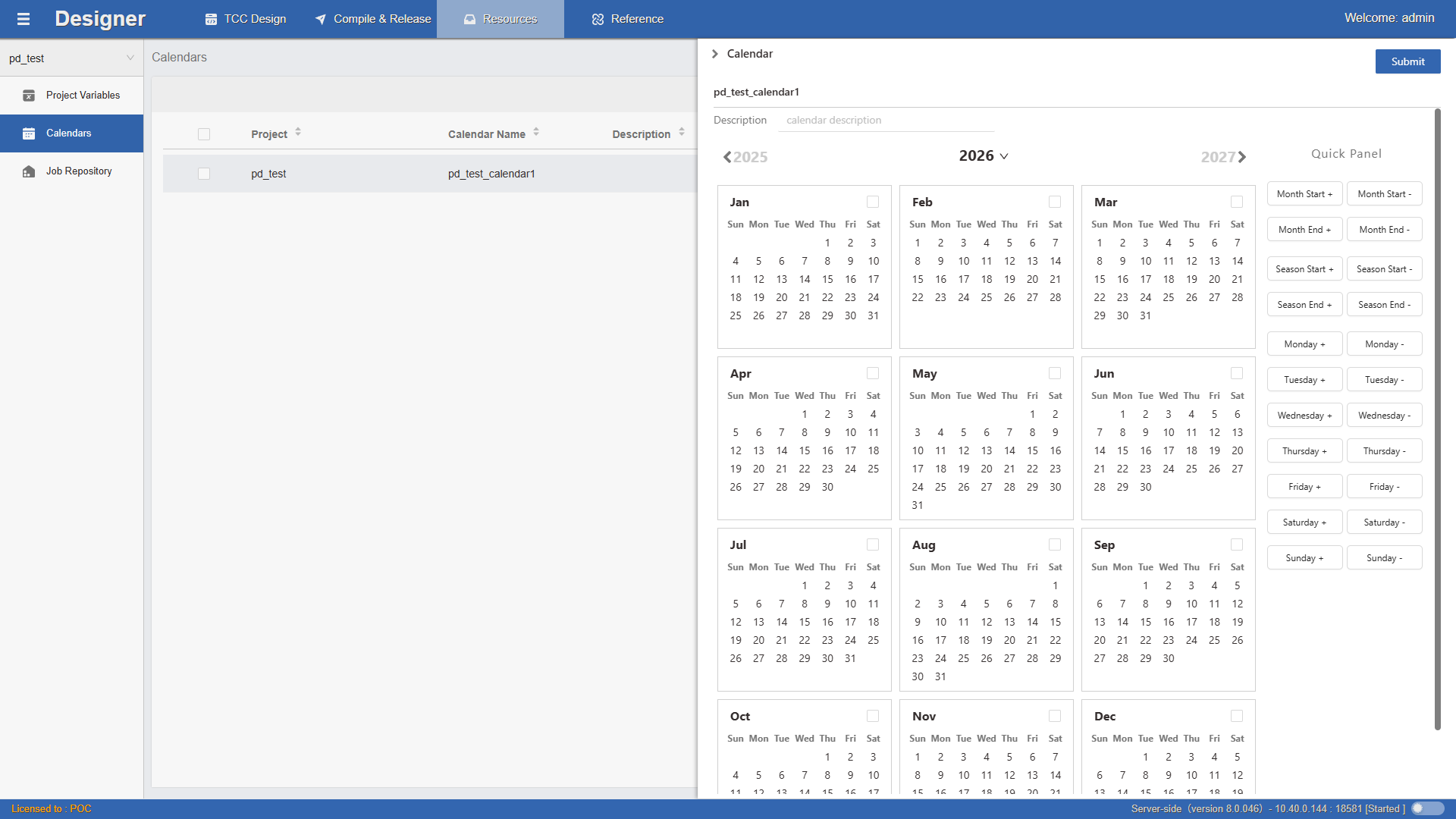 The calendar selection panel displays the current year's monthly calendar by default. Year navigation facilitates switching between multiple years. Light up date options in the calendar, and jobs will run. Unlit date options show jobs in
Out of Scheduled Period Pass state.
The shortcut panel provides quick selection or deselection functions for dates by month, quarter, week, etc.
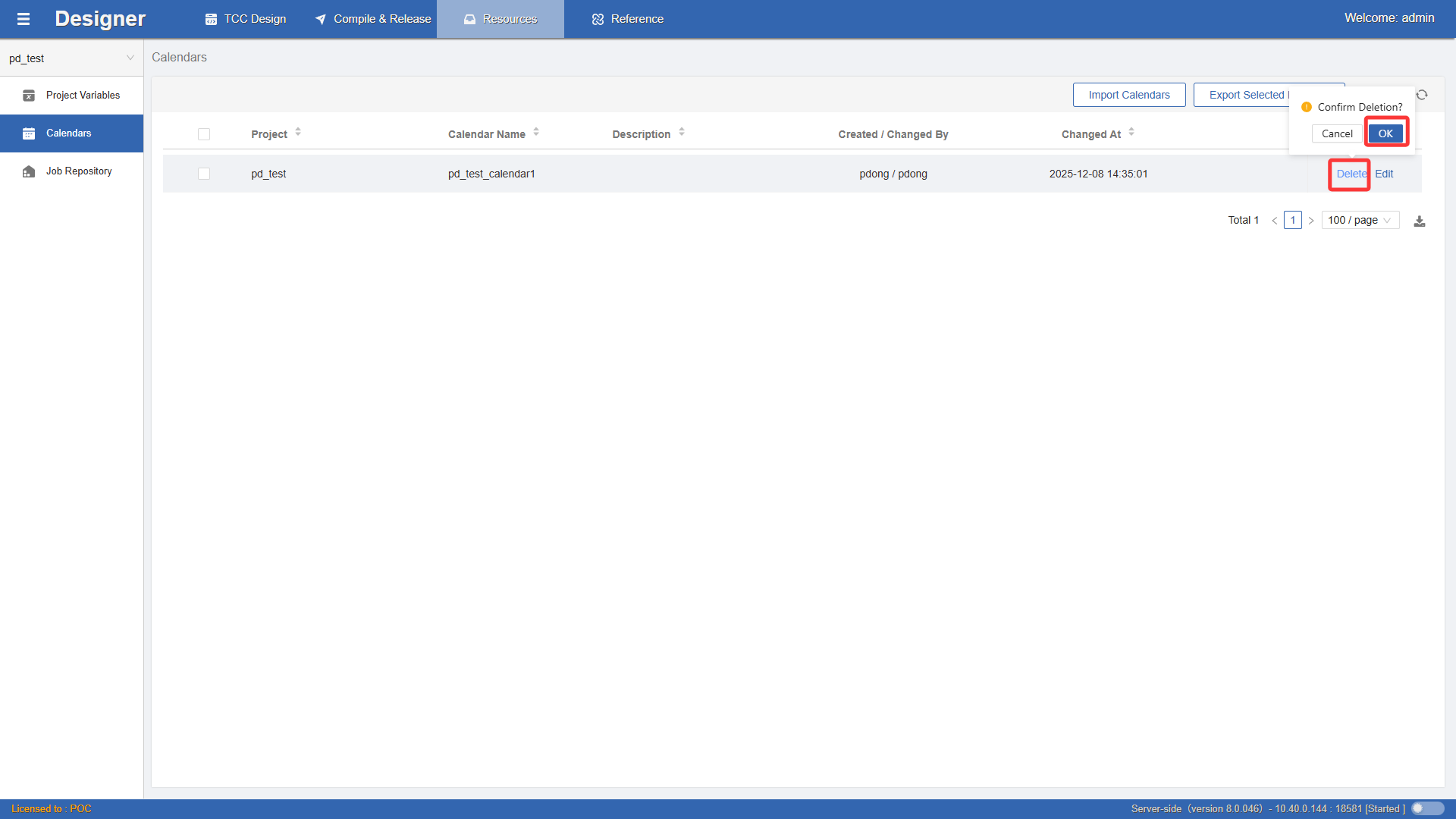
Delete Calendar Resources
Click the Delete button on the data row to delete each entry. If the calendar resource has been referenced by a job, the console will output an error message Calendar resource not declared.
Using Calendar Resources
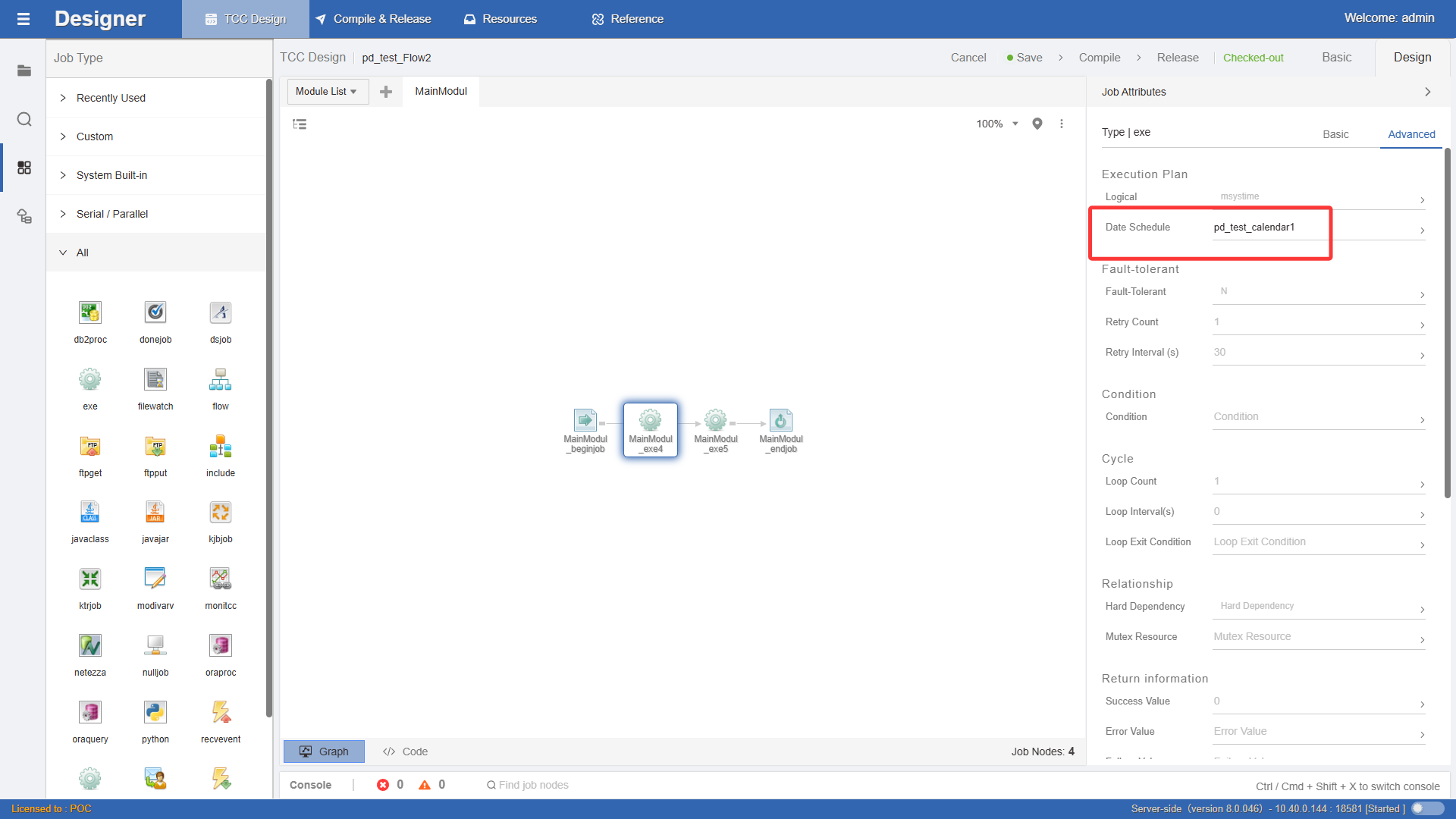
- Select a job node in the graph and open the job properties panel.
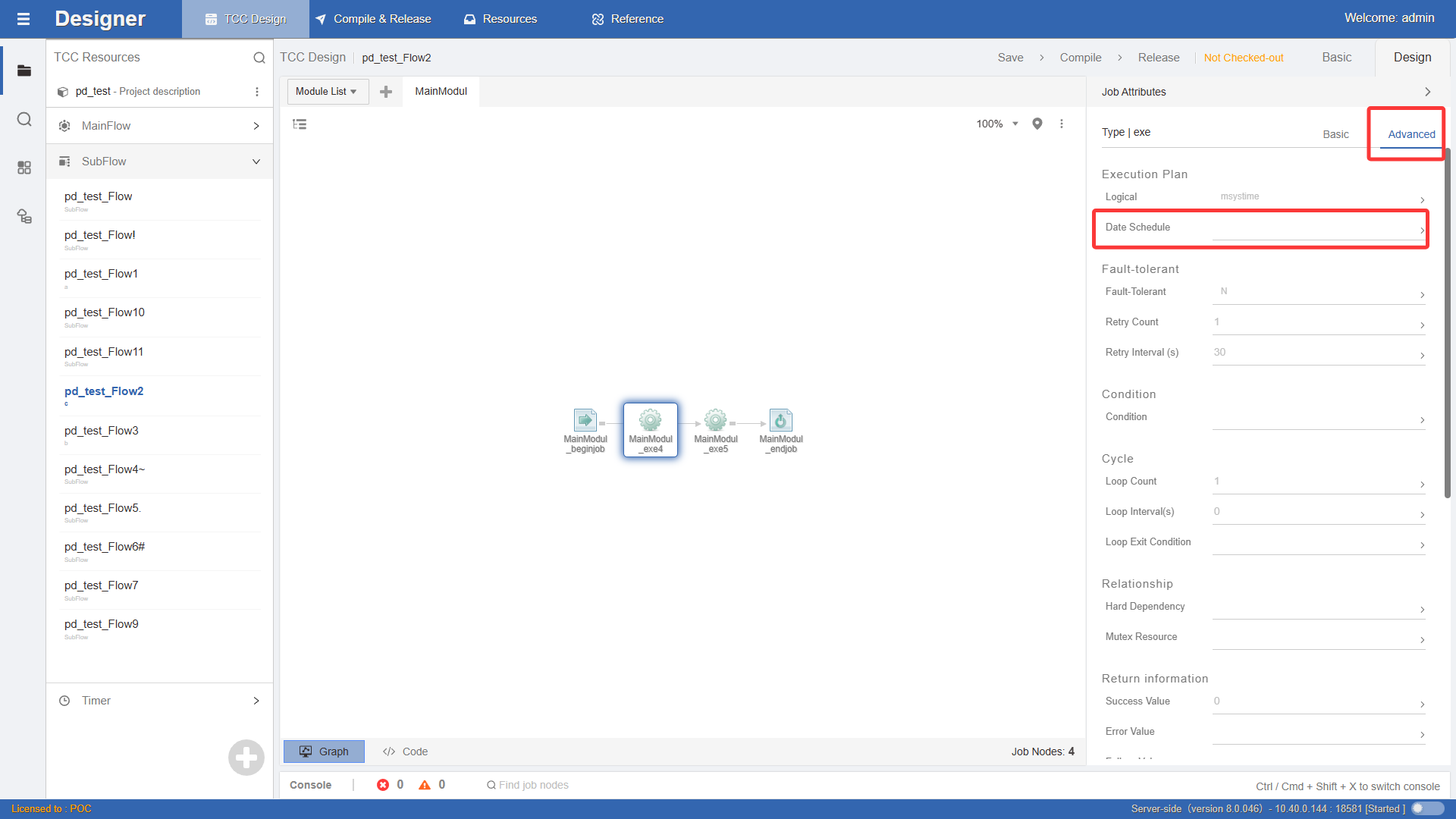
- Click the expand button on the right side of
Date Planin the job properties panel. Further open the multi-layer edit panel for date plan.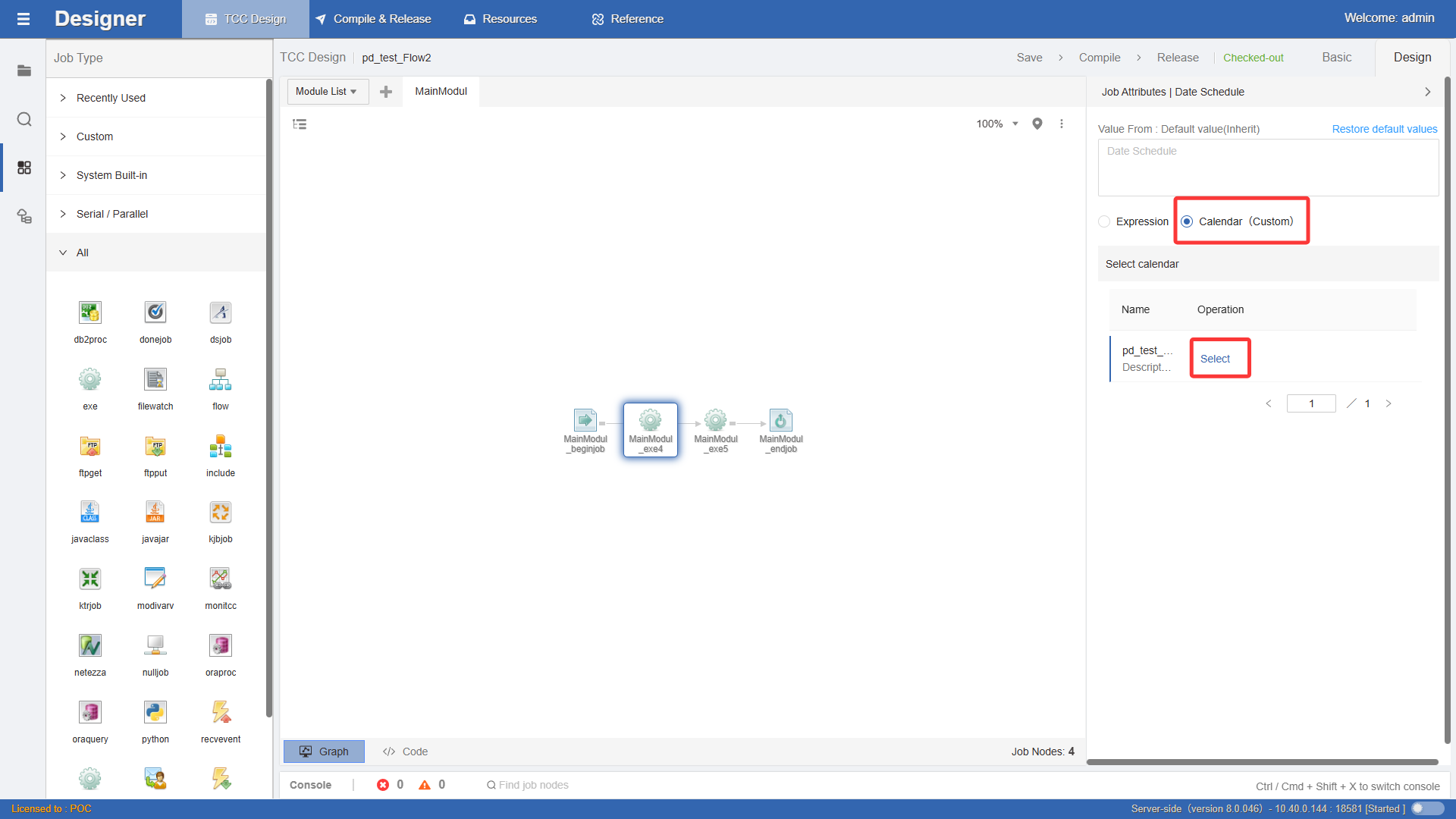
- Select the calendar resource to reference.
Job Resources
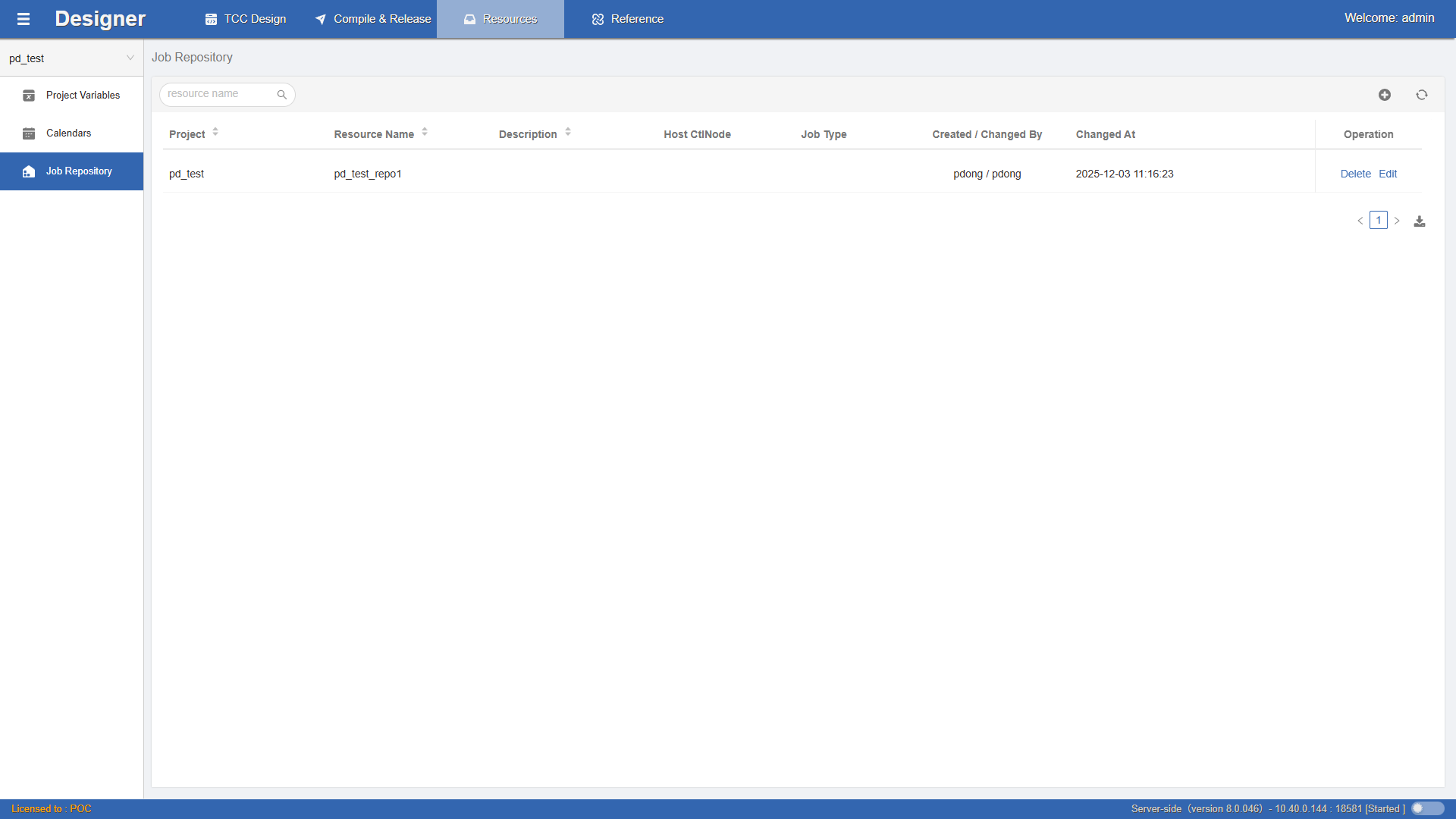 Instantiate various programs on the server (such as scripts, Java programs, ETL jobs, etc.) into specific job nodes through WLOADCTL job types. Further specify basic properties of jobs, such as the service node where the job runs, the job path, and the job execution parameters, etc. This allows developers to focus only on job relationships and scheduling strategies without concerning themselves with the business details of jobs.
Create Job Resources
Click + to open the create job resource window, as shown:
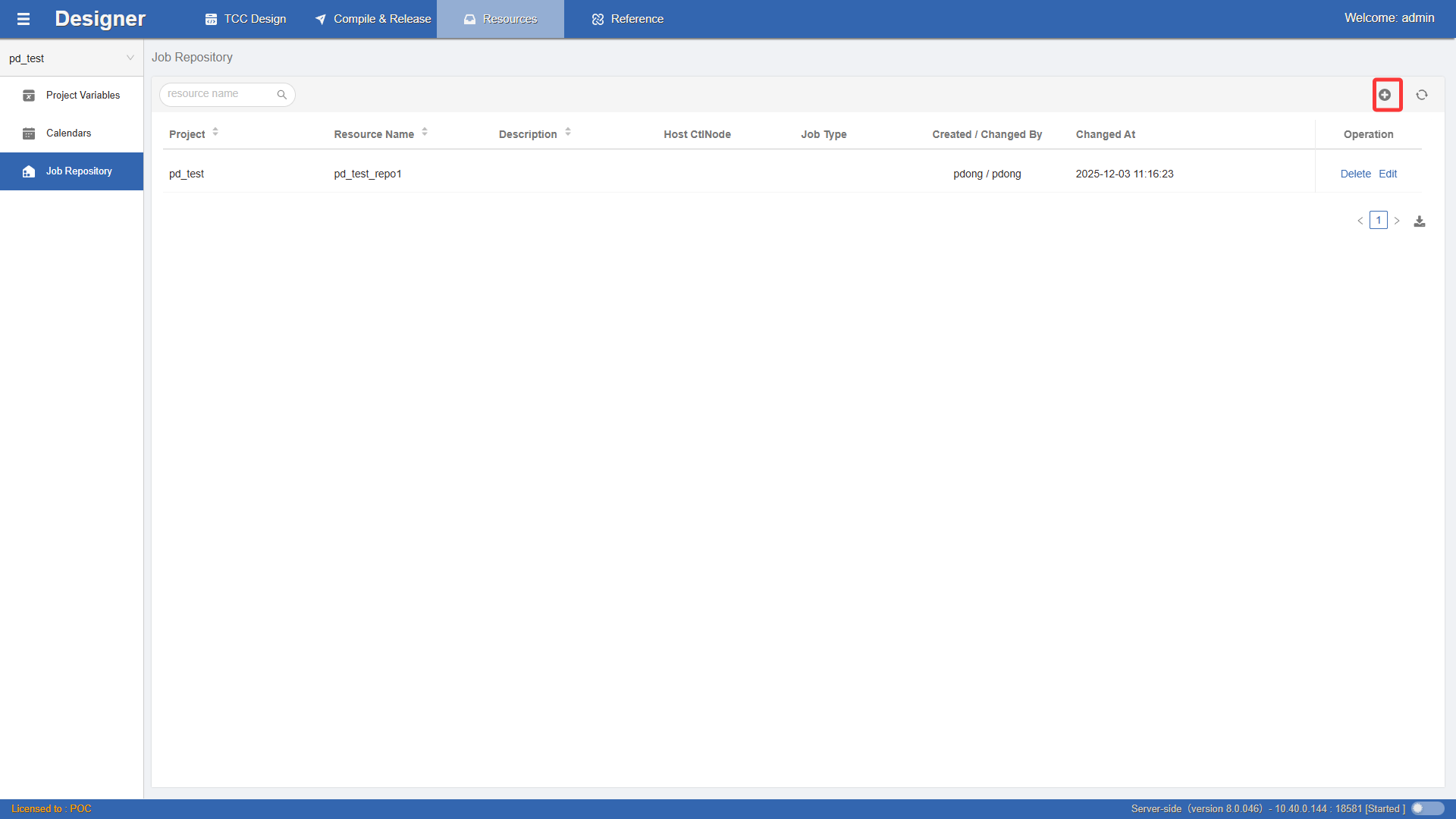
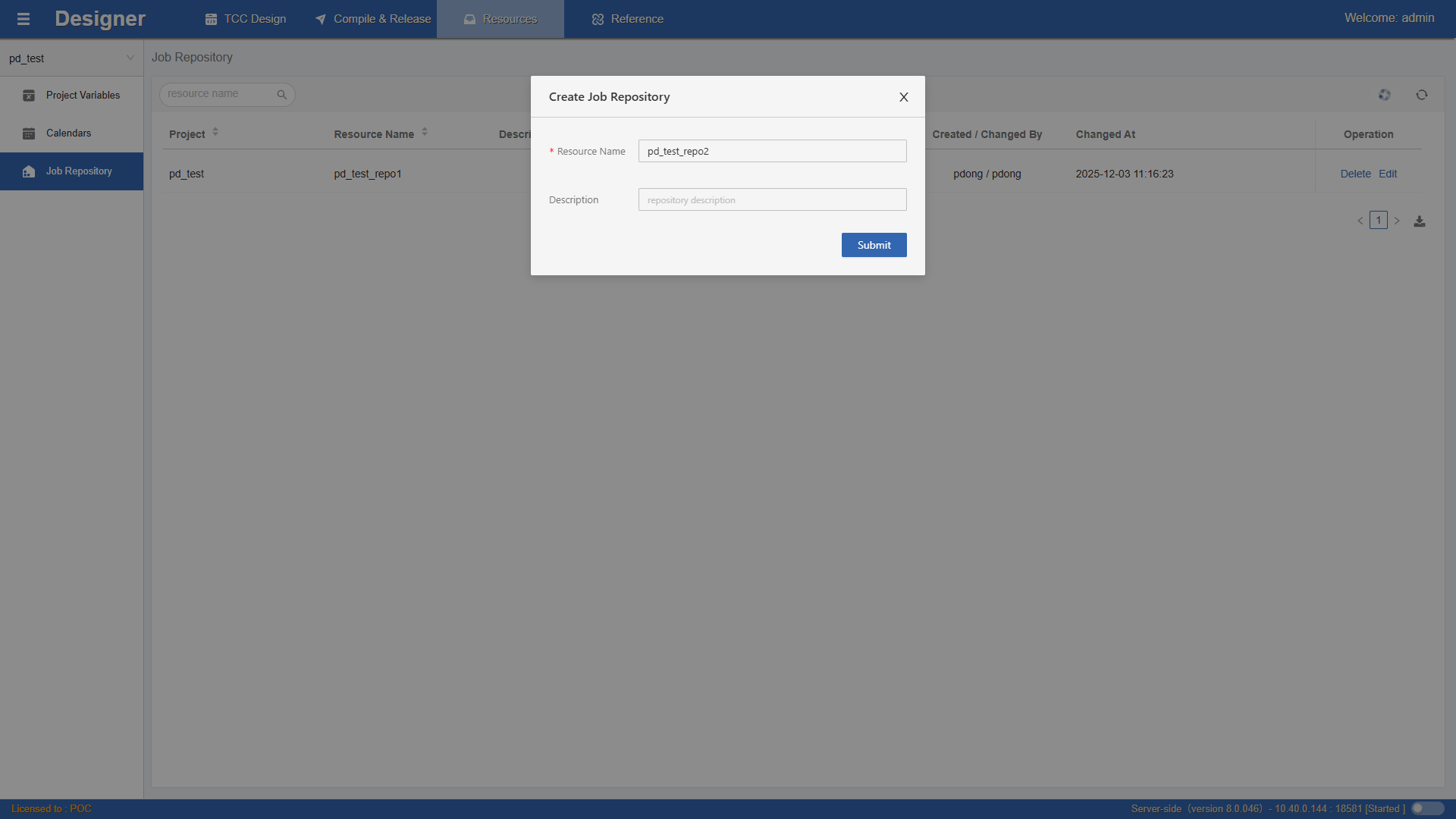 Confirm the job resource name and description to complete creation. After creation, job resources need further configuration before they can be used.
Edit Job Resources
Click the Edit button on the data row to open the Edit sidebar and configure job resource information.
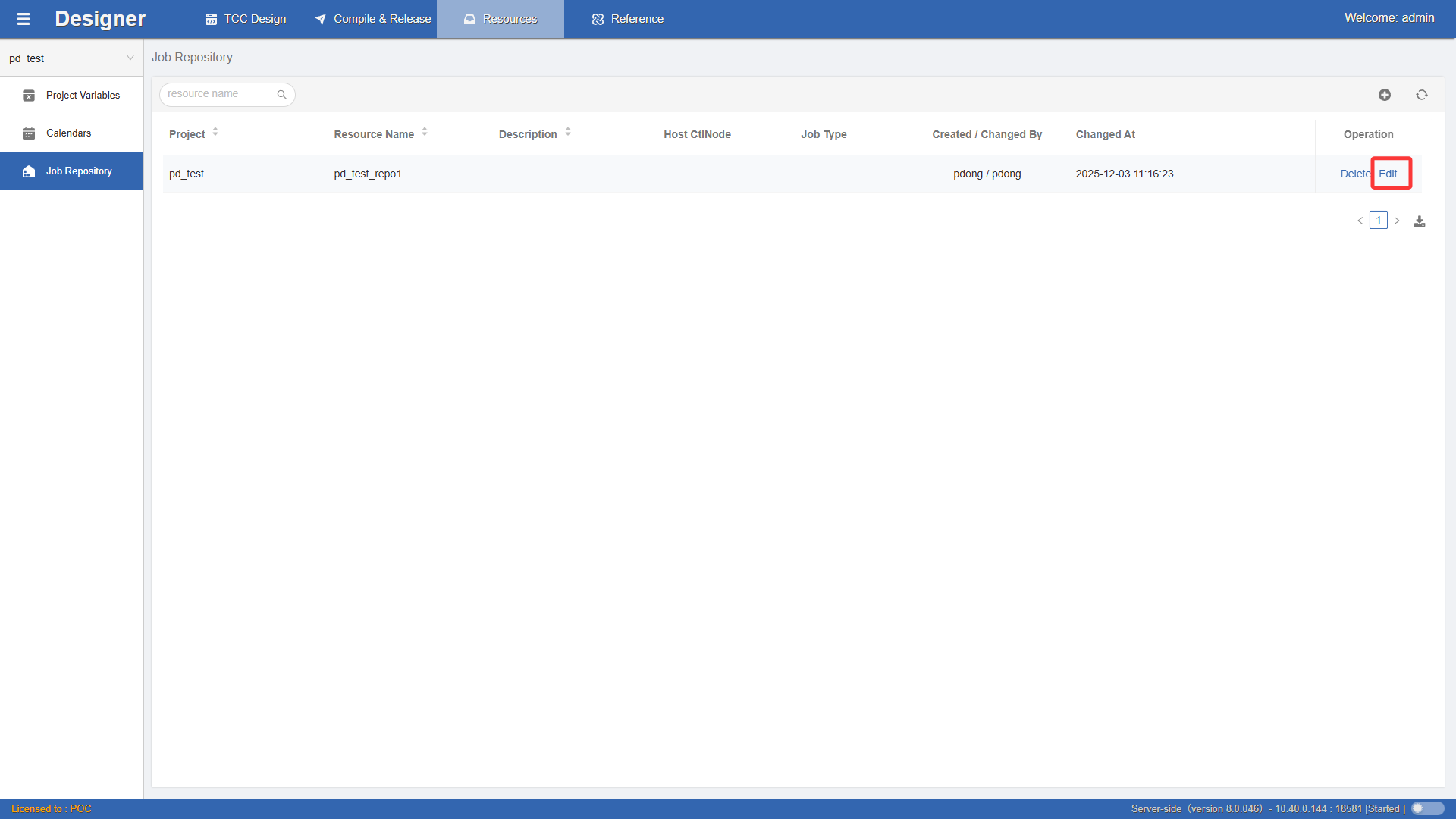
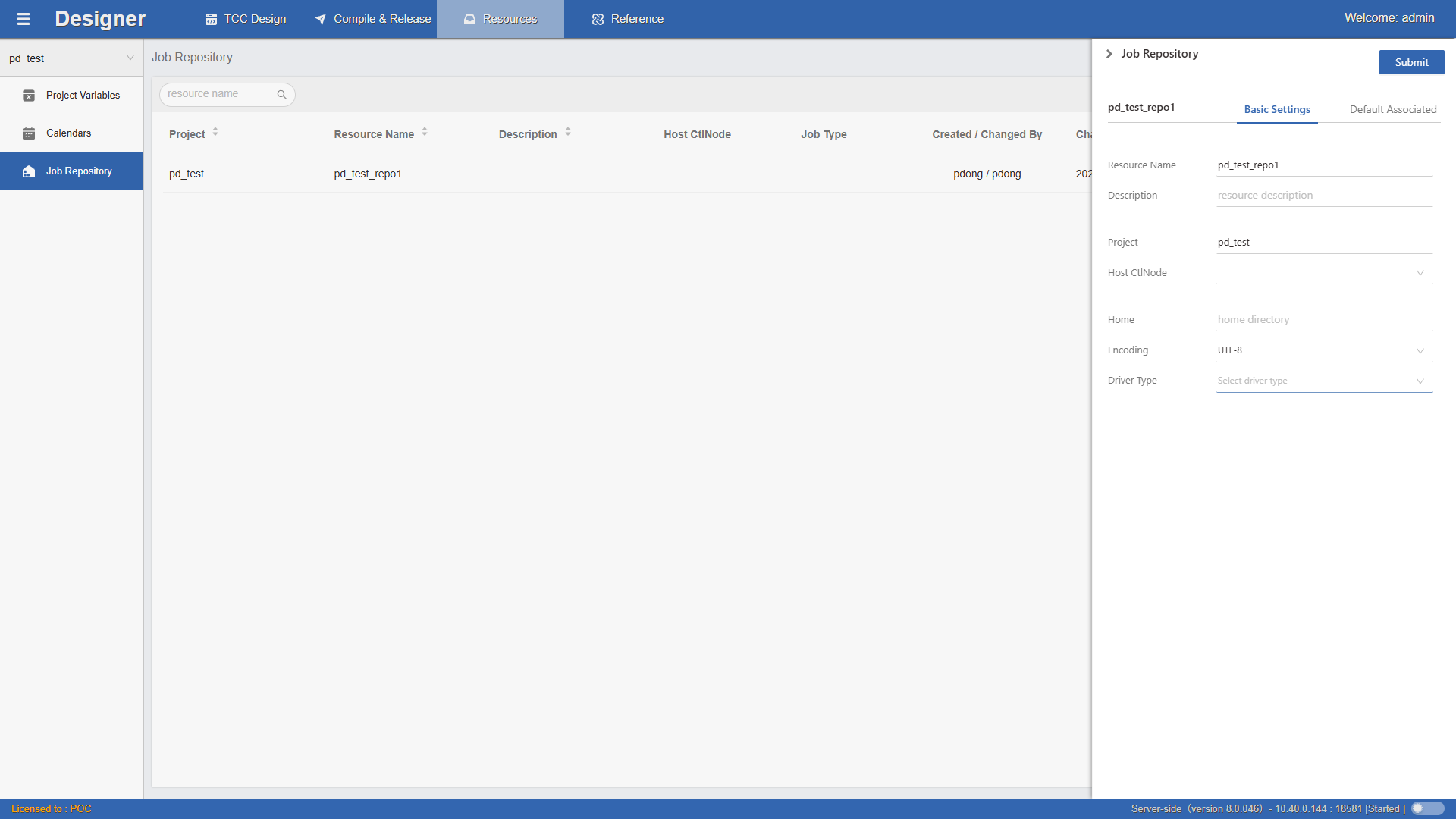
Host Node: The platform control node (service/agent) where the job resource is located.
Discovery Type: Currently, the platform provides four basic resource discovery types. More job resource discovery types will be added in the future.
file_explorer - File system resource discovery type.
mysql_explorer - mysql database resource discovery type.
oracle_explorer - oracle database resource discovery type.
kettle_explorer - kettle resource discovery type.
Discovery Code: Based on the encoding situation of the resource, select the appropriate encoding type, such as UTF-8/GBK
After selecting a resource discovery type, a personalized resource link configuration panel is displayed. Taking oracle database resource as an example, you need to enter the specific database instance, host, port, and the username and password required for authentication. Variables are supported. After completing the resource settings, you can use this item to further refine job type components. For example, you can specify default values for entry parameters and environment parameters of the oraproc job type, with variable support.
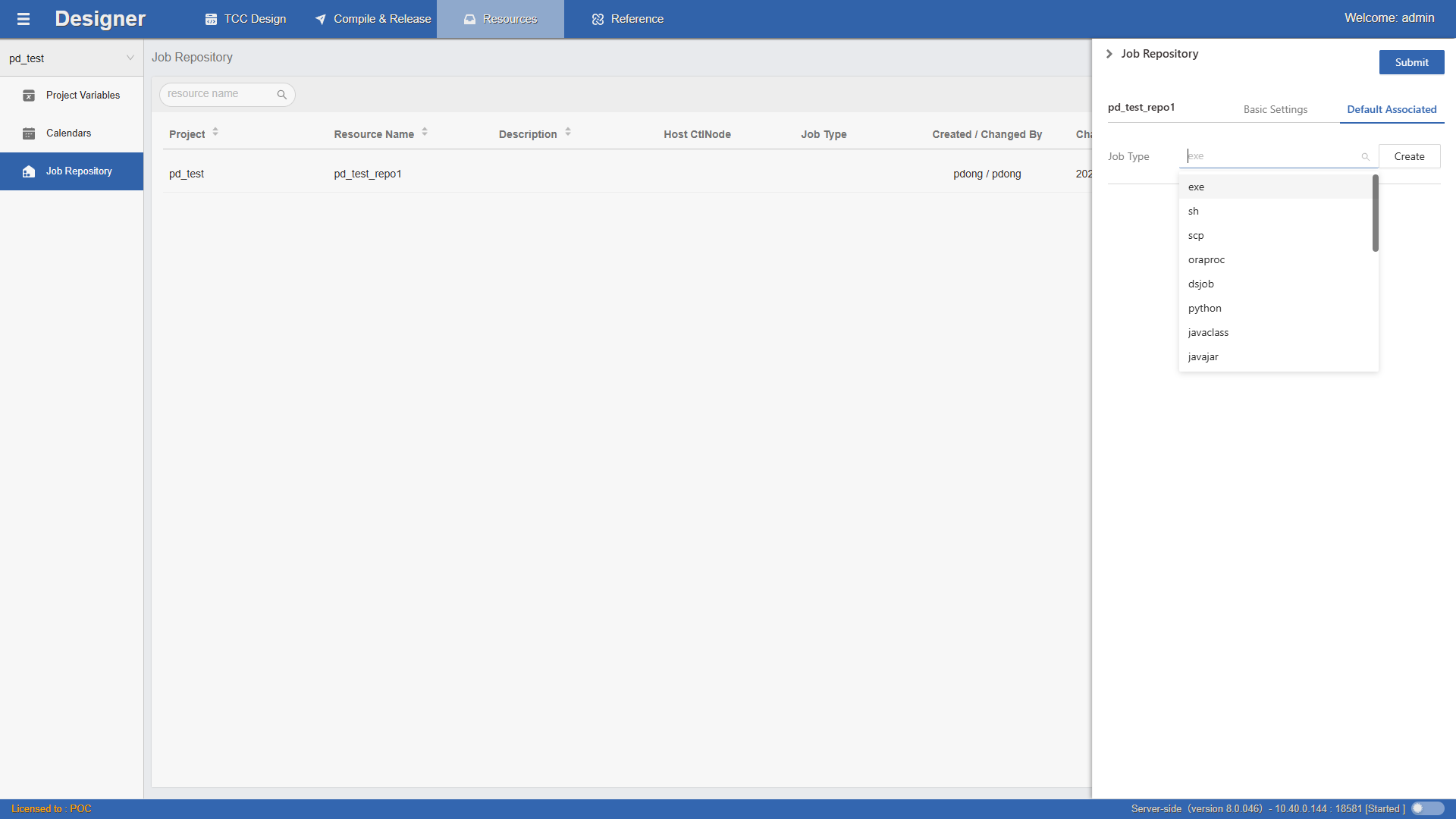 After completing job resource settings, you can quickly create jobs through the
Job Resources panel in the Resource Navigation Area.
Using Job Resources