Key Jobs
Key jobs are used to identify core jobs in scheduling workflows with high timeliness requirements. By focusing on monitoring their predecessor relationships and running status, they help users proactively identify workflow delay risks.
Add Key Job
Users can add key jobs on the key job configuration page.
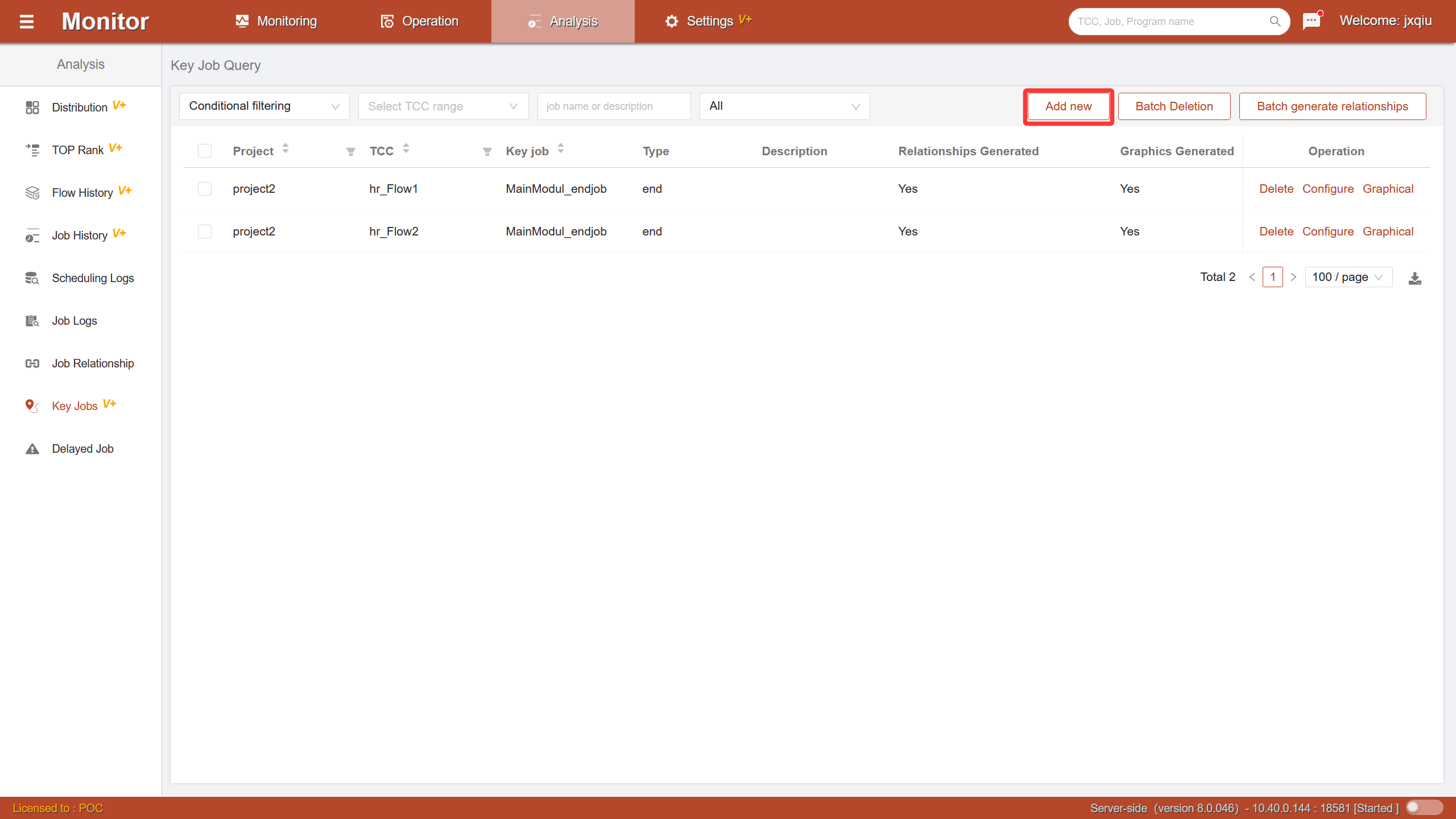 In the add window, select the container name and job name from the dropdown to add.
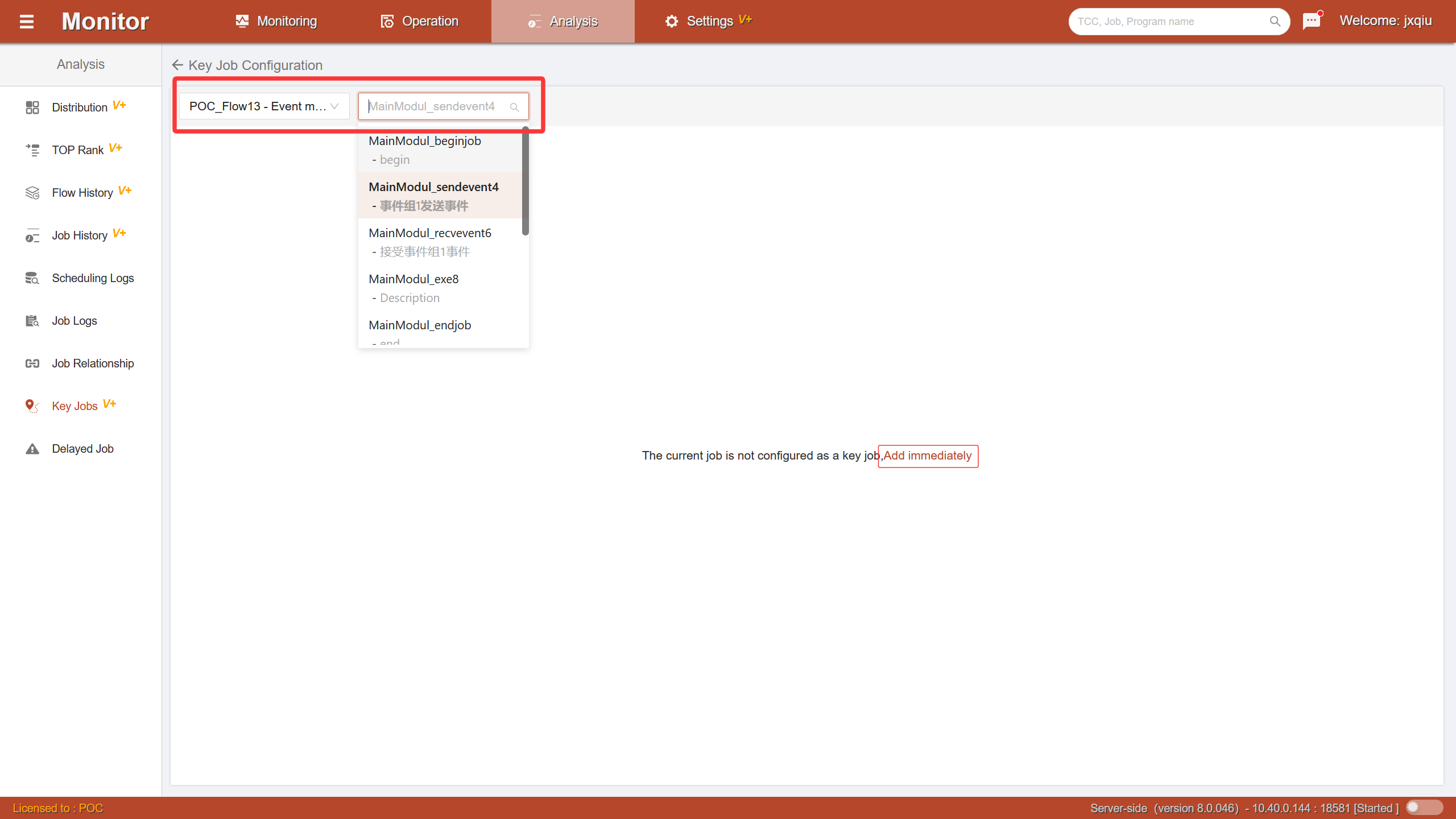 After successful addition, the system will prompt whether to generate predecessor relationships. Generating relationships is optional. Selecting
Generate: The system will automatically generate the predecessor relationship list based on the DAG diagram defined at the design stage for the current job. Selecting Do Not Generate: Predecessor relationships can be manually generated at a later configuration stage.
Query Key Jobs
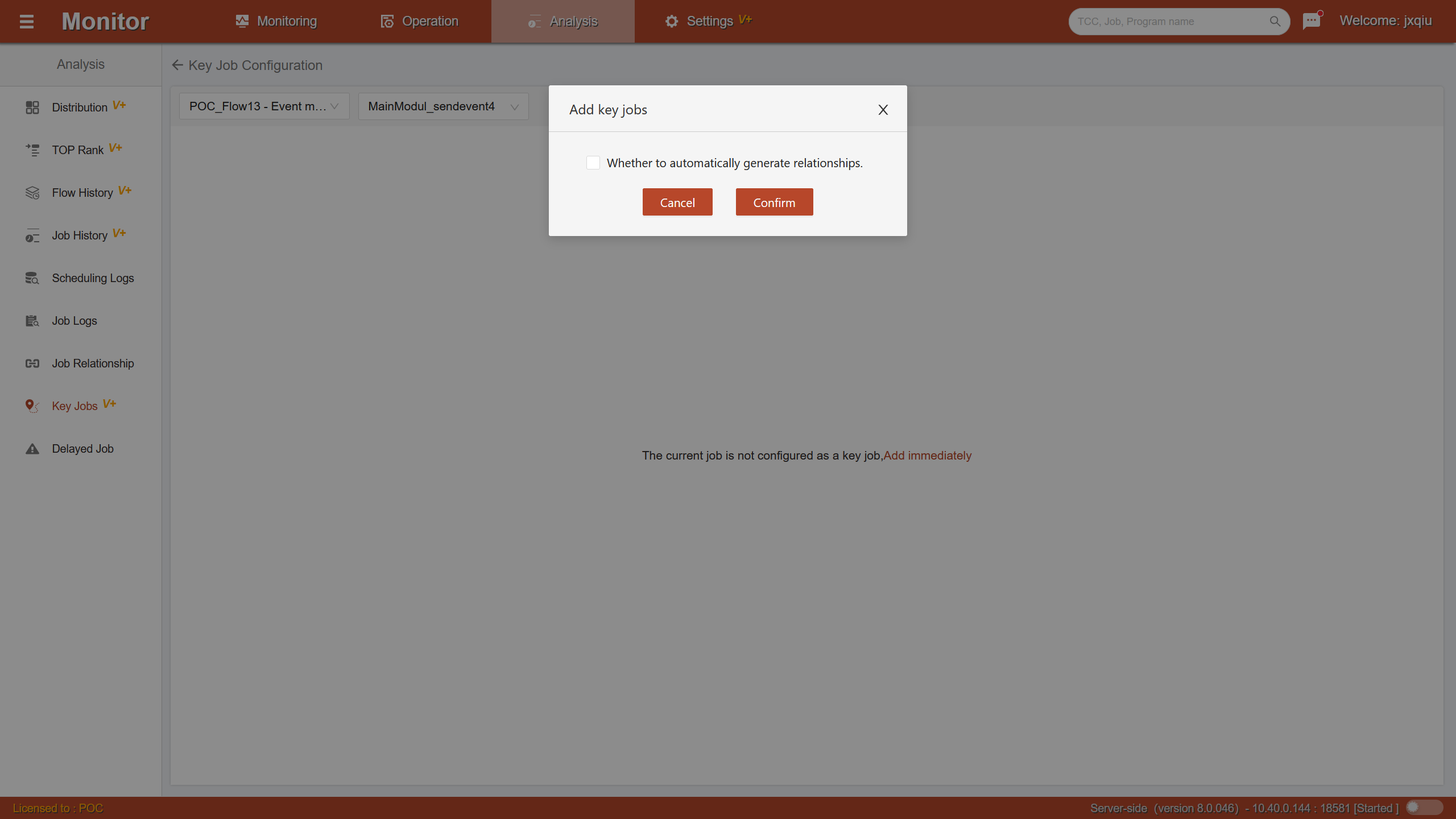
Supports conditional querying of configured key jobs in the system.
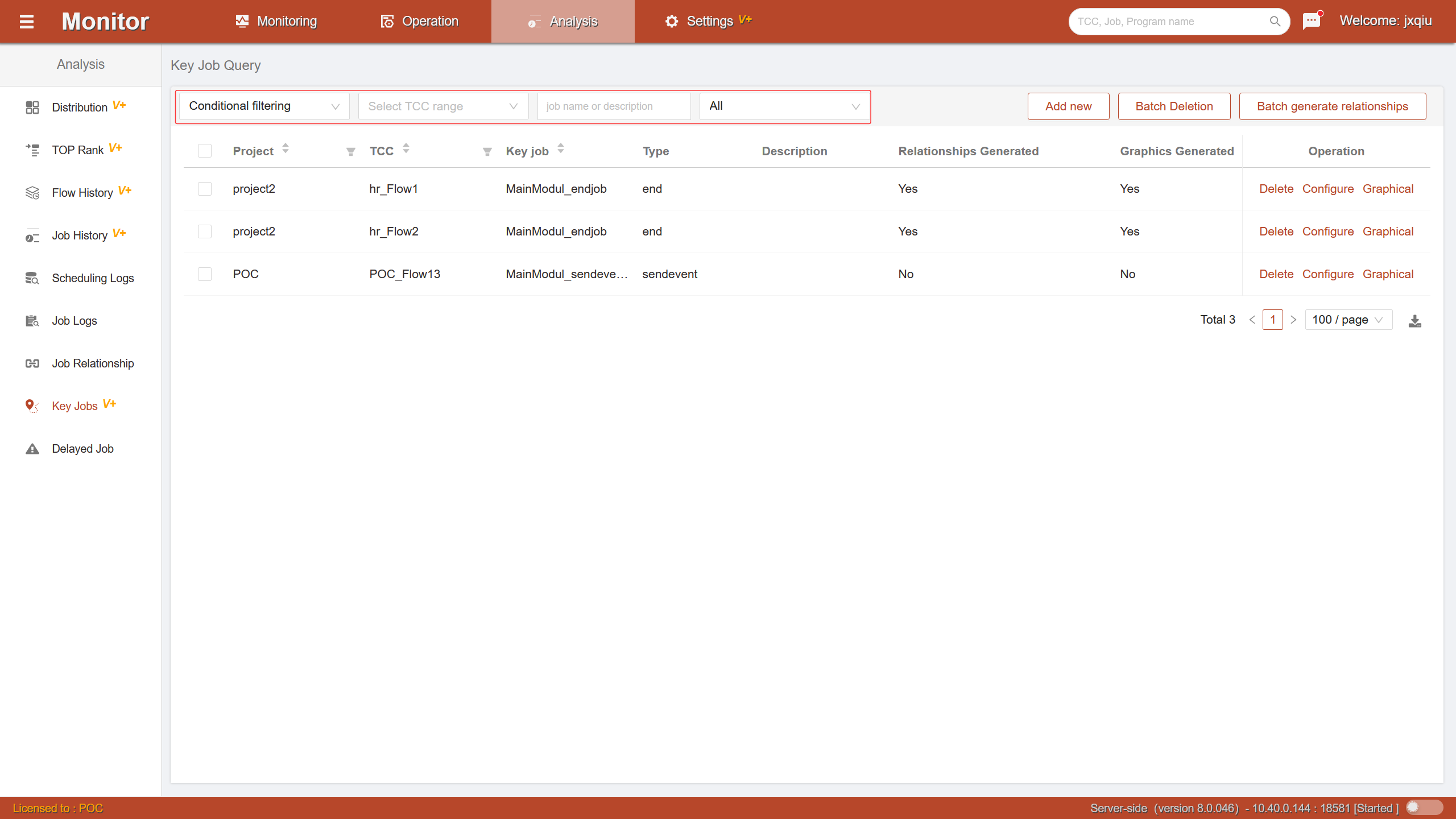
Configure Key Jobs
In the key job list, click the [Configure] operation on the data row to enter the key job configuration page. Key job configuration is divided into the following three parts.
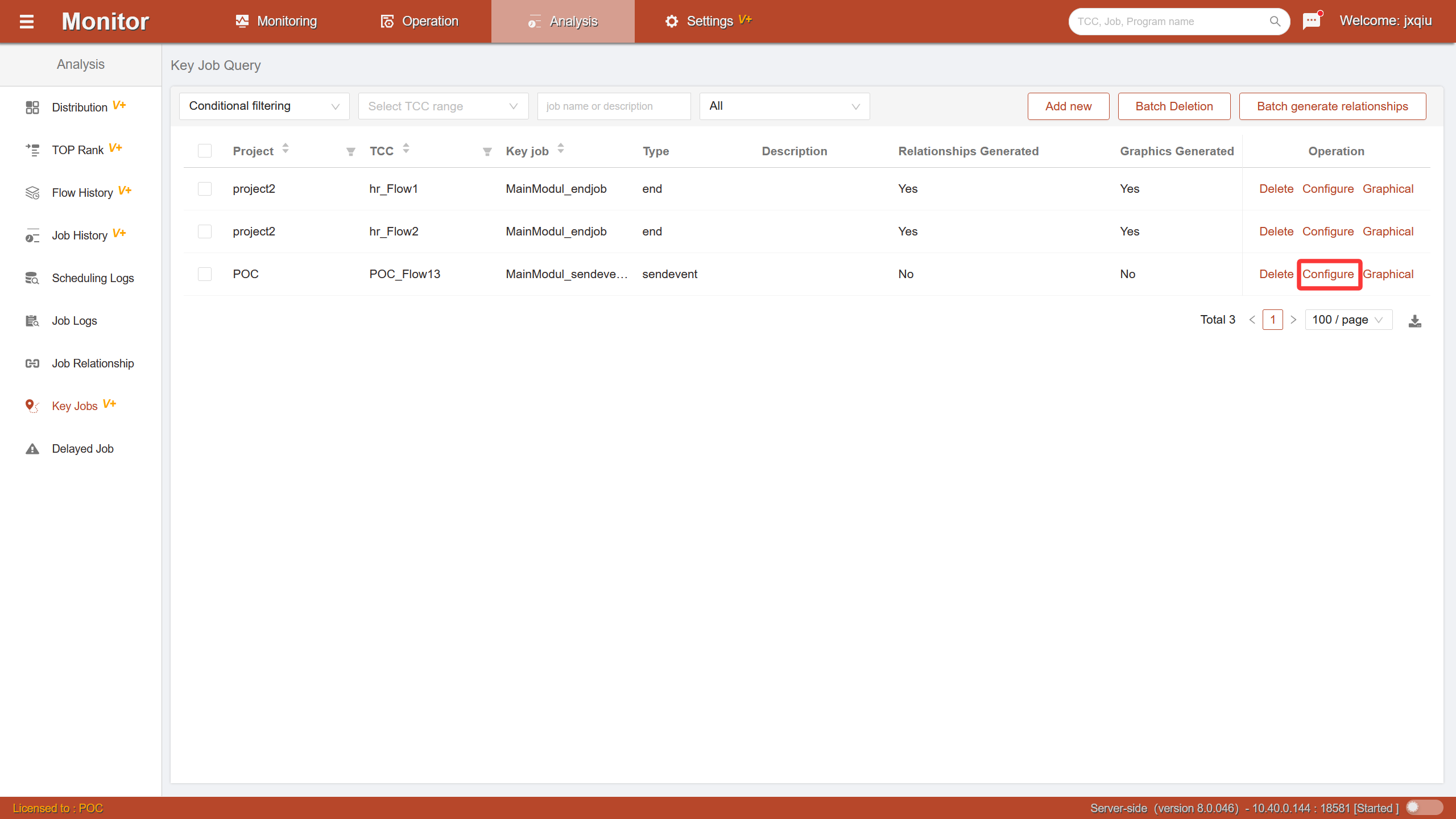
Basic Information Configuration
Used to configure the basic attribute information of key jobs.
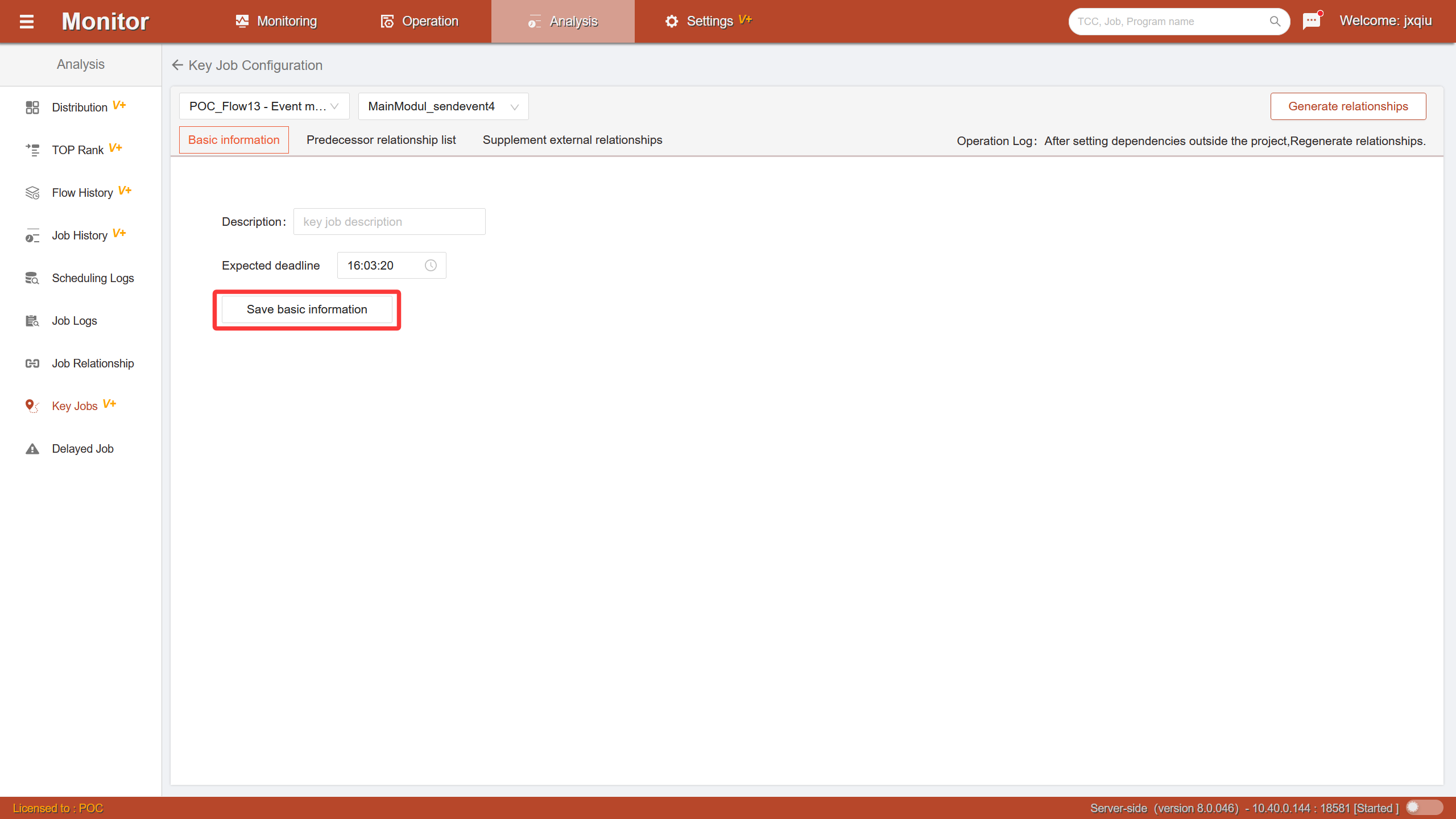 Job Description: Used to explain the business meaning or importance of the current key job.
Expected Deadline: When the workflow is in a running state, the system dynamically calculates the historical running time of jobs not yet run in all predecessor relationships of the key job, and estimates the time point when the workflow runs to the key job node. If the estimated time exceeds the expected deadline, the system will send a system message to the user, indicating that this key job may have a delay risk.
After configuration is complete, click the [Save Basic Info] button for the configuration to take effect.
Predecessor Relationship List Configuration
Used to configure the predecessor dependency relationships and monitoring nodes of key jobs.
Predecessor Relationship List Source Description:
If [Generate Relationships] was checked when adding the key job, the system will automatically display all predecessor relationships of the key job.
If not generated or needs to be updated, you can manually click the [Generate Relationships] button to regenerate the predecessor relationship list.
All predecessor relationships come from the DAG diagram defined at the workflow design stage.
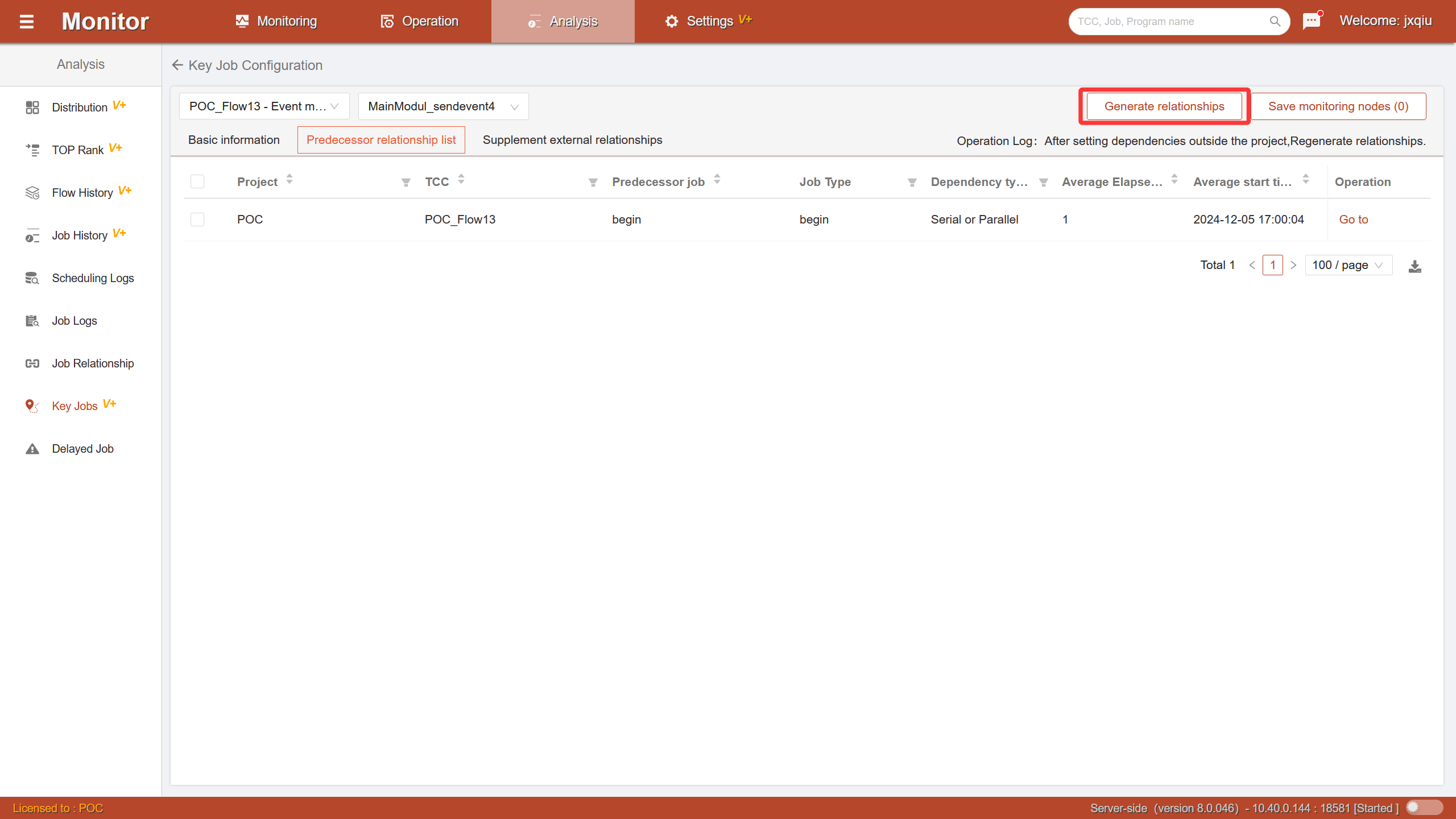 Monitoring Node Configuration:
- In the predecessor relationship list, check the jobs that need to be focused on monitoring.
- The checked jobs are called monitoring nodes.
- After checking is complete, click the [Save Monitoring Nodes] button to save.
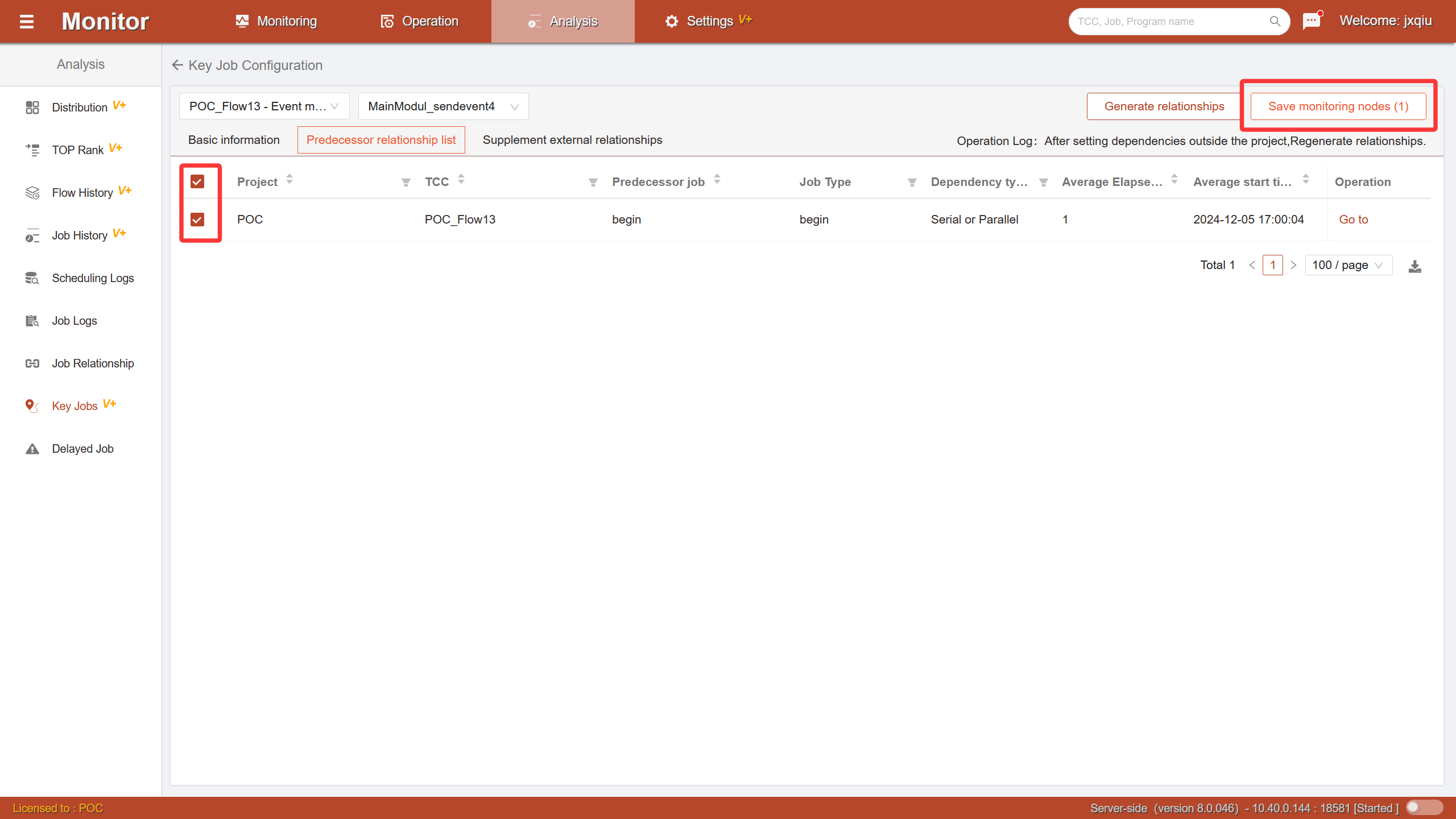
The system will generate an additional workflow subgraph based on the key job and the selected monitoring nodes. This subgraph is used to more intuitively display the key job and its core predecessor dependency relationships, facilitating monitoring and analysis.
Supplement External Relationships Configuration
This configuration only applies to jobs of type filewatch in the predecessor relationships of key jobs.
In the predecessor relationship list, click the Supplement button on the row of the filewatch job. In the pop-up configuration window, select jobs through the dropdown.
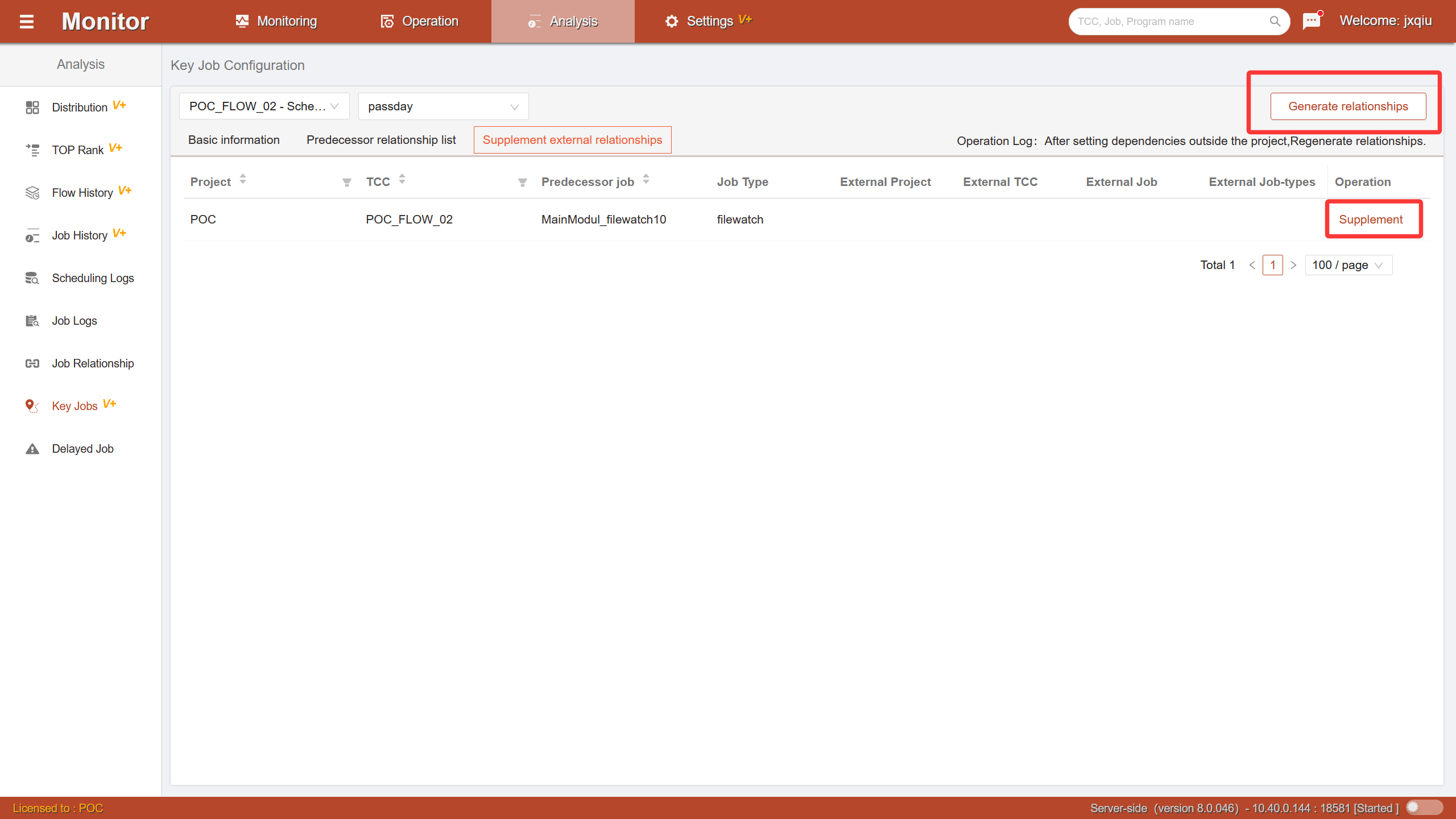 The supplemented external relationships will be included in the predecessor relationship calculation, and the system will recalculate the complete predecessor relationships of the current key job.
Monitor Key Jobs
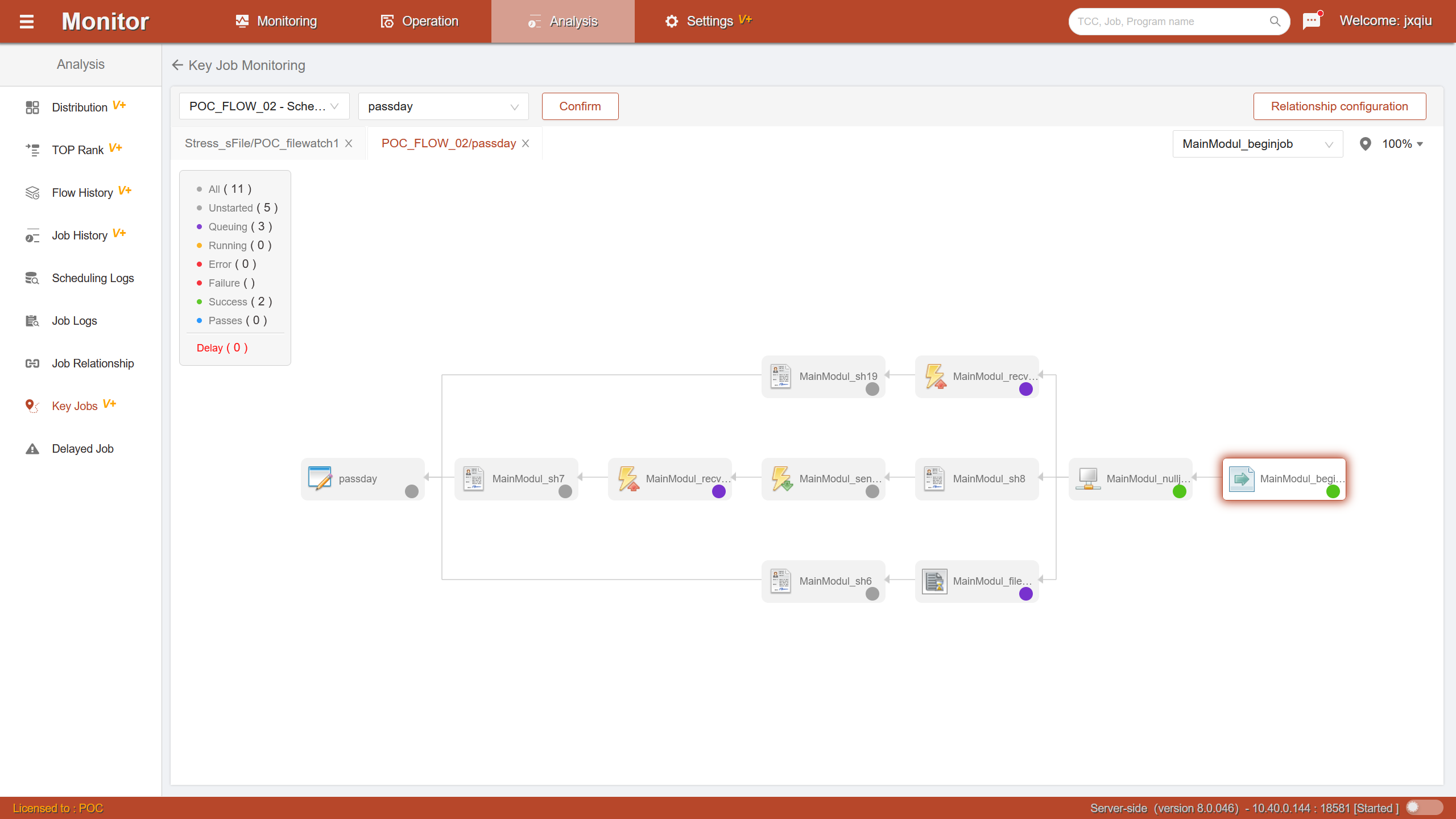
The key job monitoring page is used to display the running status of key jobs in real time. Through this page, users can intuitively grasp the dependency relationships and current execution progress of key jobs, and promptly discover potential workflow risks.