Message Monitoring
Message monitoring displays platform messages subscribed to by the current user, grouped by message type. The toolbar filters displayed messages by message category. Each message type has unique batch operation commands. For example, when multiple job failure messages are received, you can execute batch skip or retry commands on the job failure message group.
After expanding a message type group, message items are listed. Double-click on a message item to read the message and open the sidebar window for the selected message, including message content and related operation commands.
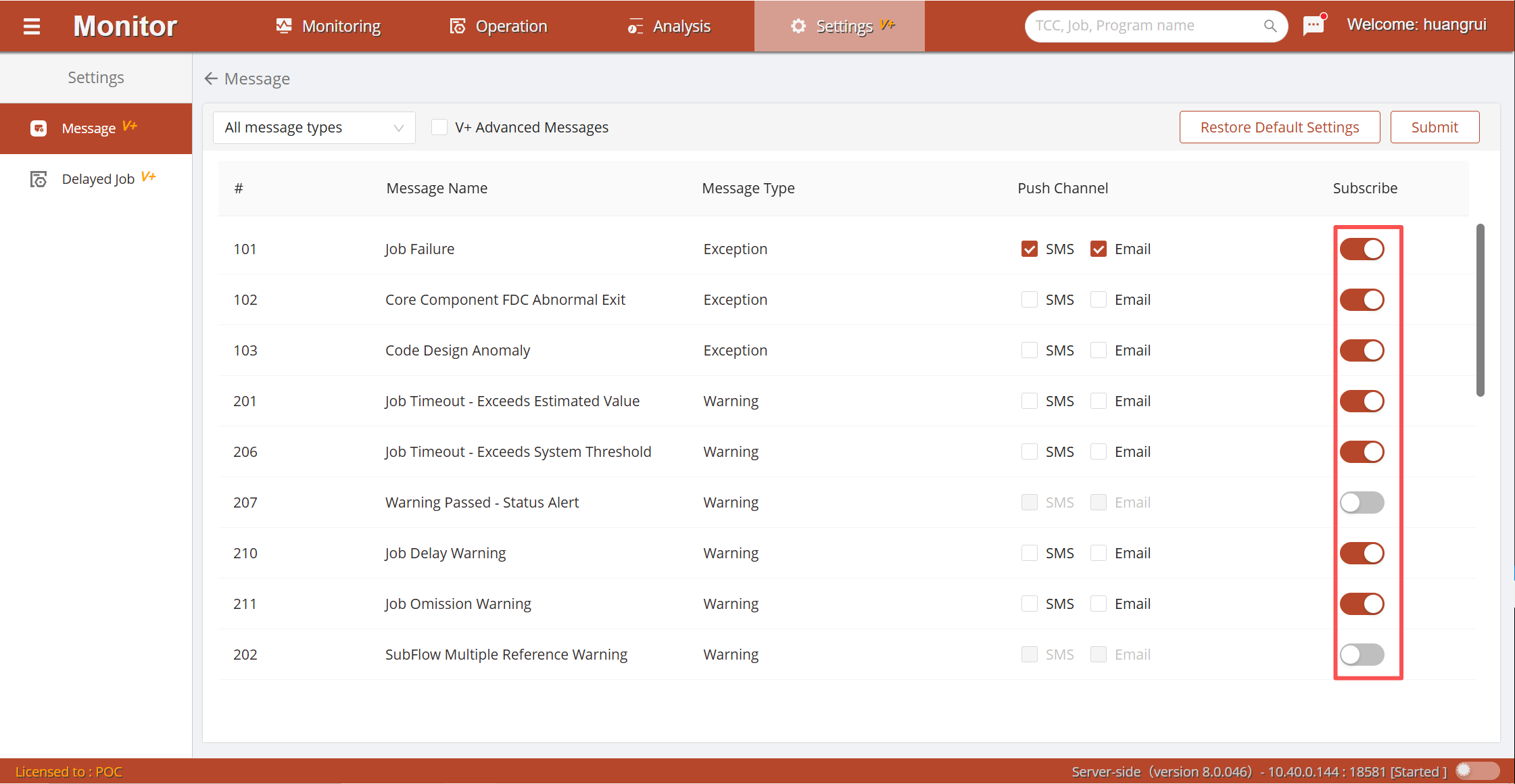
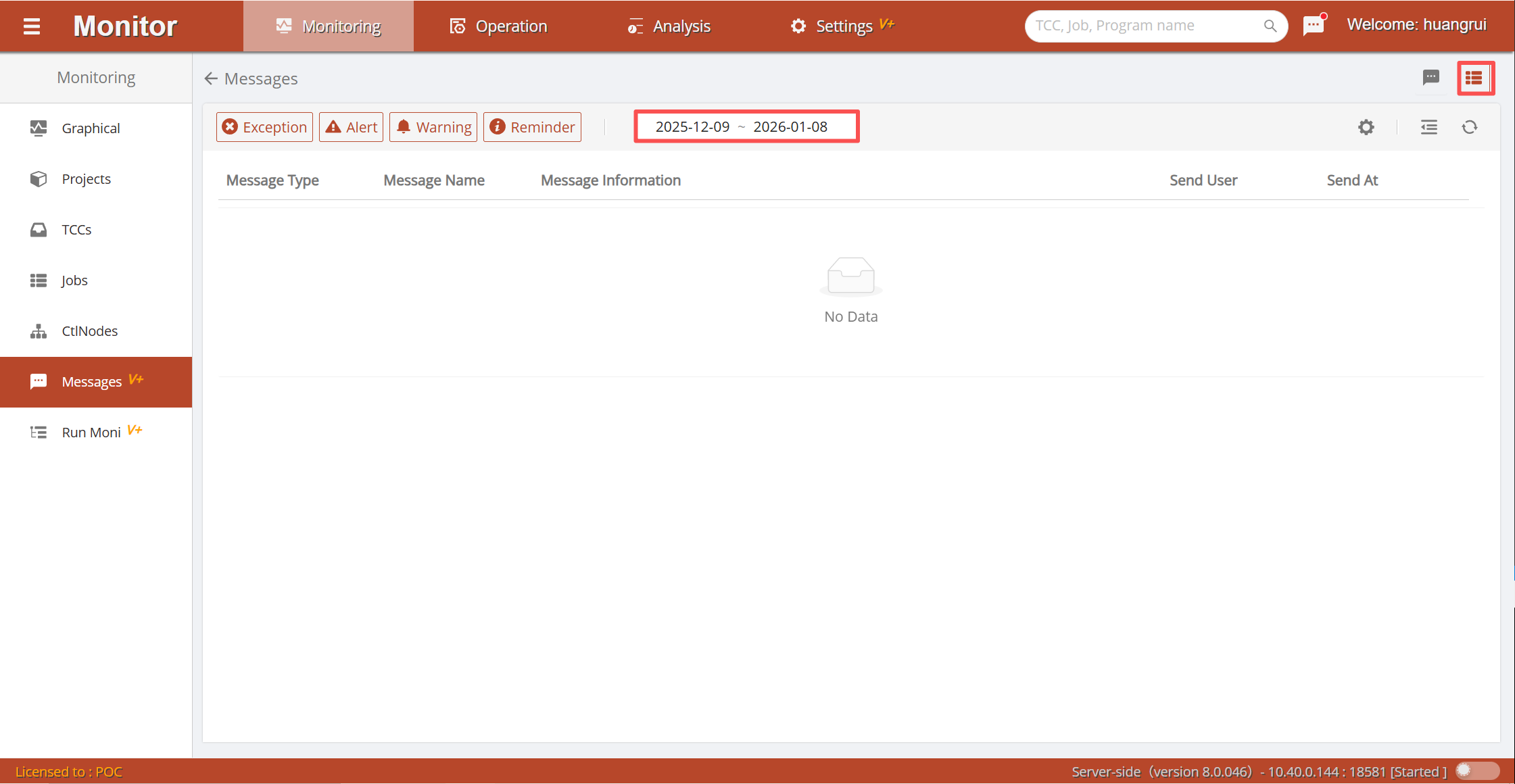
After a user's message is read, it is automatically archived to read history messages. You can switch to the message history list through the button in the upper-right corner of the content page  . Use the toolbar message category and read time range to filter historical messages.
Click the toolbar button  to jump to the message subscription settings page.
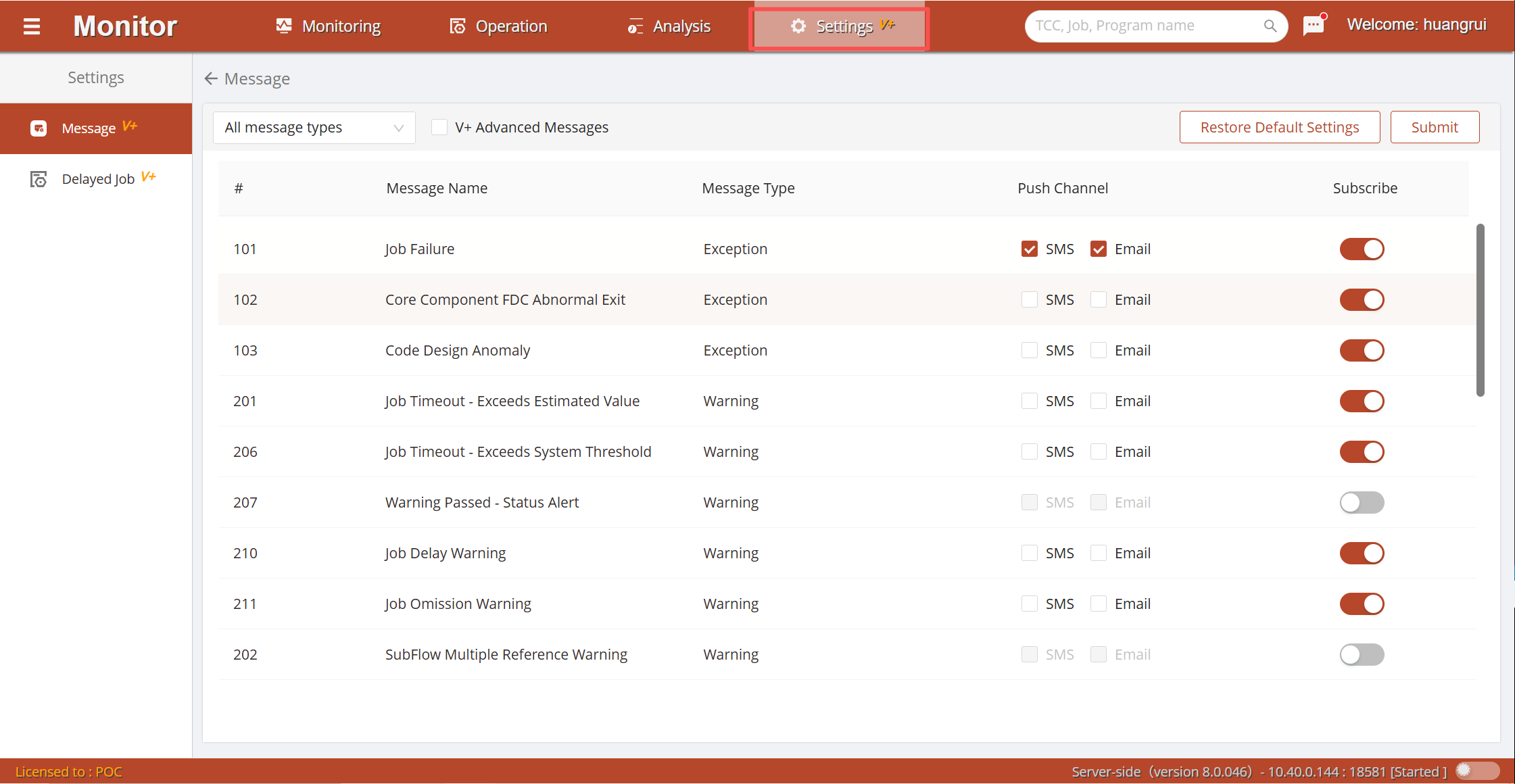
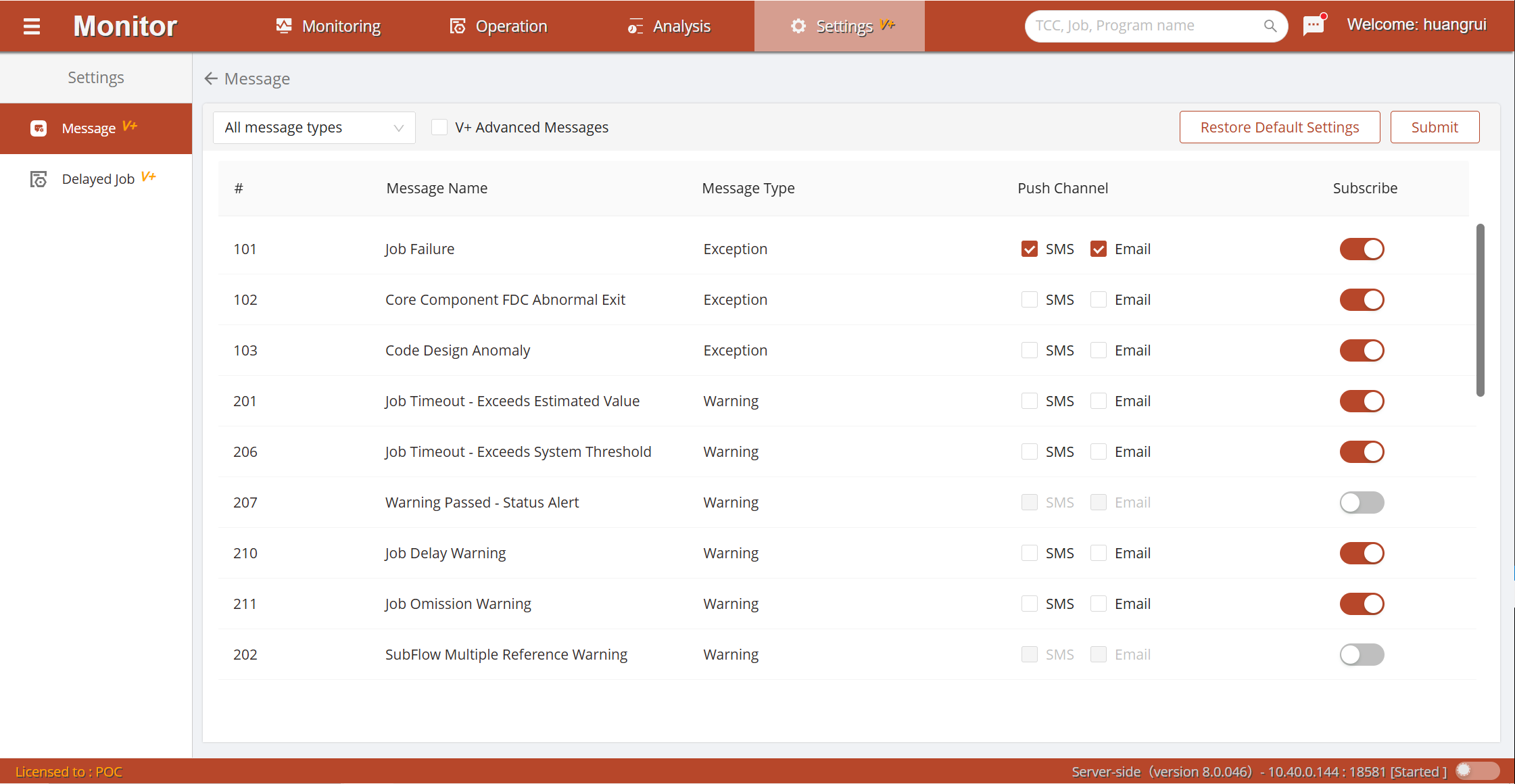
Message Settings
Personalized subscription of message types that need to be received on the platform. The subscription button  must be enabled before you can receive that message type on the platform. The push channel corresponds to the user phone number and email address set in the platform management - Admin. After configuring the platform's SMS or email interface, platform messages will be pushed to the corresponding channel.