
Find and Replace
You can quickly search for the position where specific words or phrases appear in the module code design window. Click the toolbar icon Find in File button, and the Find and Replace window will open. As shown in the figure:
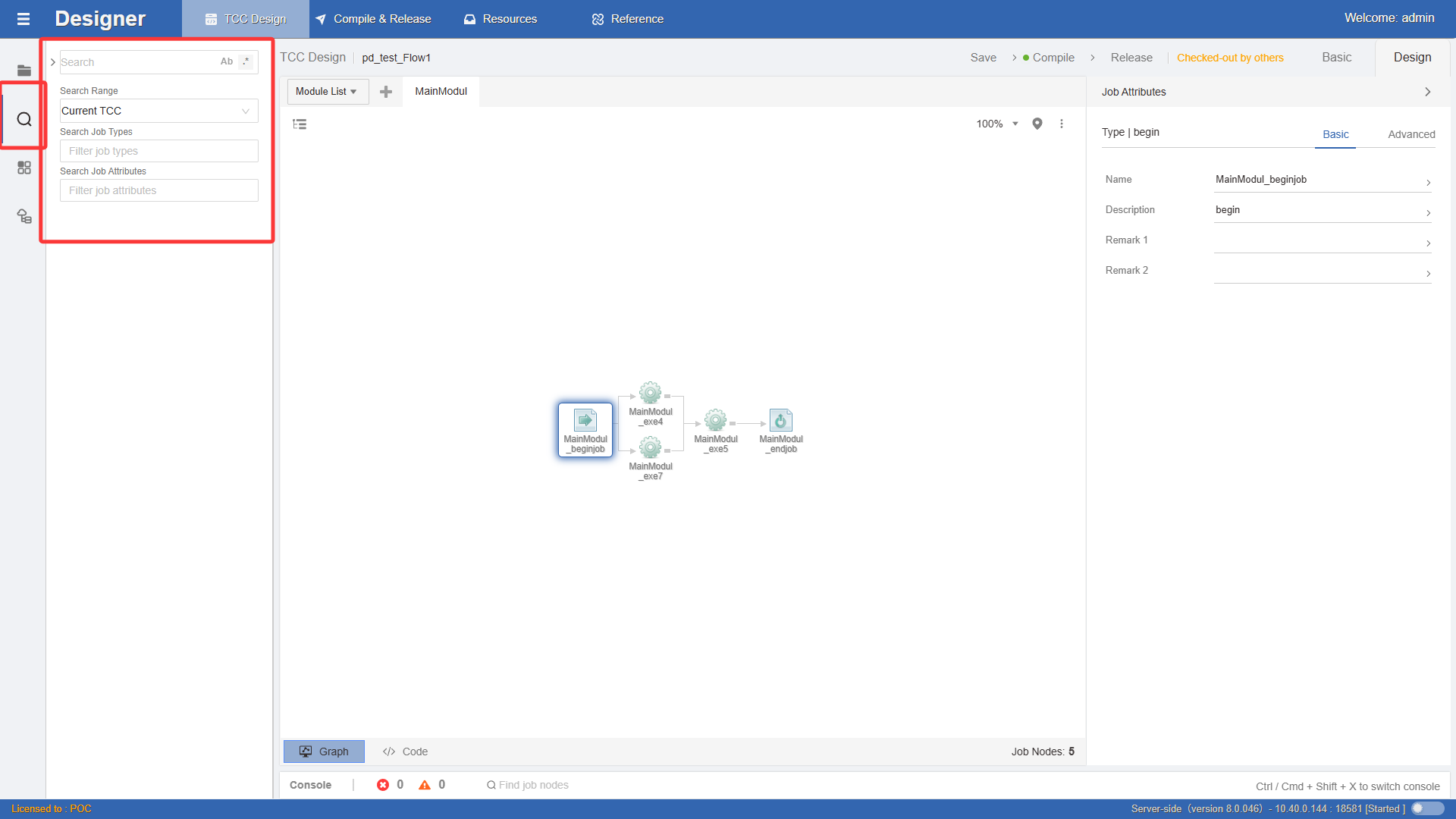
In the search content box, type the text you want to find, and set the search scope. Press Enter on the keyboard to start searching. After a successful search, the system will automatically locate to the code position. If not found, the system will prompt No results found. Case-insensitive fuzzy search is the default. You can click the checkbox icons Ab, .* to check Case Sensitive or Whole Word Match to limit the search mode. You can also select a job type for further filtering.
You can quickly switch between Find and Replace option cards. Click the button shown in the figure below to enter text replacement mode. The following steps describe how to perform code text replacement:
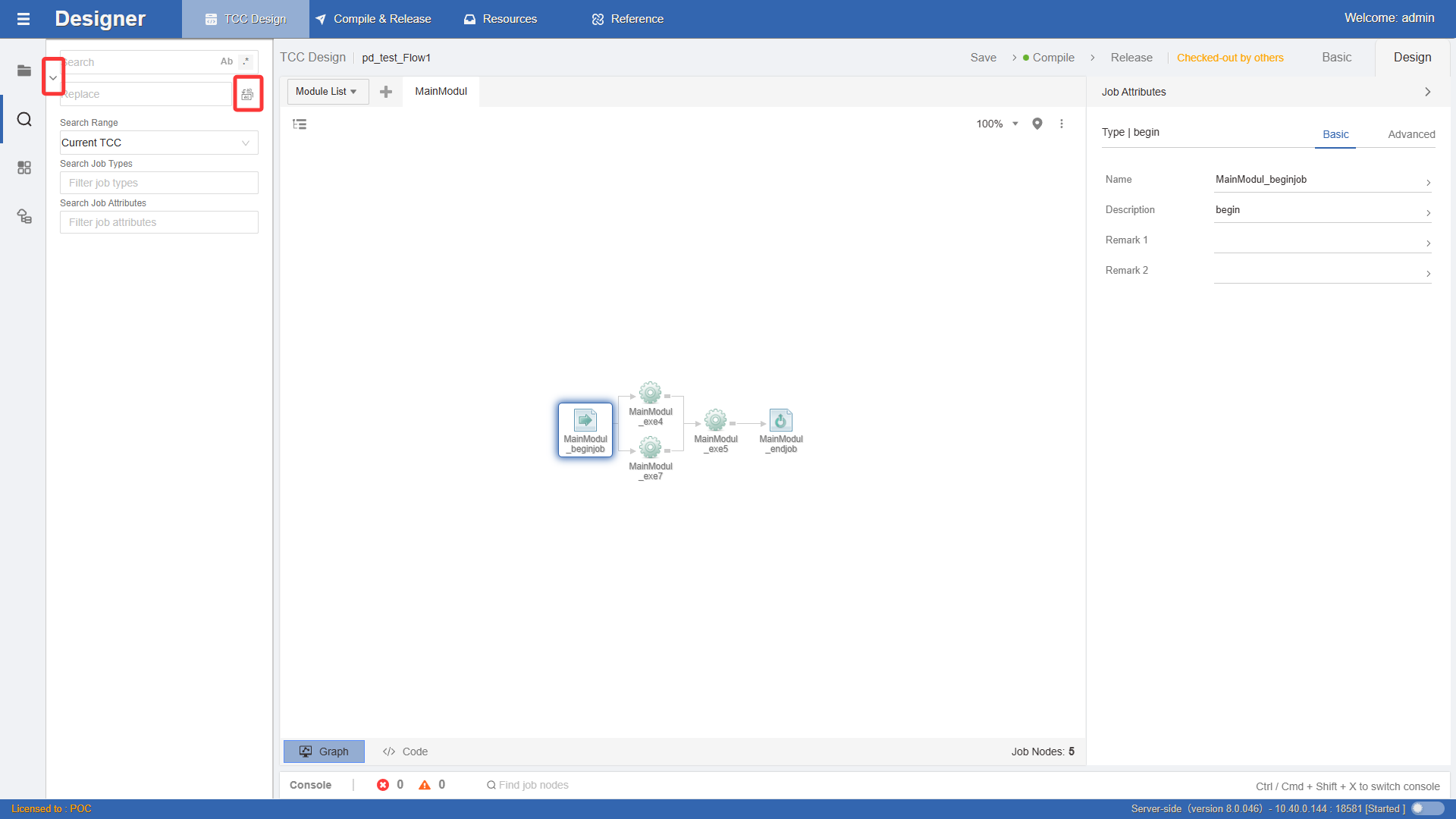
- In the
Find Contenttext box, type the content to be replaced. - In the
Replace Withtext box, type the content to replace with. - Select the search scope. You can only replace the module code content of checked-out workflows.
- Click the
Replacebutton to replace the next found content, or clickReplace Allto batch replace all found content. - Similarly, you can limit the search mode for the content to be replaced by checking
Case Sensitive,Whole Word Match, orJob Type.