
Container Management
TCC container startup and stop management.
Activate Scheduling
Activating scheduling specifically refers to starting job containers with automated execution characteristics: MainFlow and Timer. Job containers without automated execution characteristics: JobFlow exits after running from start to finish once, and the activation concept does not apply.
The list displays information about MainFlow and Timer, such as running batch, running status, release status, etc. Use the toolbar to filter job containers by project scope, job container type, and keywords. Select (multiple selection supported) the job containers to activate in the list. Click the Activate Now button in the right operation panel to pop up the Start Container execution window. Click the Confirm button to start activating the job containers. During batch execution, you can interrupt operations that have not yet been executed. After completion, the execution status is reported in the Execution Results section. Note that already-started job containers cannot be activated again.
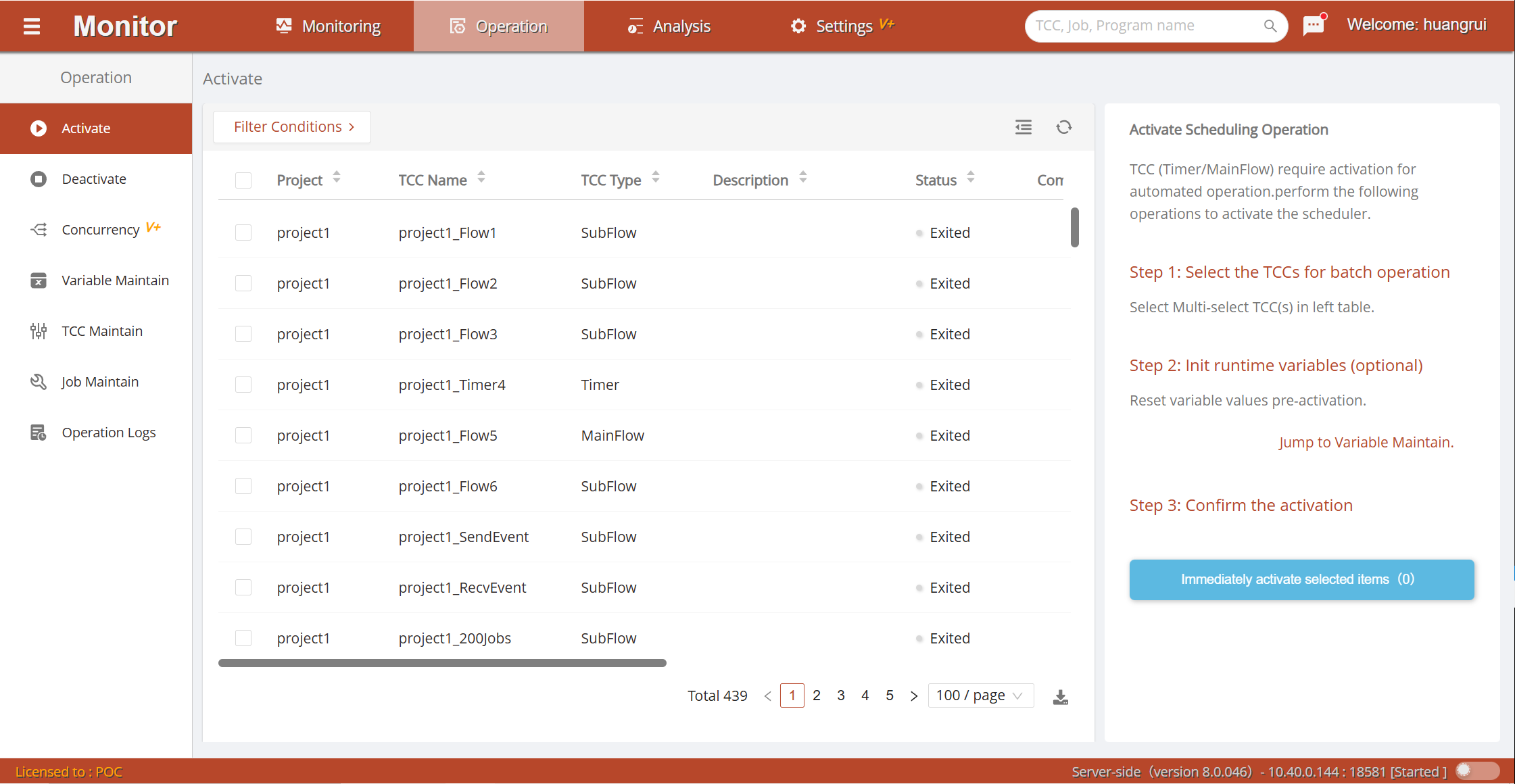
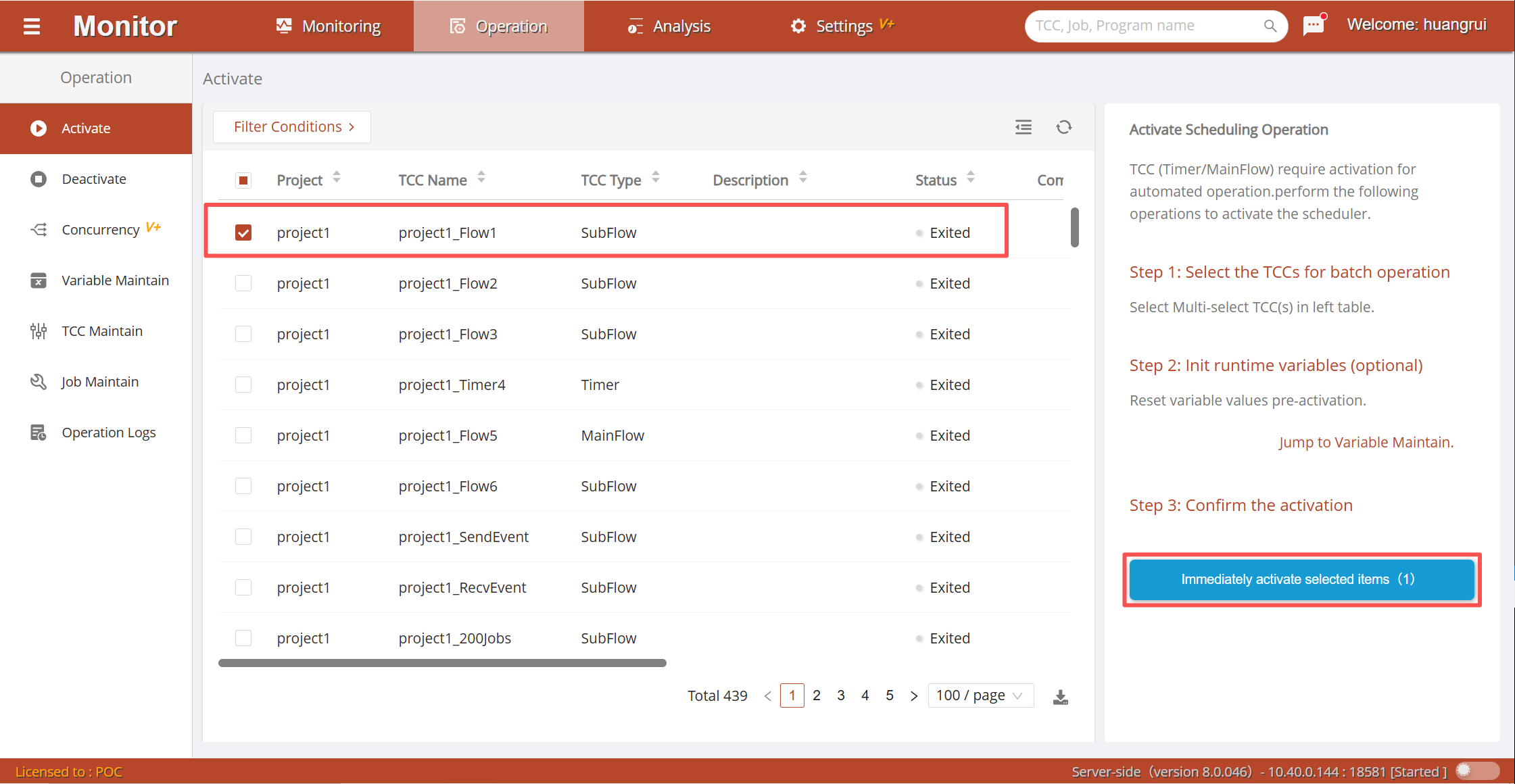
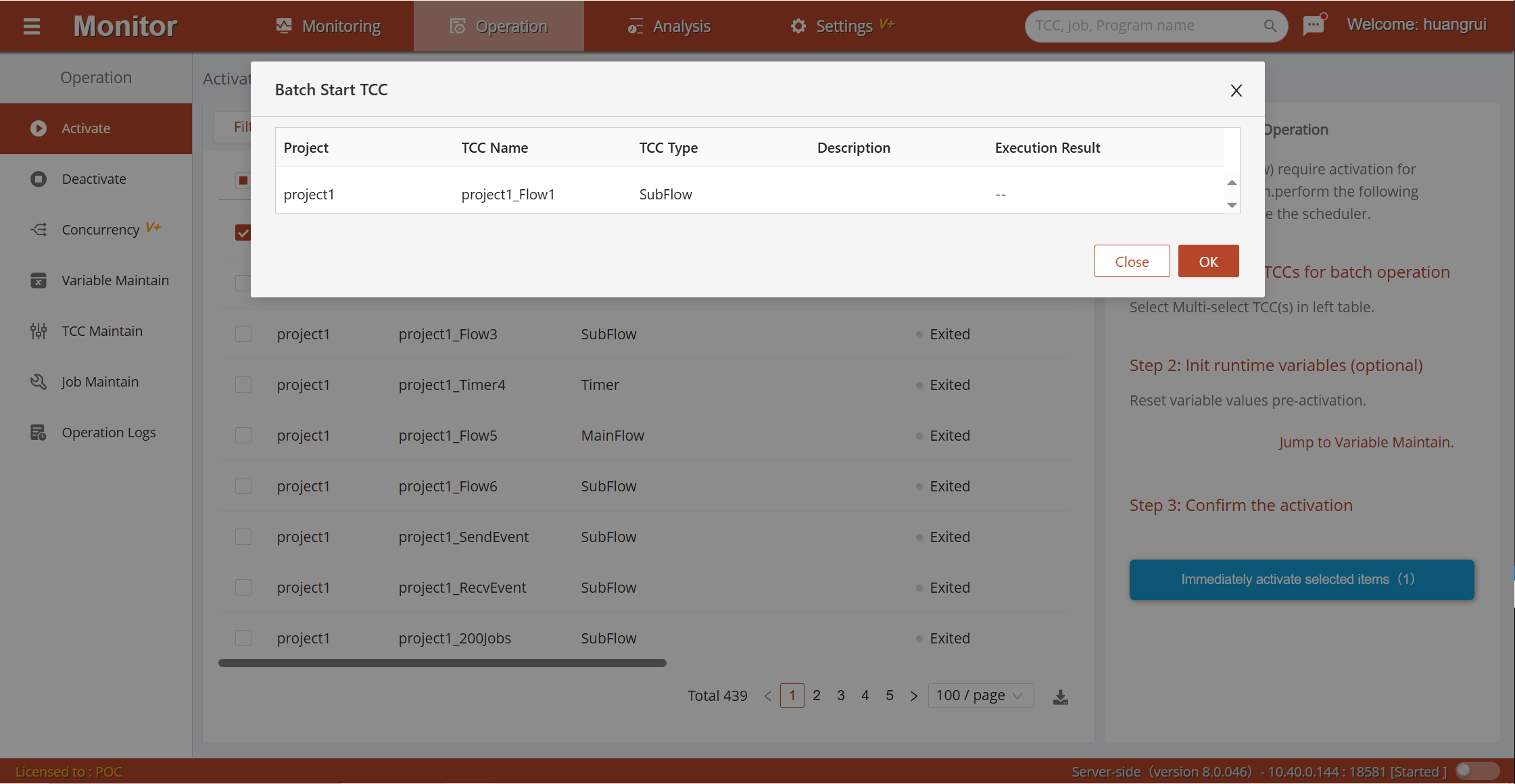
The right operation panel also provides a shortcut to set job container runtime variable values.
Deactivate
Deactivating specifically refers to stopping job containers with automated execution characteristics: MainFlow and Timer. The operation process is similar to the Activate Container section above and will not be repeated. There are two deactivation methods:
Stop: Issues a stop command and waits for running jobs to finish.Stop and Interrupt Jobs: Issues a stop command and attempts to interrupt jobs currently running.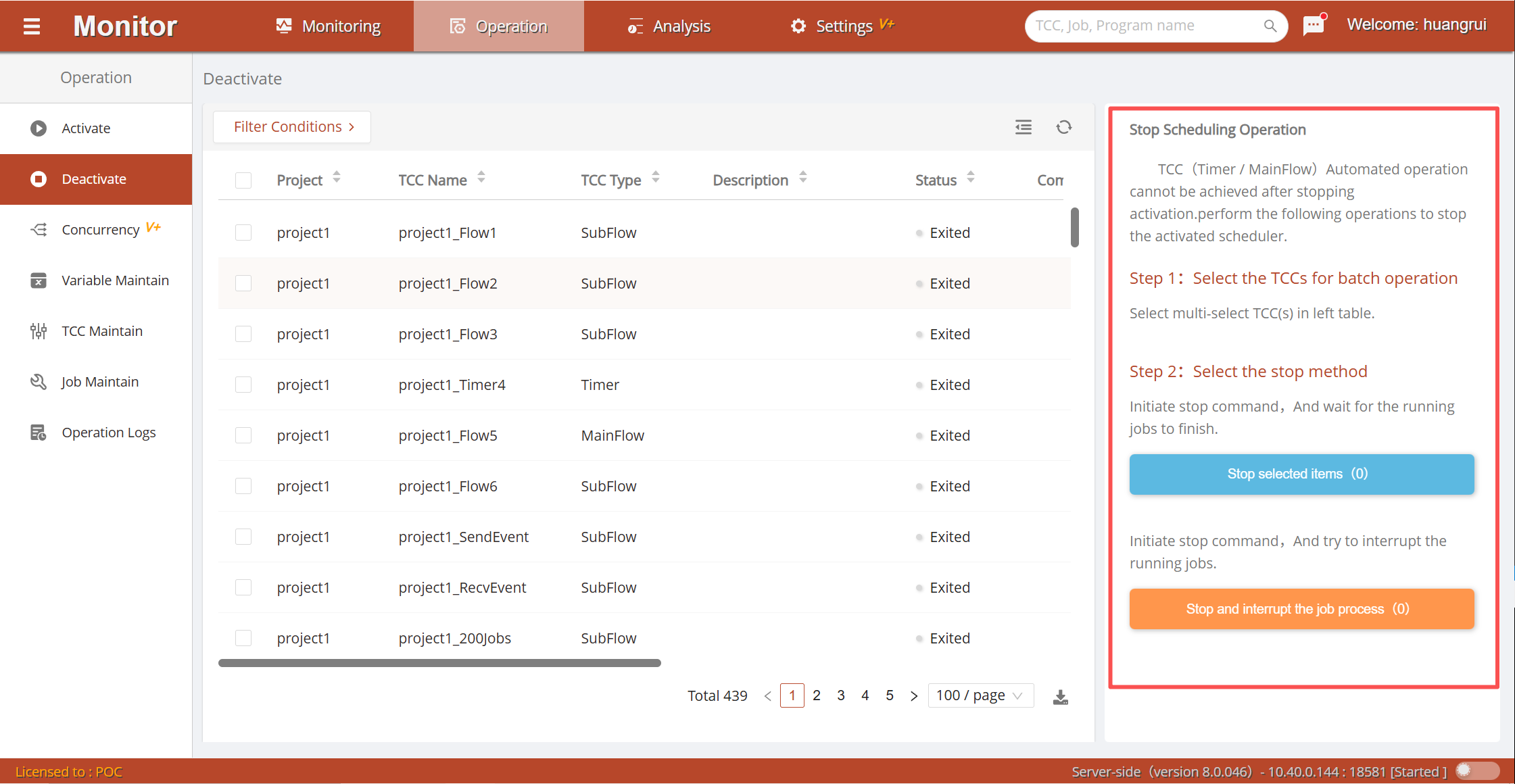
Note: By default, interrupting jobs calls the system command to kill the job program process. If the job process is managed by a third-party container, you need to configure a stop plugin for the job type, and the stop plugin calls the third-party container to interrupt the program process.
Batch Operations
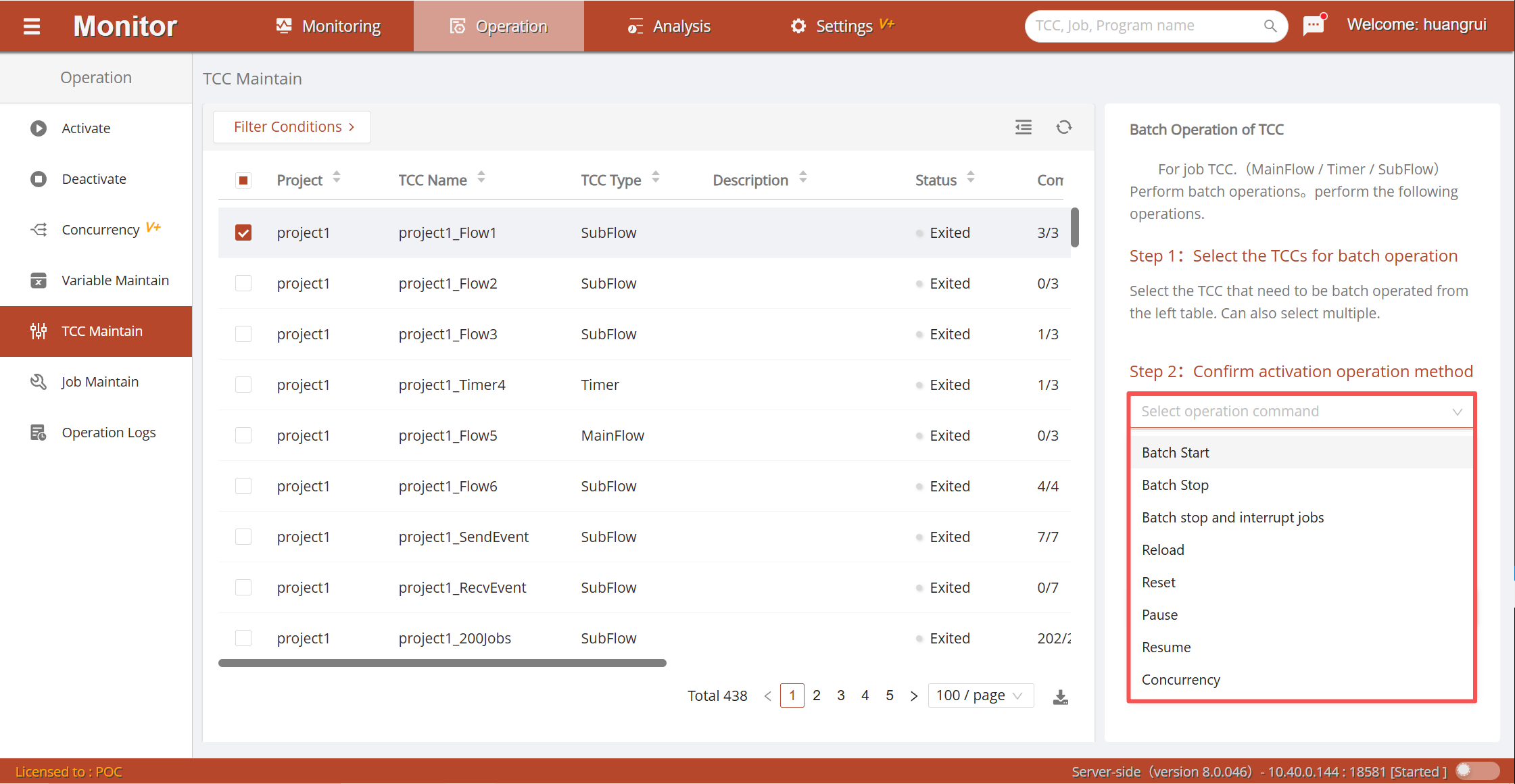
Batch operations perform Start, Stop, Stop and Interrupt, Reset, Reload, Pause, or Unpause operations on job containers. The list displays information about all types of job containers, such as running batch, running status, release status, etc. Use the toolbar to filter job containers by project scope, job container type, and keywords. Select (multiple selection supported) the job containers to operate on in the list. Select an operation command in the right operation panel and click the Execute Now button to pop up the Batch Operation execution window. Click the Confirm button to start executing batch commands. During batch execution, you can interrupt operations that have not yet been executed.
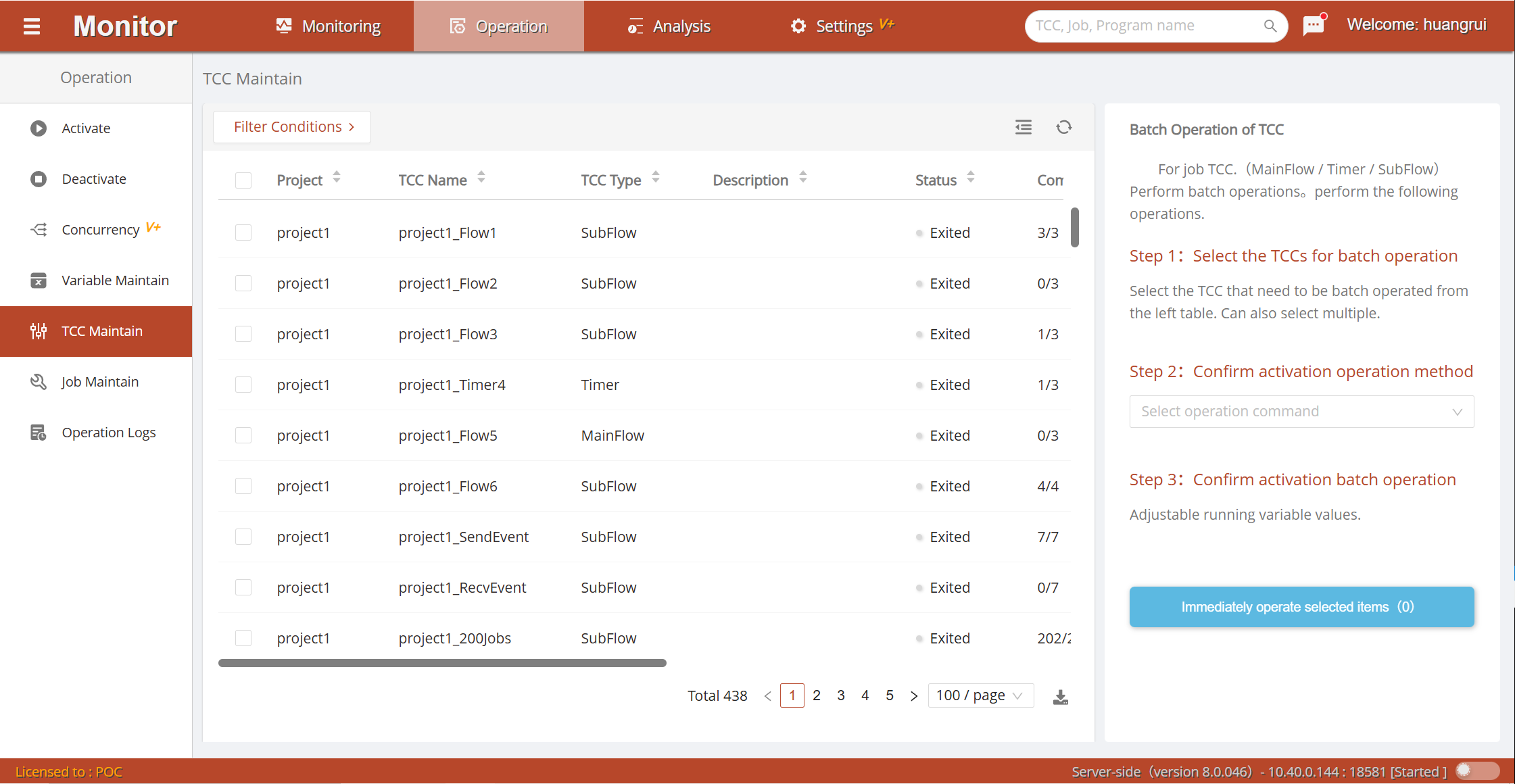
After completion, the execution status is reported in the Execution Results section. The detailed operation methods are as follows:
Start: Starts the job container in normal mode.Stop: Issues a stop command and waits for running jobs to finish.Stop and Interrupt Jobs: Issues a stop command and attempts to interrupt jobs currently running.Reset: Sets all job running statuses to initial unrun state (job container must be in stopped state).Reload: Loads the latest released job container information and sets all job running statuses to initial unrun state (job container must be in stopped state).Pause: After the job container finishes the current job, it locks and does not run subsequent jobs.Unpause: Restores the job container's paused state and continues running subsequent jobs.
Parallelism
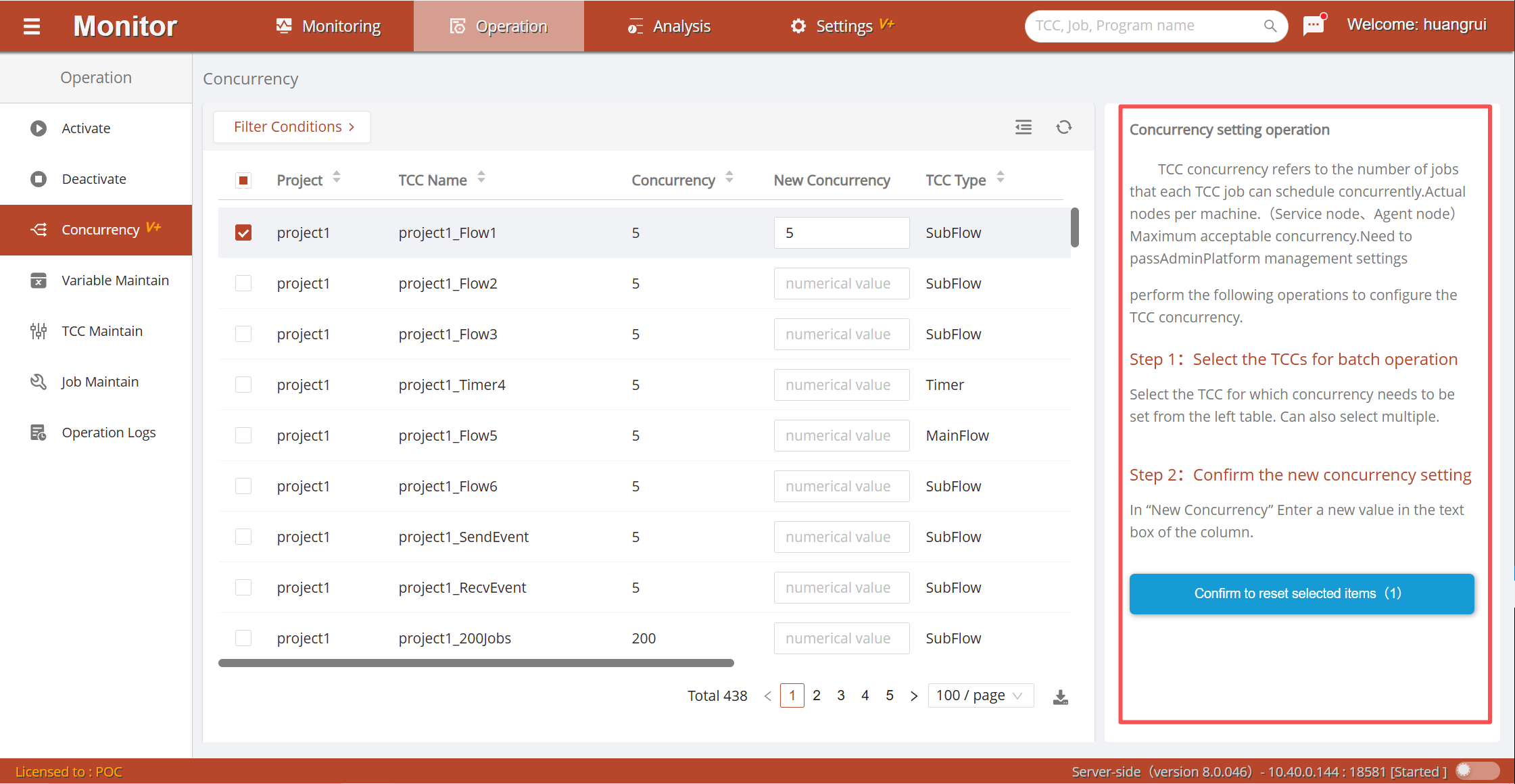
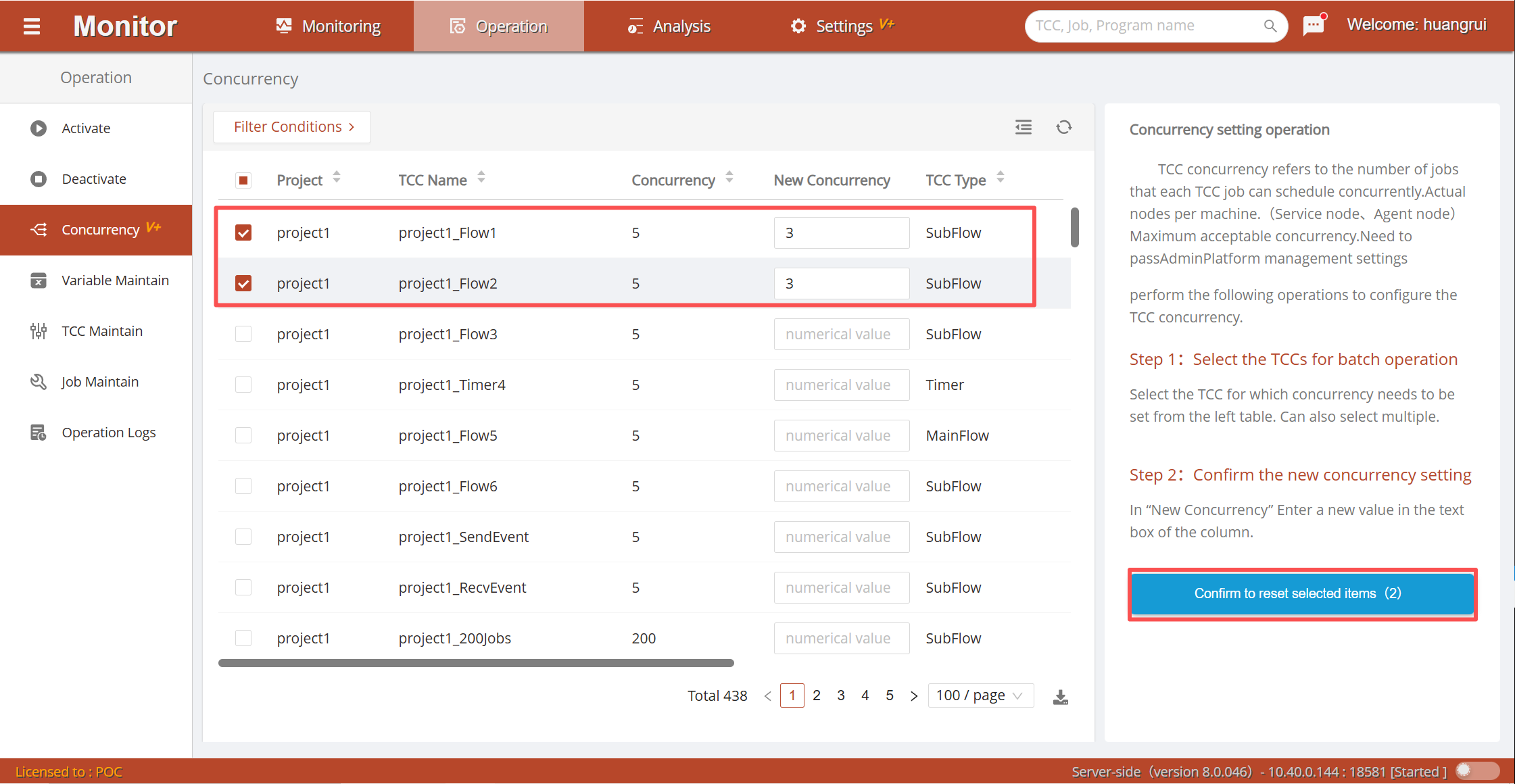
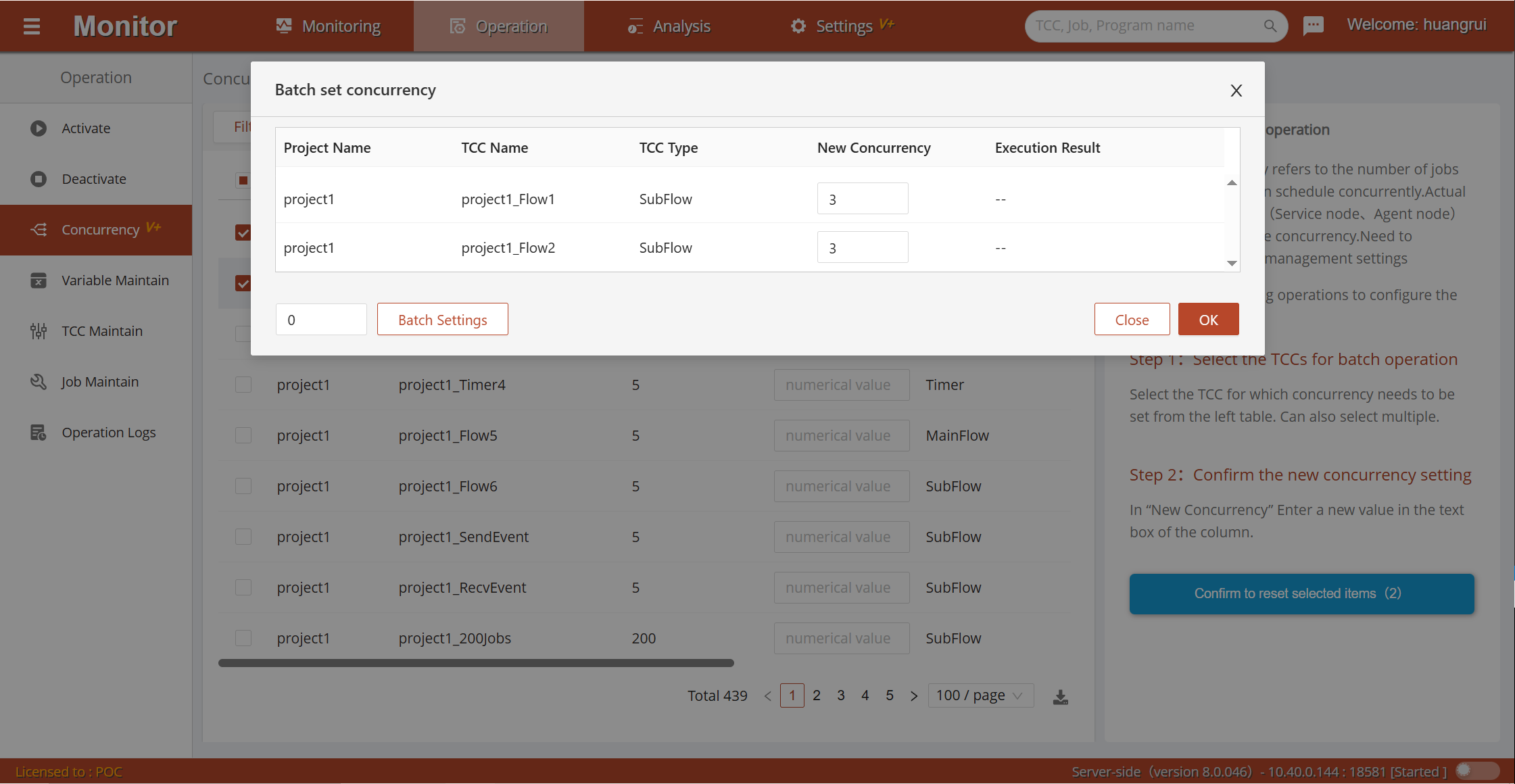
The parallelism of a job container is used to control the number of jobs running simultaneously within it. It is a more granular parameter than the platform node parallelism for controlling concurrent job execution. The list displays the current parallelism of job containers. Enter a value in the New Parallelism cell. After selecting the job container data rows to modify, click the Confirm Reset button in the right operation panel to pop up the Batch Set Parallelism window. Click the Confirm button to start execution. During batch execution, you can interrupt operations that have not yet been executed. After completion, the execution status is reported in the Execution Results section.
<br/><br/>
 <br/><br/>