User and User Group Management
User Group Management
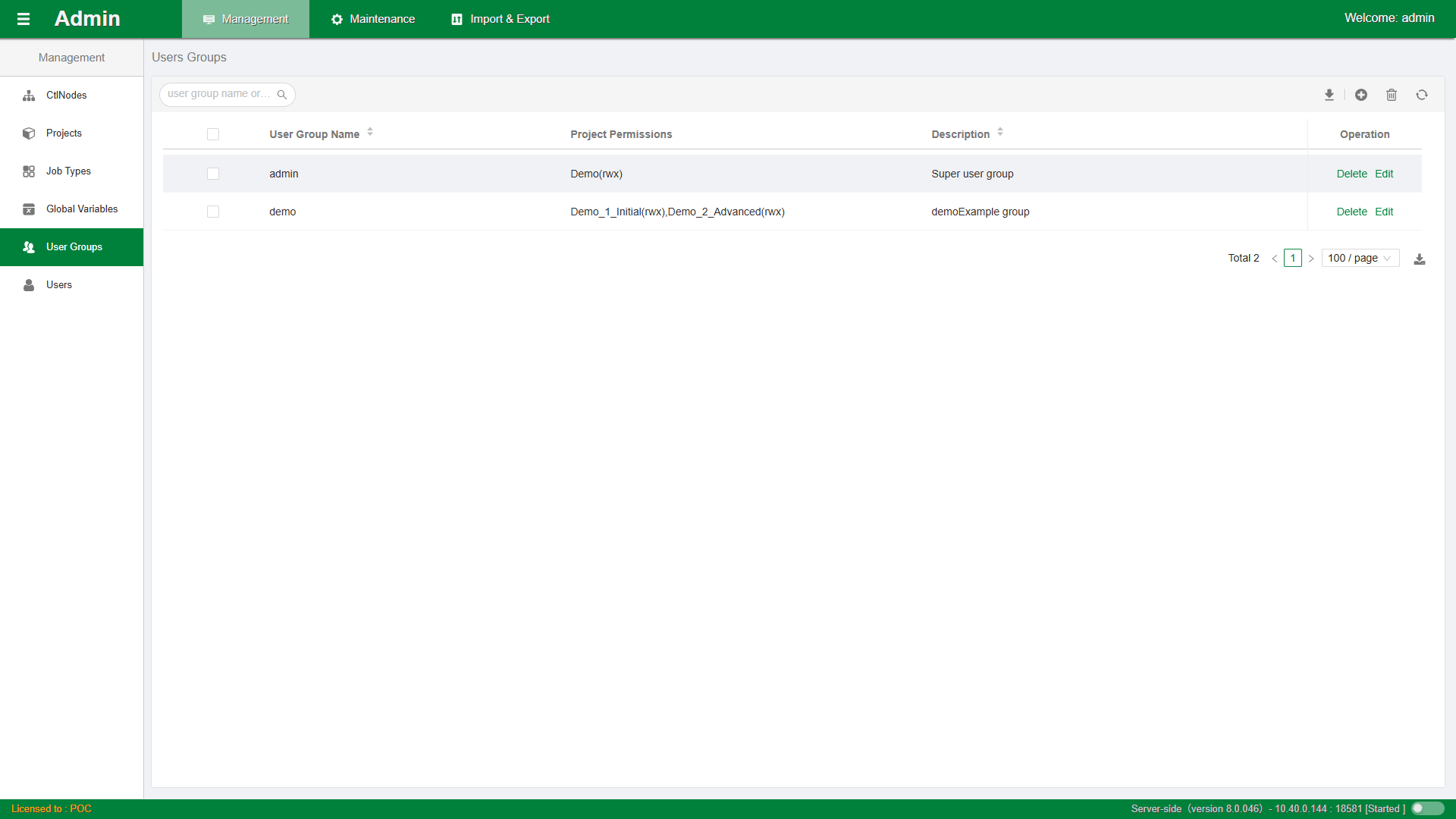
User group management mainly provides project permission management under groups, including read, write, and execute permissions. As shown in the figure:
Click the + button in the upper-right corner to open the Add User Group window, as shown in the figure:
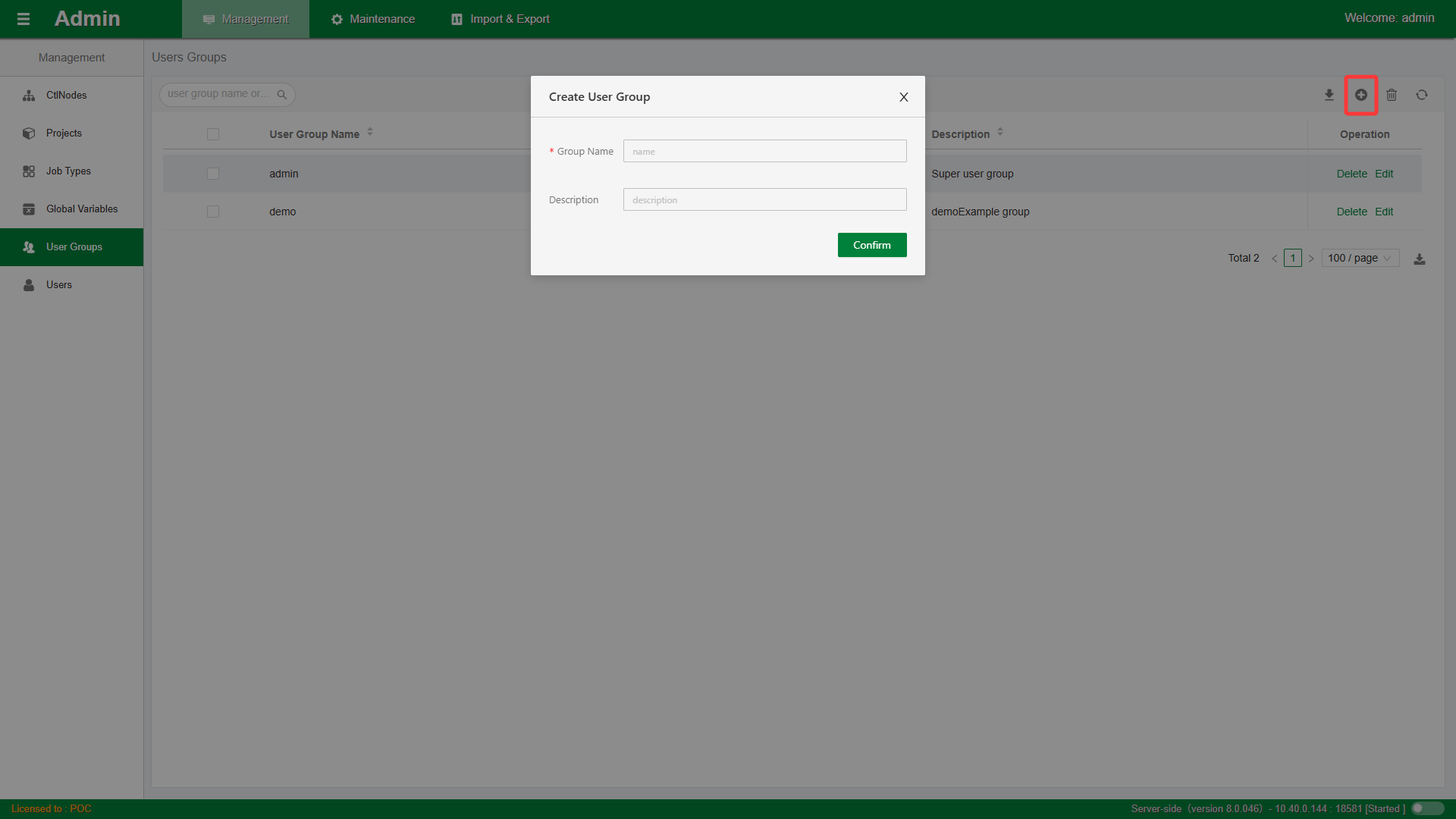
Follow the prompts to enter the user group name and description. Note that once the user group name is confirmed, it cannot be modified. Click the Submit button and wait for completion.
Edit User Group
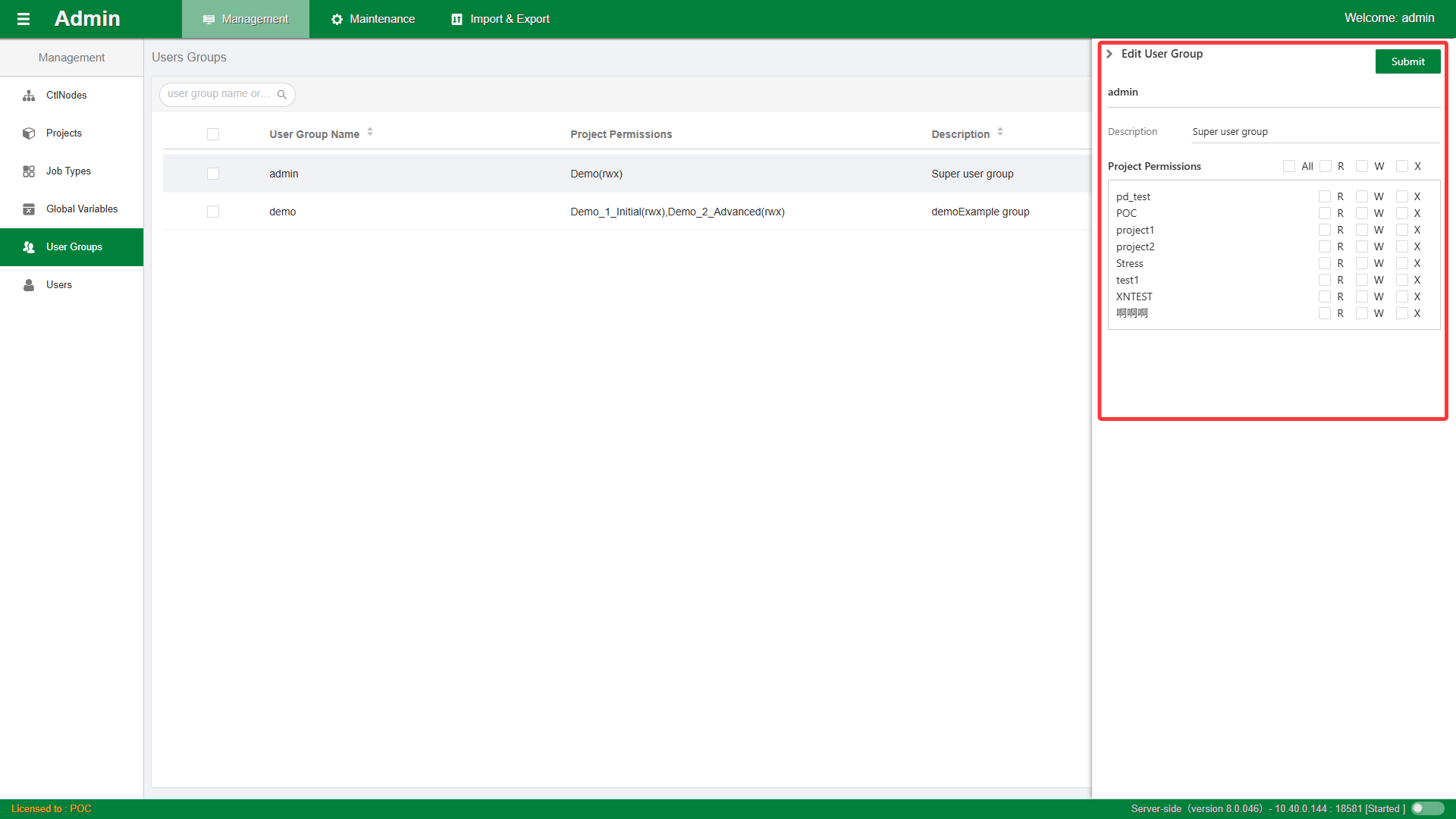
Click the Edit button in the list to open the current user group's sidebar edit window. Further modify and configure the user group's description and project permissions. Click the Submit button and wait for completion.
Delete User Group
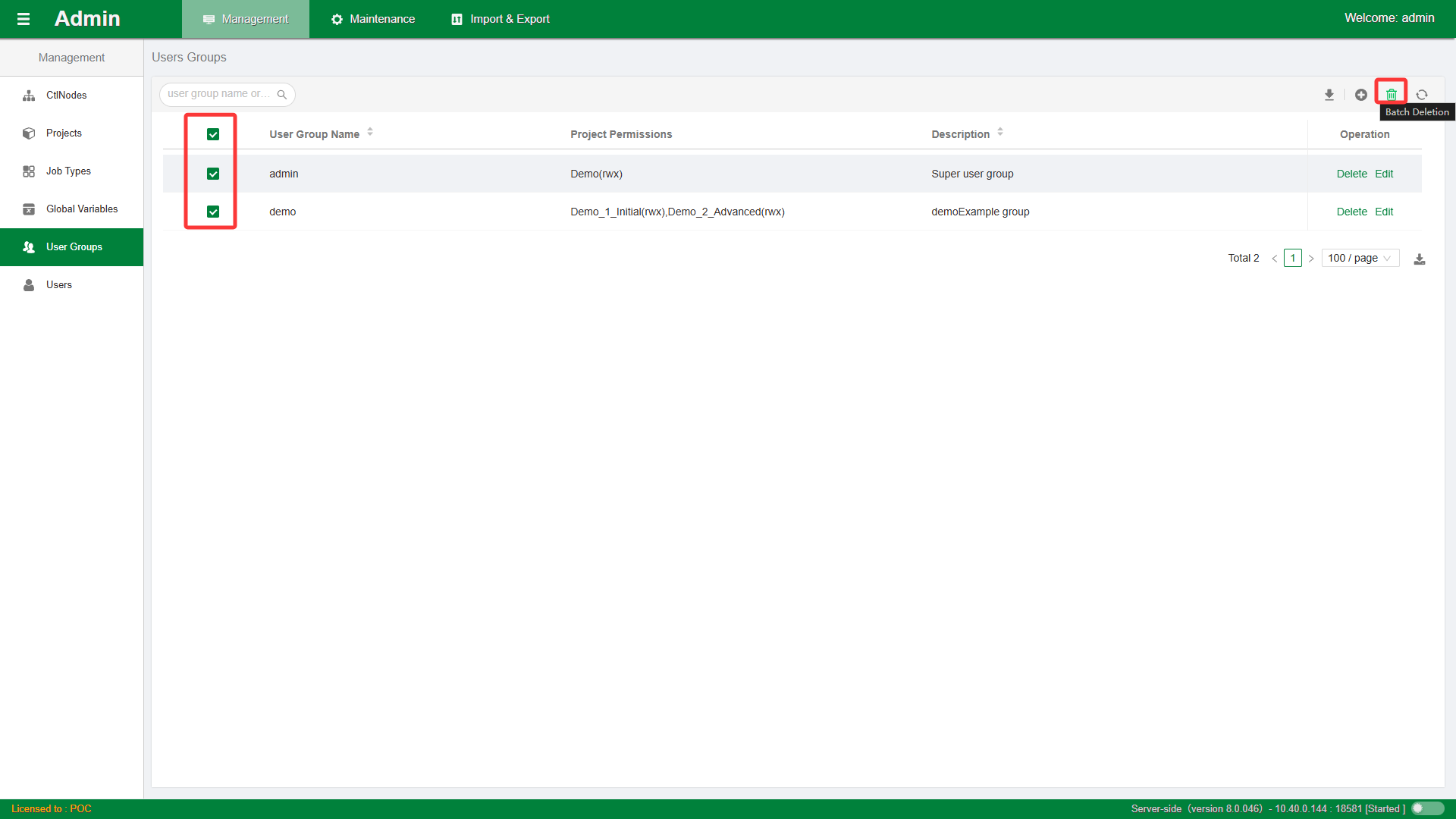
Click the Delete button in the list to delete the current user group. You can also select multiple user groups for batch deletion.
User Management
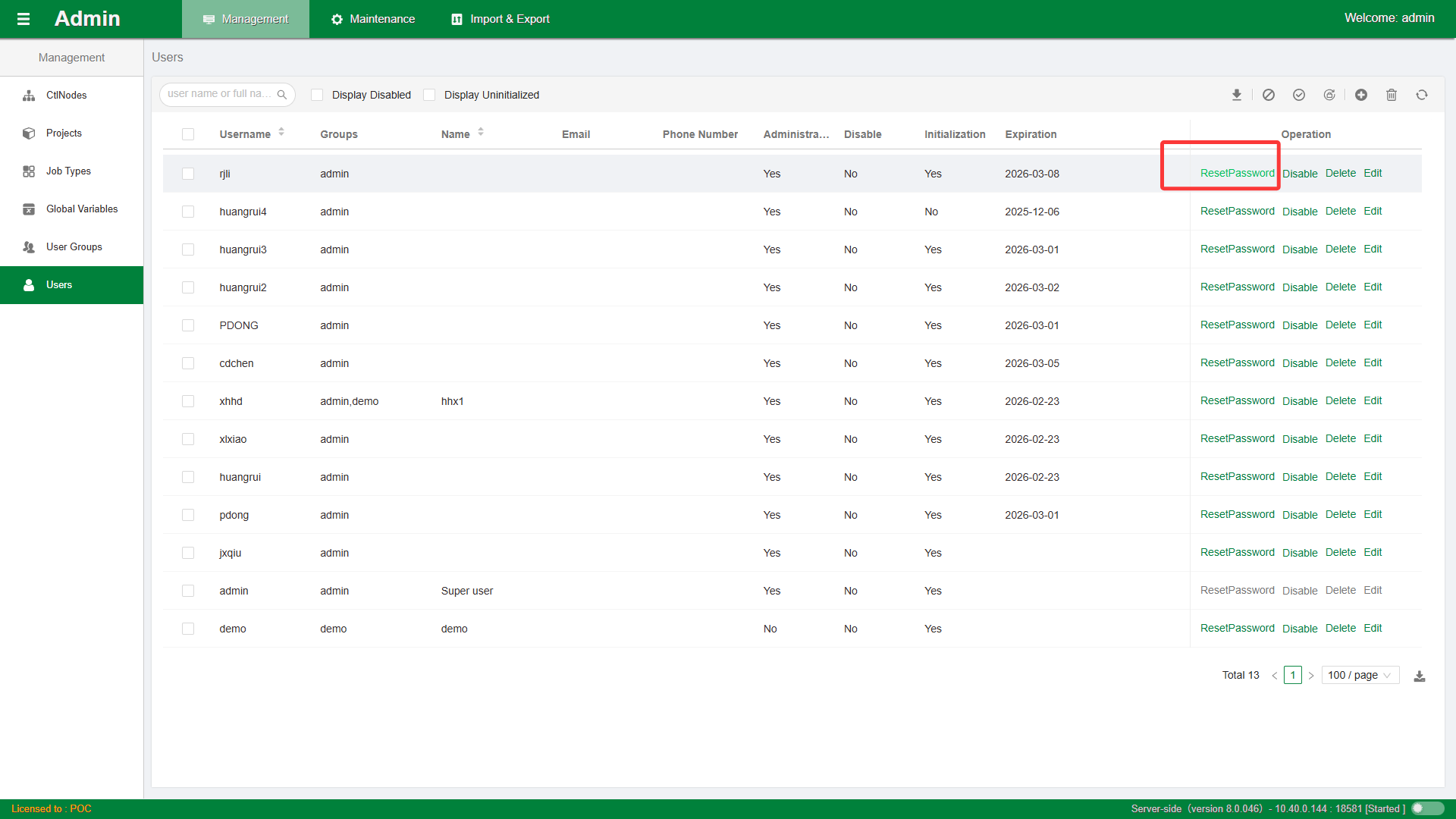
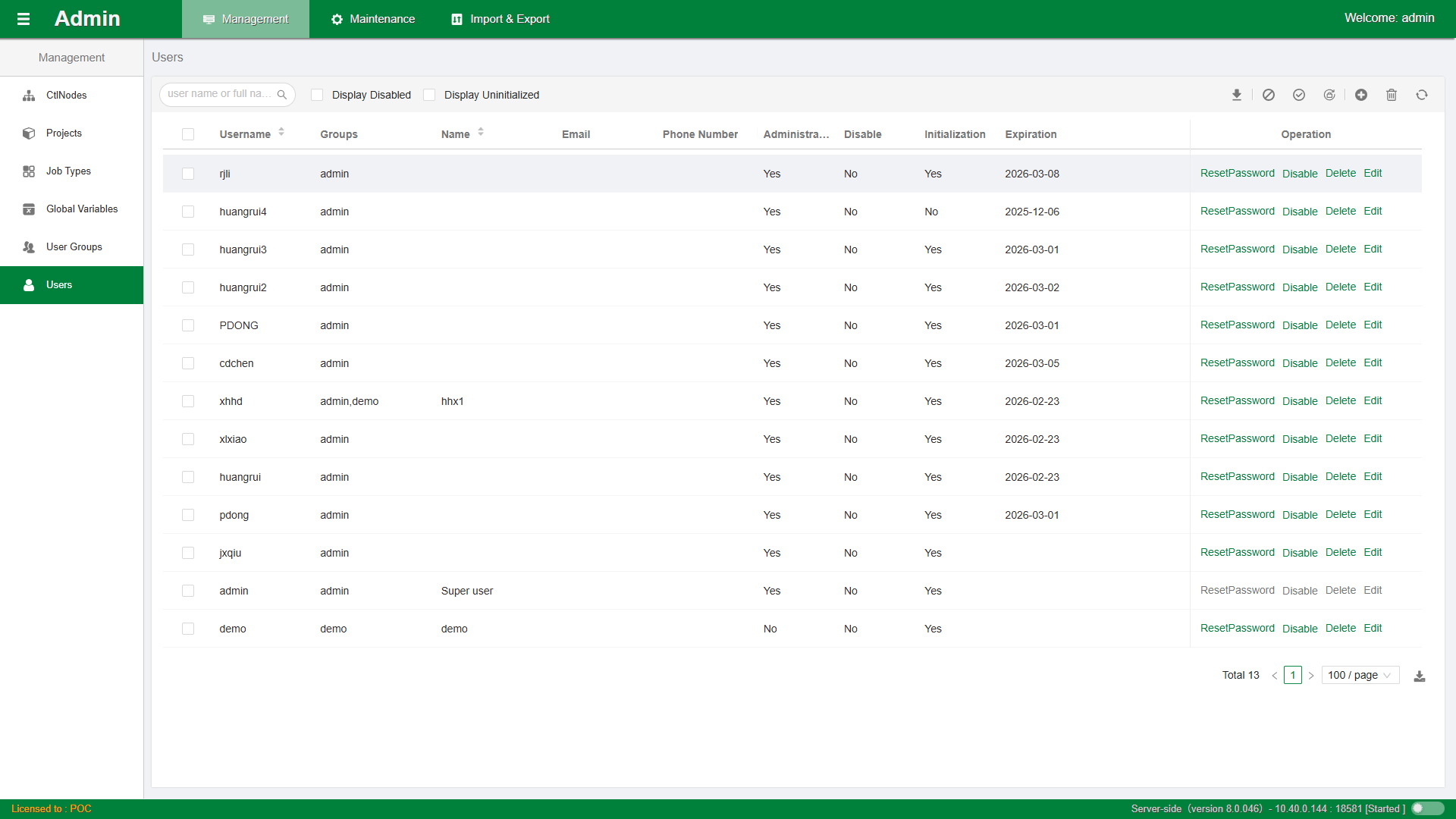
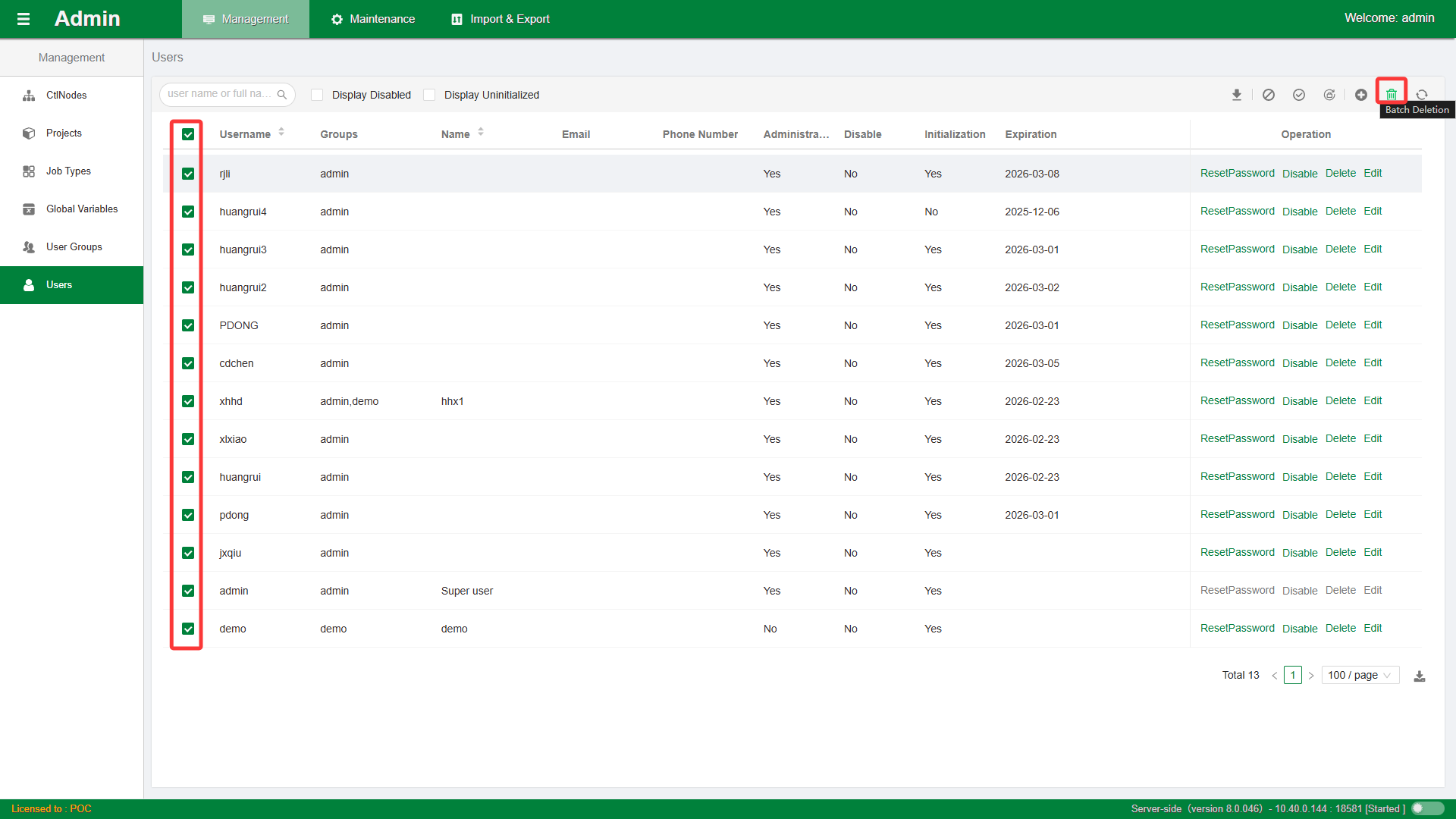
User management mainly divides users into administrator users and ordinary users. A user can be configured with one or more user group roles. As shown in the figure:
Add User
Click the + button in the upper-right corner to open the Add User window, as shown in the figure:
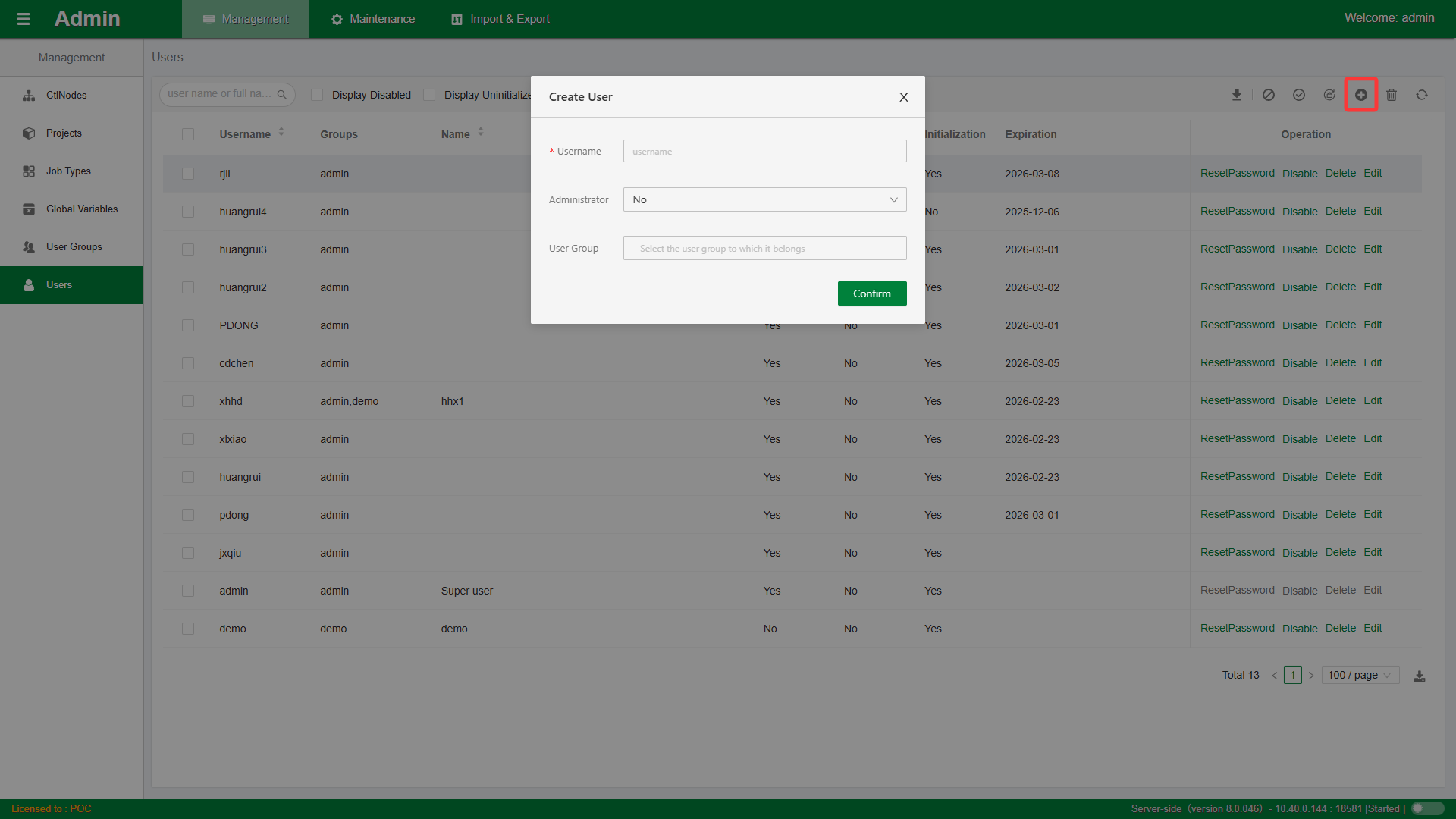
Follow the prompts to enter the username, select administrator permissions, and assign the group. Note that once the username is confirmed, it cannot be modified. Click the Submit button and wait for completion.
The default password for a new user is randomly generated by the system.
Edit User
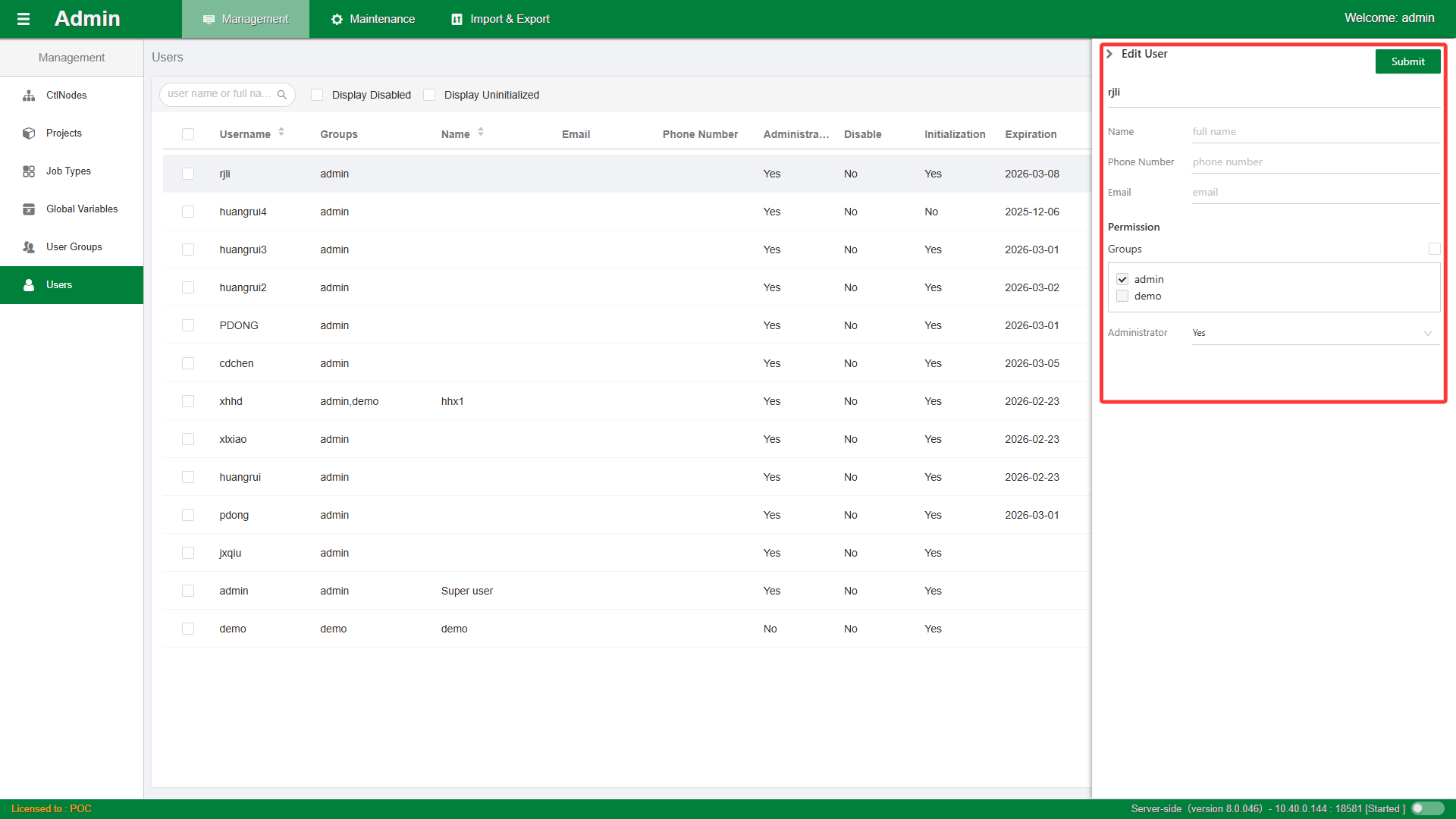
Click the Edit button in the list to open the current user's sidebar edit window. Further modify and configure the user's name, phone number, email, and permissions. Click the Submit button and wait for completion.
Delete User
Click the Delete button in the list to delete the current user. You can also select multiple users for batch deletion.
Reset Password
Click the Reset Password button in the list to reset the current user's password.